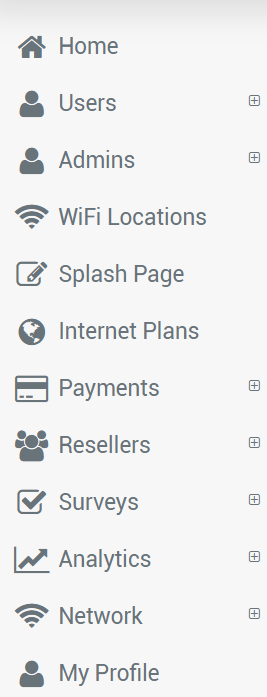
Admins
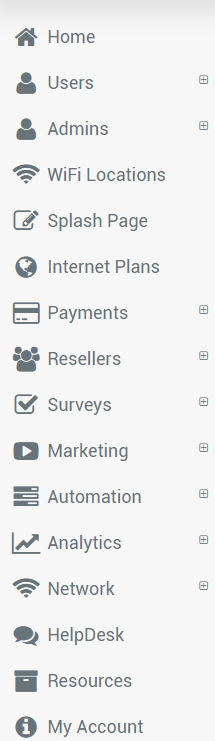
The Admins panel is used to create administrator accounts and control which areas of the WiFi Hotspot platform each administrator can access.
Different roles can be assigned for account management, individual WiFi locations, marketing, billing, reporting, voucher sales, and other administrative tasks. The primary administrator account cannot be deleted or have its email address changed.
Admins List
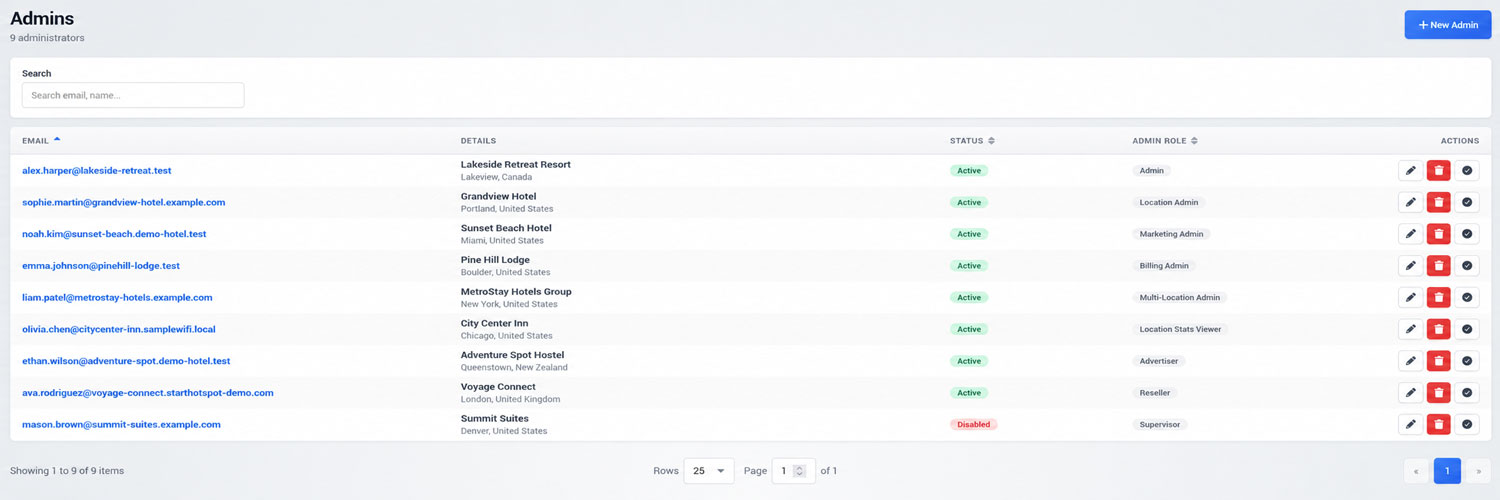
Go to Admins to view all administrator accounts.
The table displays:
Administrator email
Name and location details
Account status
Assigned admin role
Available actions
Use the search field to find an administrator by name or email address.
The action buttons can be used to:
Edit the administrator
Delete the administrator
Open or confirm the administrator account
Click New Admin to create another administrator.
Create a New Administrator
During signup to the Antamedia Cloud WiFi portal, default admin will be created.
To create a new admin, go to the Admins page and click the New Admin button.
Go to Admins.
Click New Admin.
Enter the administrator email address.
Select the required Admin type.
Enter the administrator’s name and contact details.
Select the correct country, city, and time zone.
Open the Security tab and configure the password and security options.
Click Save.Administrator credentials can also be sent to the registered email address.
Details
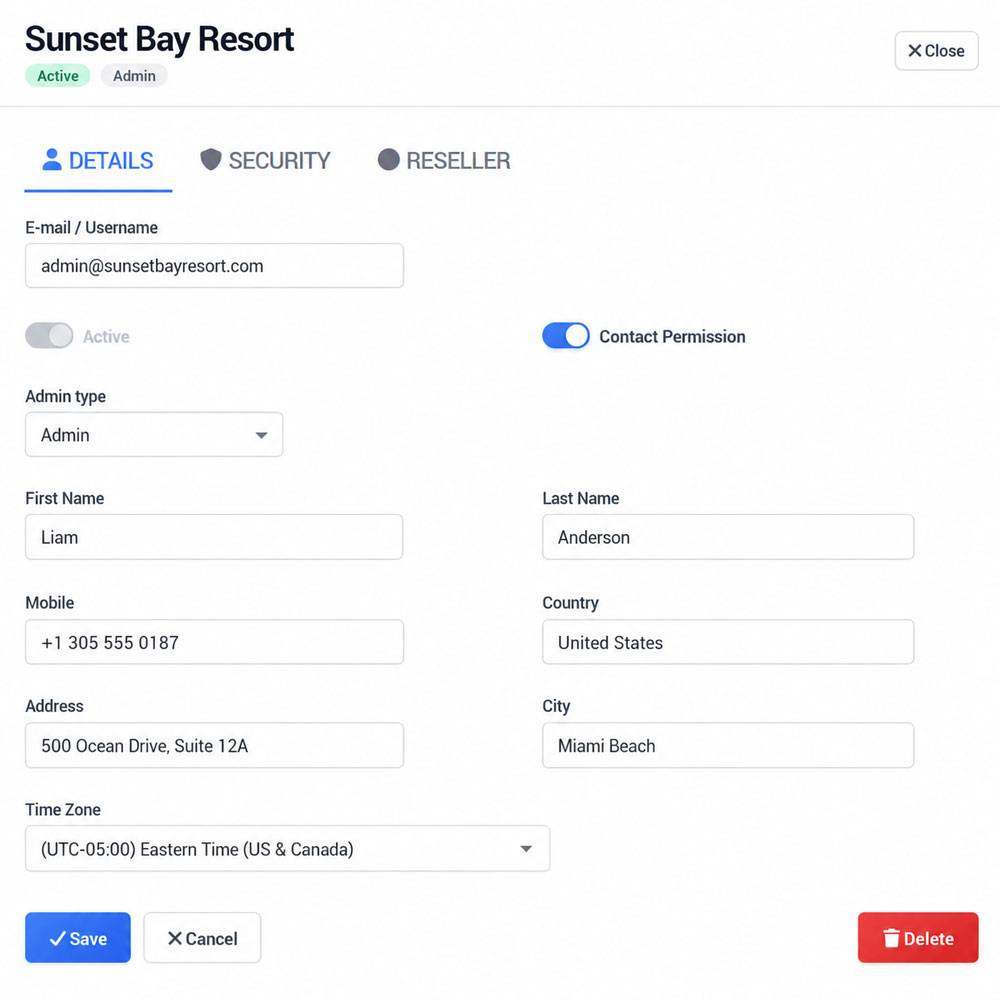
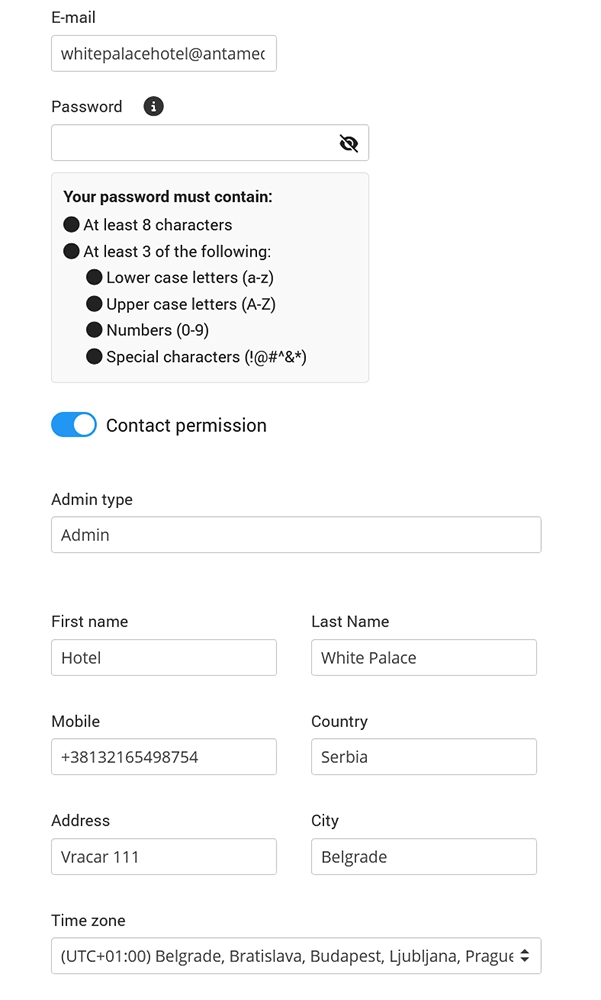
The Details tab contains the administrator’s account and contact information.
Configure the following fields:
E-mail / Username
The email address used to sign in to the WiFi Hotspot platform.
Active
Enables or disables administrator access.
Contact Permission
Records whether the administrator has agreed to receive account-related communications.
Admin type
Defines which platform sections and functions the administrator can access.
First Name and Last Name
The administrator’s display name.
Mobile, Country, Address, and City
Optional contact and location information.
Time Zone
Controls how dates, reports, and activity times are displayed for the administrator.
Click Save after making changes.
Security
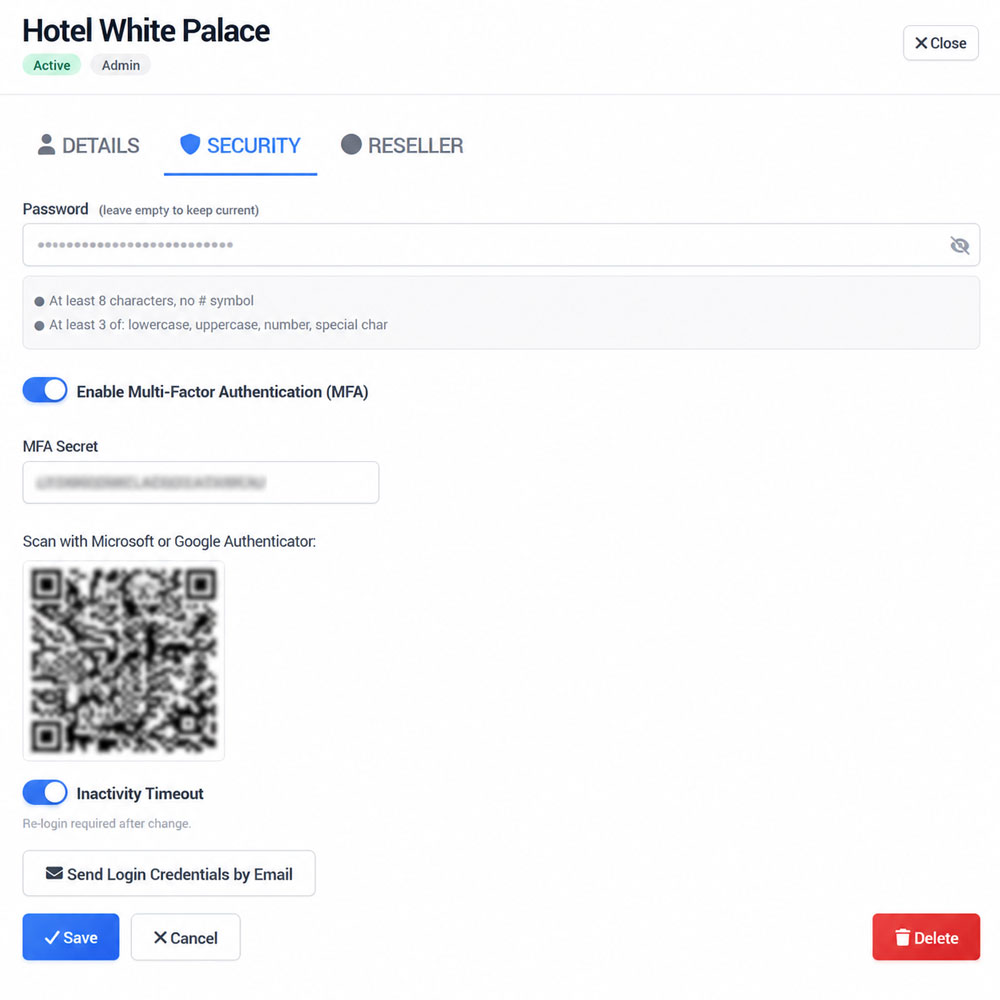
Open the Security tab to configure login protection.
Password
Enter a new password only when the existing password needs to be changed. Leave the field empty to keep the current password.
The password must:
Contain at least eight characters
Not contain the
#symbolInclude at least three of the following: lowercase letter, uppercase letter, number, or special character
Invites
As the main admin, you have the ability to create public or personal invites and invite users to create admin accounts.
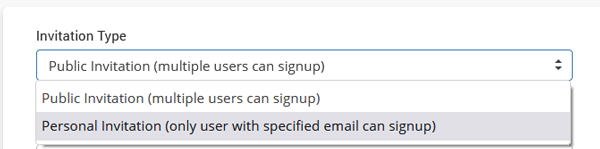
With Public Invitation, multiple users can signup.
With Personal Invitation, only user with specified email can signup.
For this feature, you will need to configure Email server settings on My Account/Email page.
To create an invite, go to Invites and click New Invite.
Select Invitation Type.
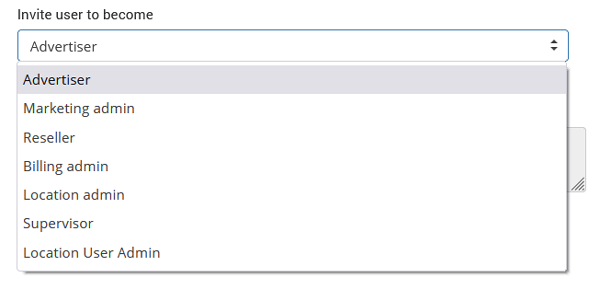
From Invite a user to become select admin account type.
Type User Email, Name, Email subject, Headline, Custom invitation text, and Email Footer.
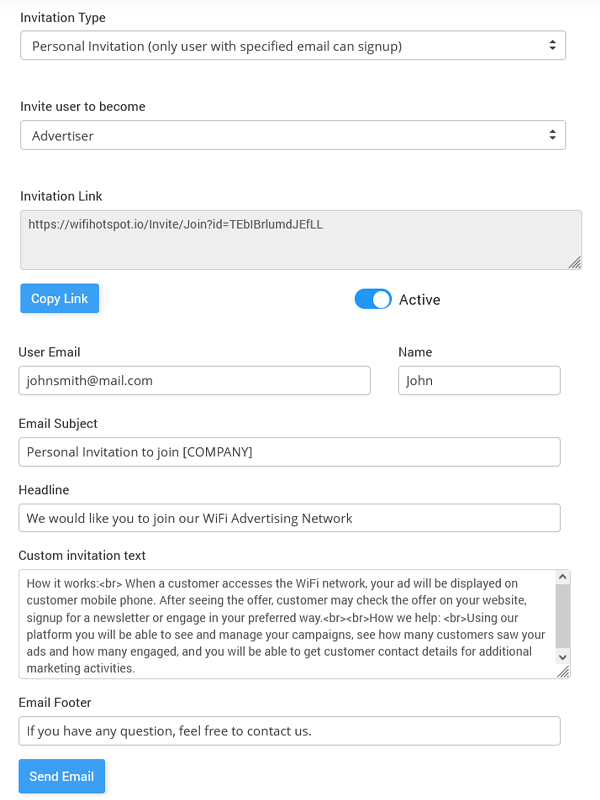
The user will receive an email.
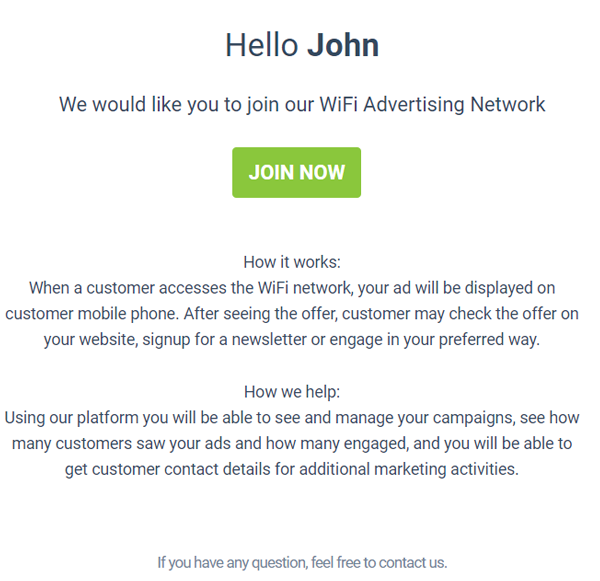
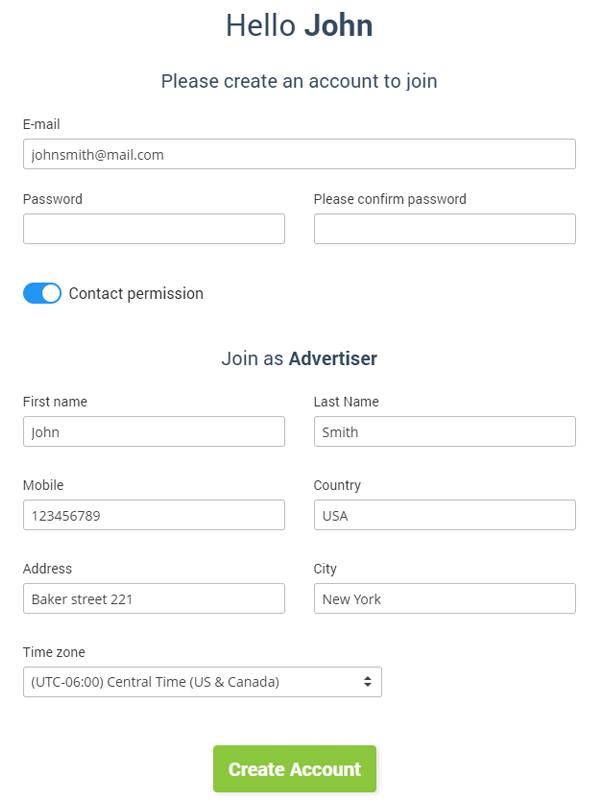
By clicking Join Now button user is able to create an account.
Multi-Factor Authentication
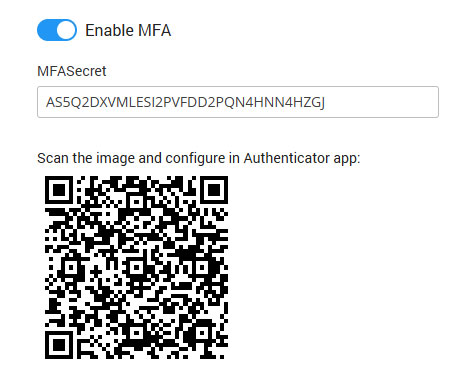
Increase your account security by enabling Multi-Factor Authentication using Microsoft or Google Authenticator app.
Enable Multi-Factor Authentication (MFA) to require an additional verification code during administrator login.
Enable Multi-Factor Authentication.
Open Microsoft Authenticator or Google Authenticator.
Add a new account.
Scan the displayed QR code.
Click Save.
Enter the generated one-time code during the next login.The MFA secret and QR code should be kept private and should not be shared with other users. The platform supports both Microsoft Authenticator and Google Authenticator..
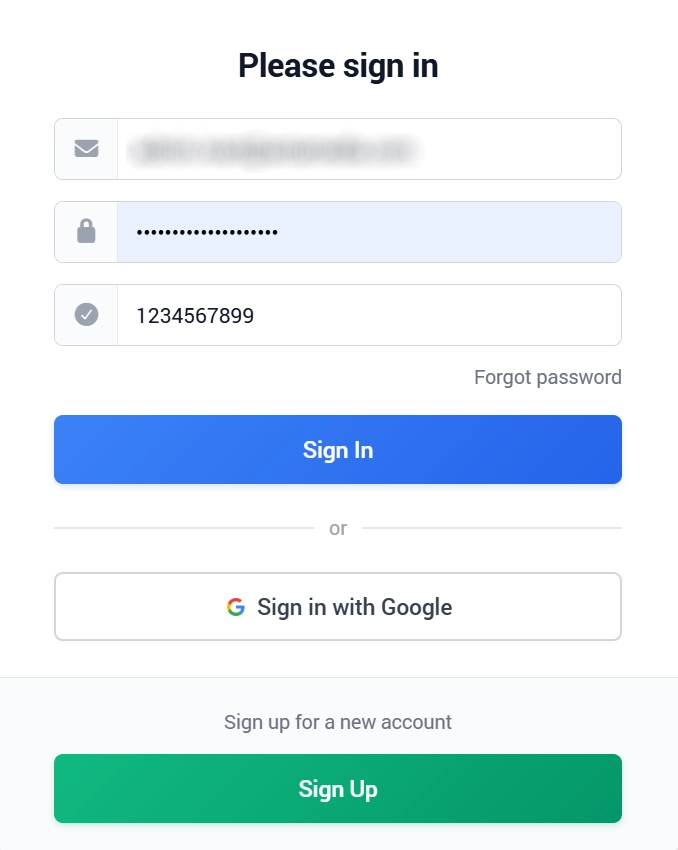
Upon login, you will be asked to provide MFA code to login to your admin account.
Inactivity Timeout
Enable Inactivity Timeout to end inactive administrator sessions and require the administrator to sign in again.
Use Send Login Credentials by Email to send the login information and portal address to the administrator.
My Profile
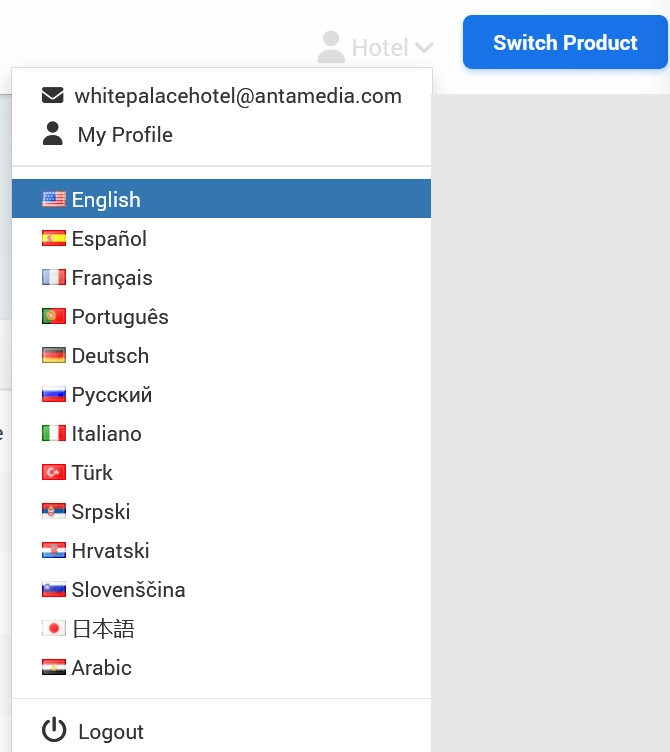
When the user logs in as admin, he can edit details from the self-service My profile page.
All admin details can be changed except Email and Admin type.
Configure MFA with Microsoft Authenticator
Open the Microsoft Authenticator app
Tap the “+” icon to add a new account.
Add an Account
Select “Other account (Google, Facebook, etc.)” and scan the QR code provided in the Cloud WiFi Portal > Admin > Security tab.
Retrieve the One-Time Password (OTP)
Return to the main page of the Authenticator app.
Select the newly added account and copy the One-time password code (OTP) displayed.
Log In to the Cloud WiFi Page
Open the Antamedia Cloud WiFi login page and enter your username.
Type your password. When you click on the password field, an MFA Code field will appear.
Enter the MFA Code
Paste the copied OTP from the Authenticator app into the MFA Code field.
Sign In
Click Sign In to complete the login process.
Ensure you have a stable internet connection and the Microsoft Authenticator app installed and configured properly before starting this process.
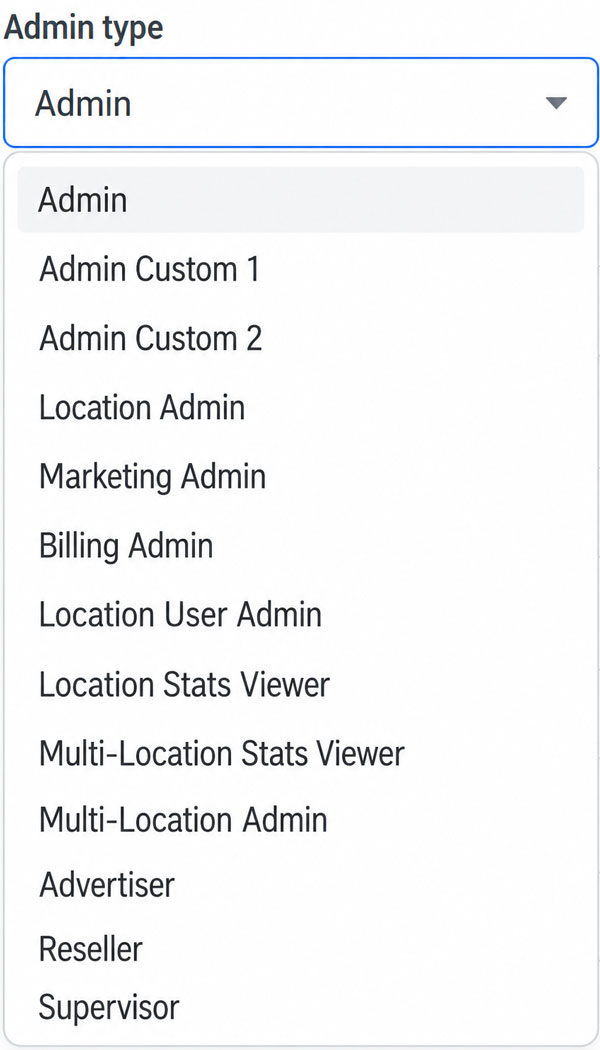
Available Admin Roles
Select the role that provides only the access required for the administrator’s responsibilities.
Admin
Provides full access and control over the WiFi Hotspot account.
Admin Custom 1 and Admin Custom 2
Custom administrator profiles used for account-specific permission configurations.
Location admin
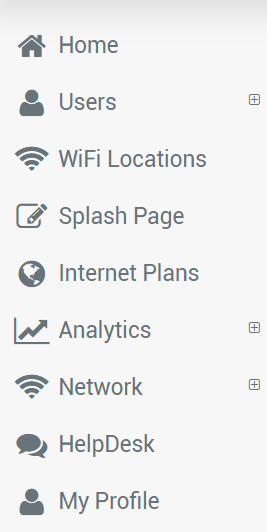
Manages users, WiFi locations, splash pages, analytics, and other permitted settings for an assigned location.
Marketing Admin
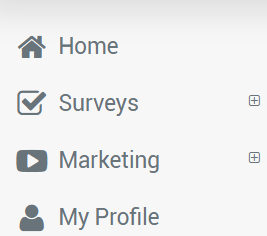
Creates and manages surveys, advertising, and marketing campaigns.
Billing admin
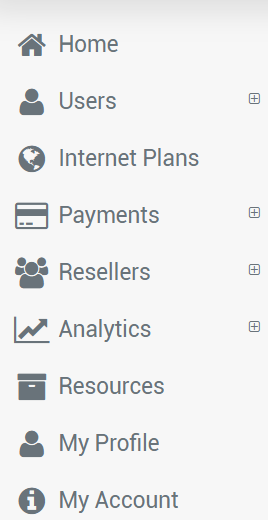
Manages users, internet plans, payments, analytics, and licensing-related functions.
Location User Admin
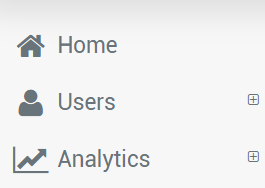
Location User Admin can create Users for that specific WiFi location and access the Analytics and License page.
Location Stats Viewer
Location Stats Viewer can access and check Analytics for that specific WiFi location.
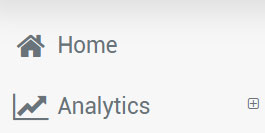
Multi-Location Stats Viewer
Multi-Location Stats Viewer can access and check Analytics on all WiFi locations.
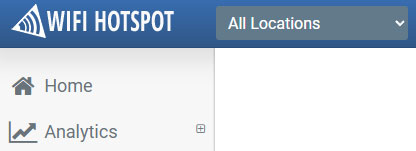
Multi-Location Admin
Multi-Location Admin can create Users and access the Analytics on all WiFi locations.
Reseller Admin
Reseller Admin can only create Users for that specific WiFi location.
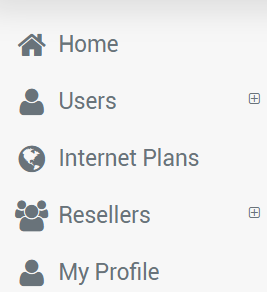
Advertiser Admin
Advertiser Admin can only create Ads.
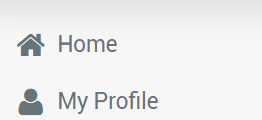
Supervisor Admin
As Supervisor Admin you can access and create Users, Admins,WiFi locations, Splash page, Internet plans, Payments, Surveys, Analytics, Network.