
WhatsApp Campaigns
WhatsApp Campaigns allow you to send messages, images, and promotional content to WiFi customers who provided a mobile phone number and are eligible to receive your communications.
Campaigns can be personalized, targeted by WiFi location, tested before delivery, and sent immediately or scheduled for later.
Configure WhatsApp
Before creating a campaign, configure the WhatsApp service under:
My Account → WhatsApp
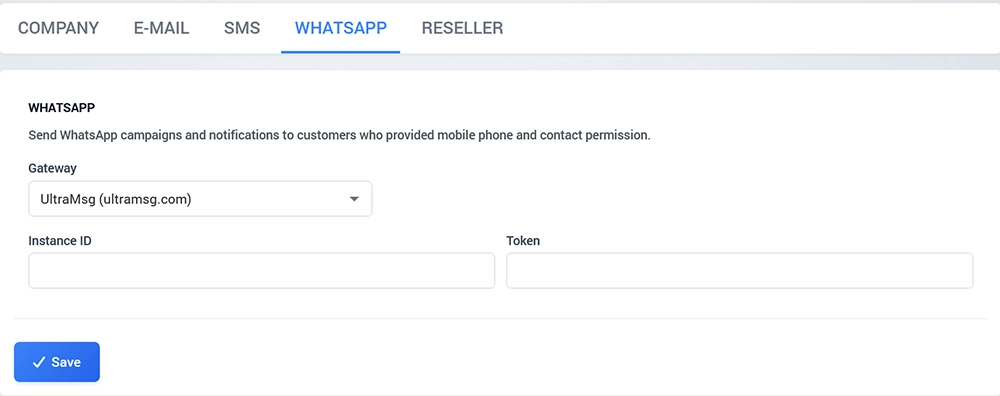
Select the available WhatsApp gateway and enter the credentials required by the provider.
For example, the UltraMsg integration requires an Instance ID and Token.
Save the configuration before creating a campaign.
Create a WhatsApp Campaign
Open:
WiFi Marketing → WhatsApp Campaigns
and click New Campaign.
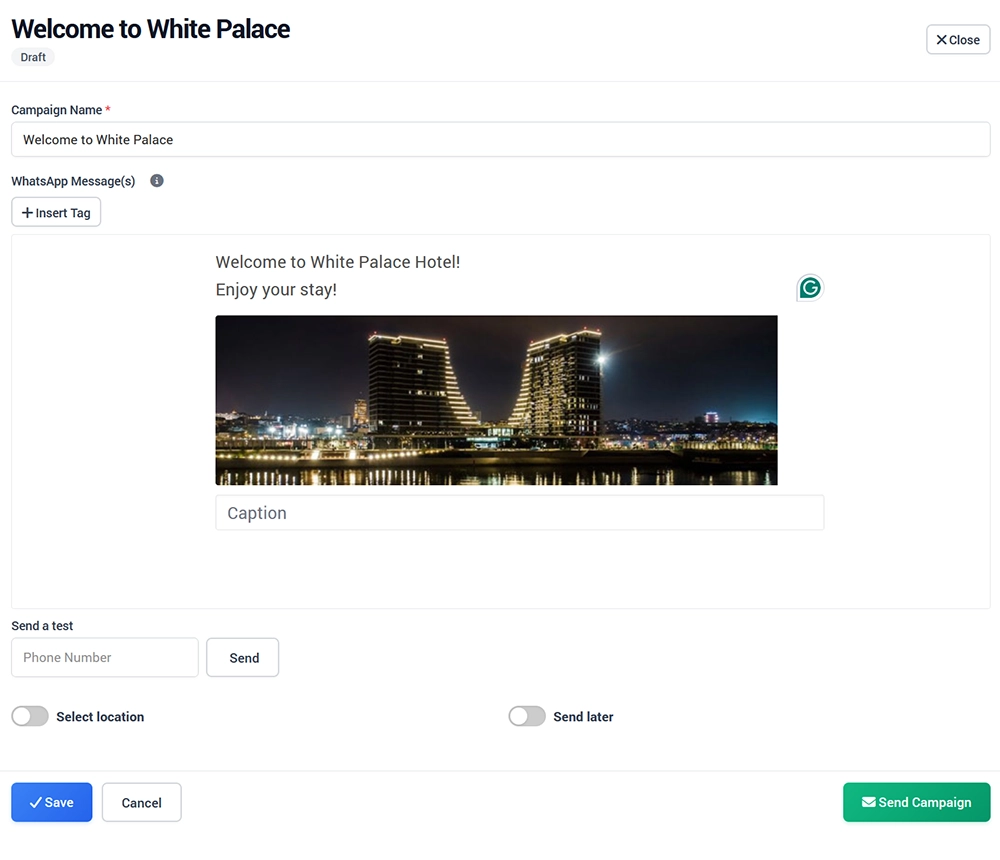
Campaign Name
Enter an internal name that helps identify the campaign.
For example:
Welcome to White Palace
The Campaign Name is used for administration and is not part of the message sent to customers.
WhatsApp Message
Use WhatsApp Message(s) to create the content that will be delivered to recipients.
Depending on the message, you can include:
Text
Image
Caption
Supported additional content
Keep the message concise and make the purpose of the communication clear.
For example:
Welcome to White Palace Hotel!
Enjoy your stay!
Insert Tags
Click Insert Tag to personalize the message with available customer information.
Tags can be used to insert supported profile values into the message automatically.
Only use personalization when the corresponding customer data is available.
Add Images and Captions
Images can be included to make WhatsApp campaigns more visual.
Use the Caption field to add supporting text when required.
For promotional campaigns, keep images optimized for mobile viewing and avoid placing important information only inside the image.
Send a Test
Always test the campaign before sending it to customers.
Enter a test Phone Number.
Click Send.
Confirm that the WhatsApp message is received.
Check text, personalization, images, captions, and links.
Use a real mobile device for the test.
Select Location
Enable Select location when the campaign should be sent only to customers associated with a particular WiFi location.
This is useful when different hotels, restaurants, venues, or properties need different WhatsApp messages.
Send Later
Enable Send later to schedule the campaign for a specific date and time.
Leave it disabled when the campaign should be sent immediately.
Save or Send Campaign
Use Save to store the campaign without sending it.
Use Send Campaign when the message has been reviewed and tested and is ready for delivery.
Before sending, verify:
Campaign Name
Message content
Insert Tags
Images and captions
Recipient location
Schedule
WhatsApp gateway configuration
Contact Permission and Opt-Out
WhatsApp marketing messages should be sent only to customers who are eligible to receive them according to your configured consent process and applicable requirements.
Use Contact Permission on the Splash Page so visitors can provide or decline permission for marketing communication.
Providing a phone number for WiFi login or verification should not automatically be treated as permission to receive marketing messages.
When appropriate, include the available Unsubscribe Link in campaign messages so recipients can stop future communications. The current system already supports this functionality.
Test Before Sending
Before sending a production campaign:
Confirm that the WhatsApp gateway is working.
Review the recipient selection.
Check the message and personalization.
Send a test message.
Test links and images.
Verify the location filter.
Check the schedule when Send Later is enabled.
Send the campaign only after the test succeeds.