
Secure Login
Secure Login provides additional authentication methods for guest and enterprise WiFi access.
Select the required method under Authenticate using and assign the Internet Plan that should be applied after successful authentication.
Available methods are:
Microsoft Entra ID
Google Workspace Secure LDAP
Push Notification with Authenticator App
QR Login with Authenticator App
Add Secure Login to a Splash Page
Open Splash Pages and select the page you want to edit.
Open Login → Logins.
Add Secure Login.
Open Settings.
Select the required option under Authenticate using.
Configure the settings required for that authentication method.
Select the Internet Plan.
Click Save Changes and save the Splash Page.
Microsoft Entra ID
Use Microsoft Entra ID when WiFi users should authenticate with their organizational Microsoft account.
Create an application in Microsoft Entra ID and enter its Application (client) ID in WiFi Hotspot. The Entra application must also contain the correct redirect URI used by WiFi Hotspot. The existing integration uses OpenID Connect/OAuth authentication.
For Cloud-Hosted WiFi Hotspot, the redirect URI depends on server you choose
https://app.antamedia.com/splashportal/SignInEntraID
https://app.antamedia.net/splashportal/SignInEntraID
For Enterprise WiFi System – On-Premise, use the FQDN configured for your installation instead of the cloud-hosted domain.
Use the current Microsoft Entra documentation when creating or modifying the application, since Microsoft's configuration interface and requirements can change.
Create Entra Application ID
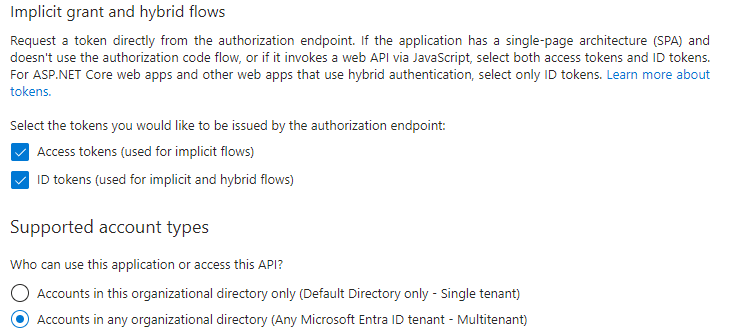
Create a Web application registration in Microsoft Entra ID and copy its Application (client) ID.
Configure the Web Redirect URI that matches your WiFi Hotspot environment:
https://app.antamedia.com/splashportal/SignInEntraID
https://app.antamedia.net/splashportal/SignInEntraID
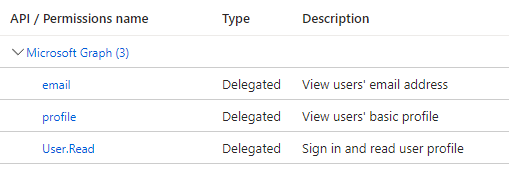
Configure the required API permissions and make sure the user accounts provide the email attribute required by your WiFi Hotspot configuration.
Microsoft can change the Entra administration interface, so use the current Microsoft Entra documentation for the application-registration steps.
Configure API permissions.
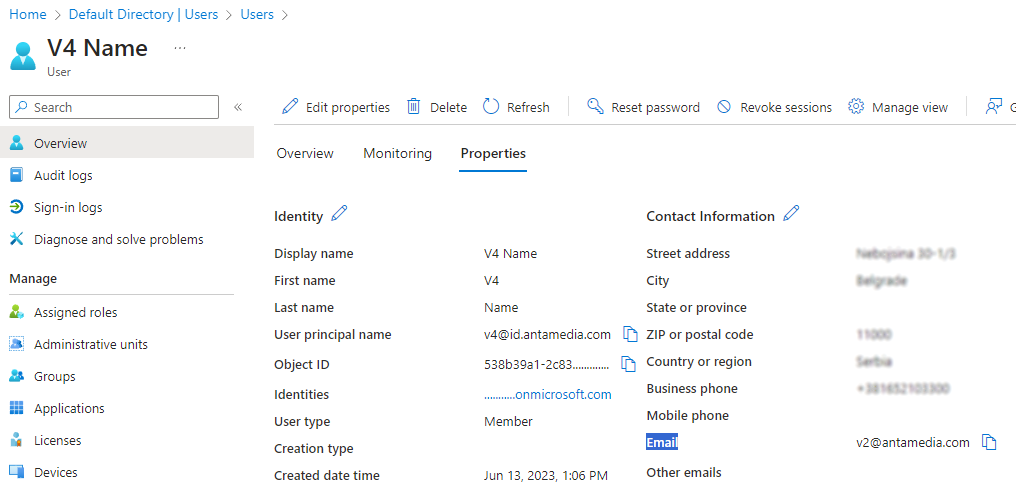
Configure every account in your Entra ID directory to have an Email, as on the image. We use this email field to create an account in our platform with this Email as a username.
Microsoft Entra Whitelist
Microsoft authentication services required during login must be accessible before the guest receives full Internet access. Use the Microsoft Entra ID entries on the central Whitelist page when configuring the router, gateway, or controller.
Google Workspace Secure LDAP
Use Google Workspace Secure LDAP when users should authenticate against your organization's Google Workspace directory.
Secure LDAP allows existing managed Google Workspace accounts to be used for WiFi authentication without creating separate WiFi credentials.
Configure Secure LDAP according to your organization's Google Workspace settings and then select the appropriate Internet Plan in WiFi Hotspot.
Push Notification with Authenticator App
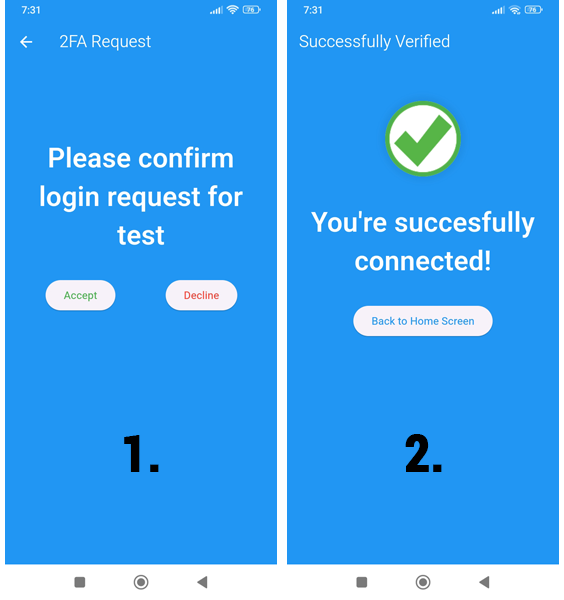
With Push Notification with Authenticator App, the user confirms a login request on their mobile device.
When the user attempts to connect, the Antamedia Authenticator app receives a notification. The user can approve or reject the request directly from the app. If approved, WiFi access is granted.
The user's account must first be linked with the Antamedia Authenticator app.
QR Login with Authenticator App
QR Login with Authenticator App allows users to authenticate by scanning a QR code instead of repeatedly entering their credentials.
The user first links the account with the Antamedia Authenticator app through the QR section of the User Profile. During a future Secure Login, the displayed QR code can be scanned with the Authenticator app to approve access.
For these features, the Antamedia Android Authenticator app is required.
You can download the Antamedia Authenticator app here.
If Android blocks the APK installation, temporarily allow installation from the browser or file manager used to open the downloaded file. After the Antamedia Authenticator app is installed, this permission can be disabled again.
Install the Antamedia Authenticator app on the phone.
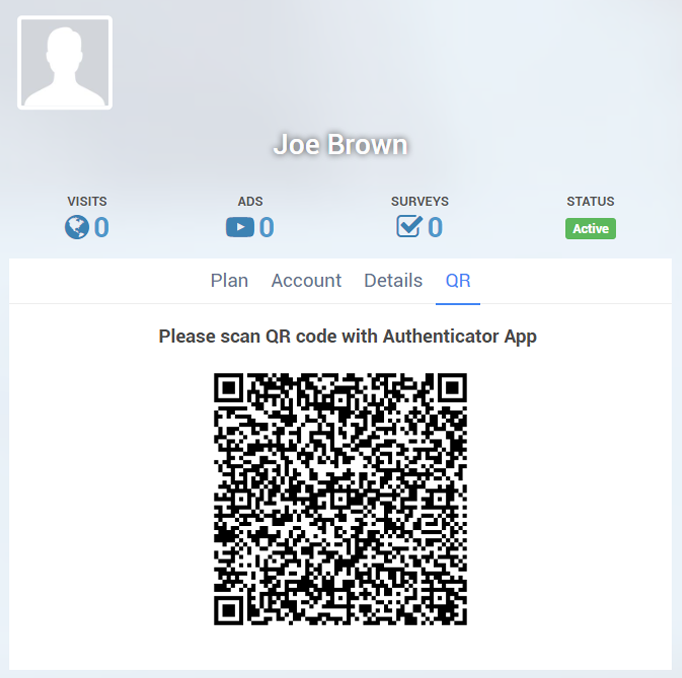
To link your account with the Antamedia Authenticator app, open the app on your phone, go to the Splash page User Profile section and select the QR tab to scan the provided QR code.
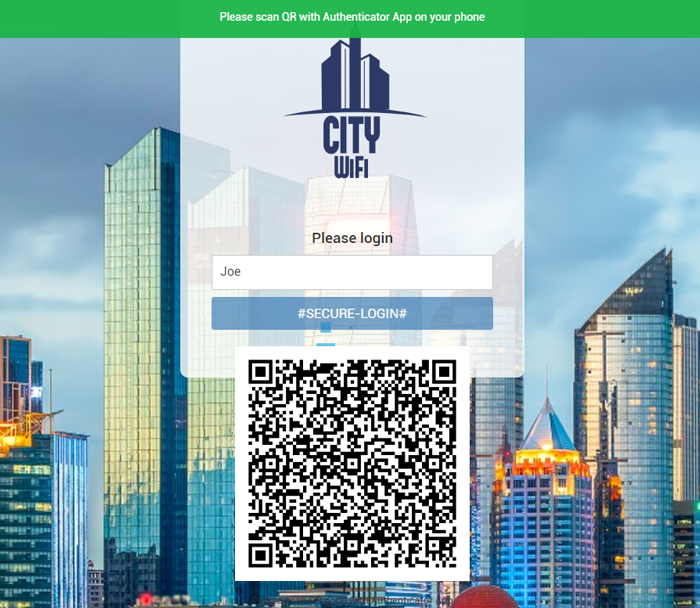
Upon the user’s next login, they will need to confirm it via the Antamedia Authenticator app.
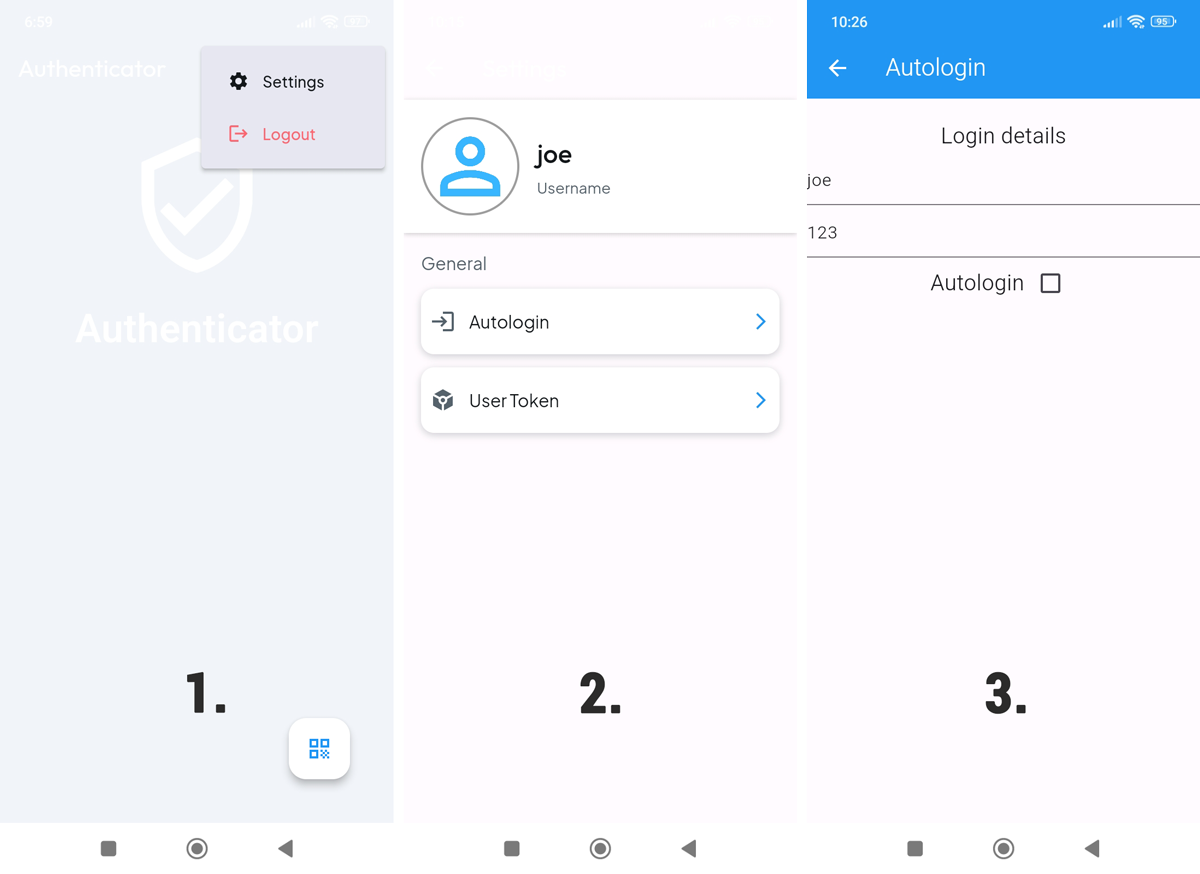
Open the Authenticator App and go to Settings.
The Authenticator methods provide an additional user approval step before WiFi access is granted.
Internet Plan
Select the Internet Plan that should be assigned after successful Secure Login.
The plan determines the user's configured time, bandwidth, speed, expiration, device, and other access limits.
Test Secure Login
After saving the configuration, connect a test device to the guest WiFi and test the selected authentication method from start to finish.
Verify that authentication succeeds, the correct Internet Plan is assigned, Internet access becomes available, and the session appears correctly in the WiFi Hotspot dashboard.
Login Brute-Force Protection
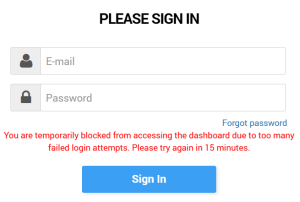
Login Brute-Force Protection feature tracks failed attempts per user+device, user+IP, and IP-only, temporarily blocking access after repeated failures and automatically clearing counters after a successful login.