
One-Time Password (OTP)
One-Time Password (OTP) allows WiFi visitors to authenticate using a temporary verification code sent to their mobile phone.
WiFi Hotspot can deliver the verification code through SMS or WhatsApp, depending on the communication services configured for your account.
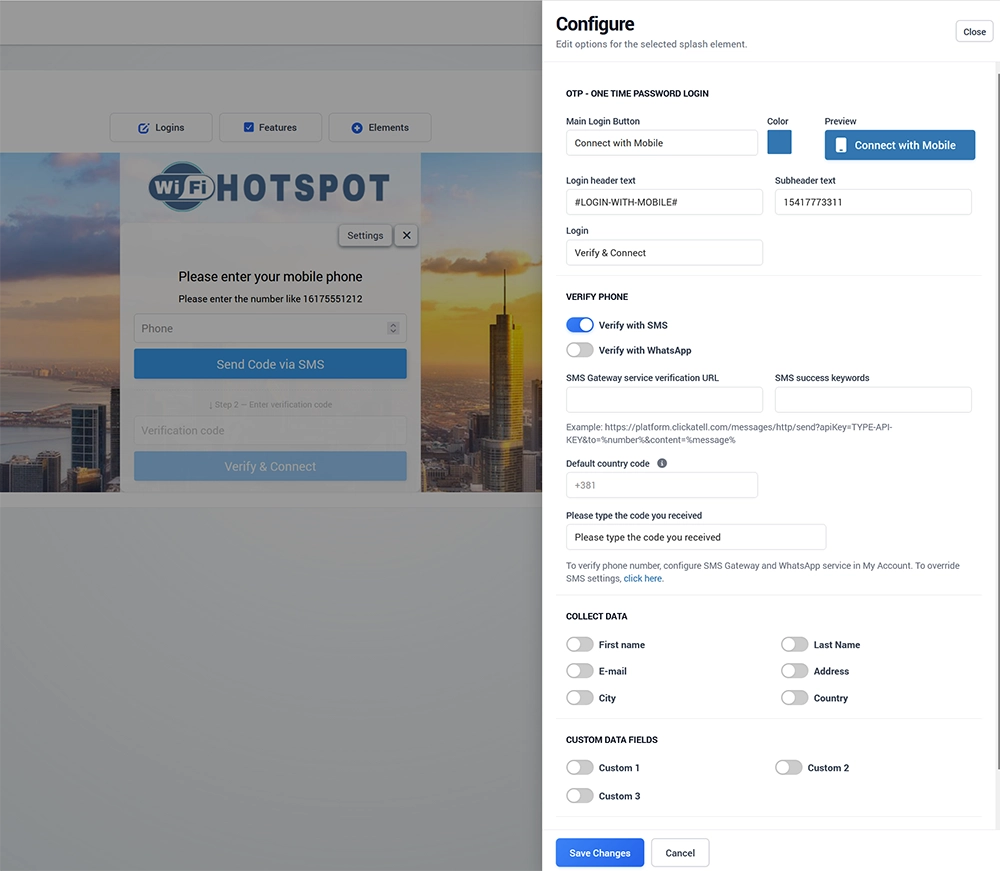
Add One-Time Password Login
To add OTP Login to a Splash Page:
Open Splash Pages.
Select the Splash Page you want to edit.
Open the Login tab.
Click Logins.
Locate One-Time Password (SMS).
Click Add.
Open Settings.
Configure the required options.
Click Save Changes.
Save the Splash Page.
How OTP Login Works
The typical login process is:
The visitor connects to the guest WiFi network.
The Splash Page opens.
The visitor selects Connect with Mobile.
The visitor enters a mobile phone number.
WiFi Hotspot sends a temporary verification code through SMS or WhatsApp.
The visitor enters the received code.
The code is verified.
The visitor receives Internet access.
Because the code is temporary, the visitor must have access to the mobile number entered during login.
Main Login Button
Use Main Login Button to define the text displayed on the Splash Page.
For example:
Connect with Mobile
You can also select the button color and review the result in the Preview area.
Login Header Text
Use Login header text to configure the heading displayed above the mobile phone field.
The default translation token can be:
#LOGIN-WITH-MOBILE#
Using a predefined WiFi Hotspot label allows the text to be translated automatically when the corresponding language is supported.
Subheader Text
Use Subheader text to provide additional instructions about the expected phone number format.
For example, you can show an example number to help visitors enter the correct country and mobile format.
Keep the instruction short and appropriate for the location where the Splash Page is used.
Login Button Text
Use the Login field to define the text displayed on the final verification button.
For example:
Verify & Connect
The visitor uses this button after entering the verification code.
Verify Phone
Select how the one-time password should be delivered.
Available methods include:
Verify with SMS
Verify with WhatsApp
Verify with SMS
Enable Verify with SMS to send the OTP code using an SMS gateway.
The primary SMS service can be configured under:
My Account → SMS
If required, the OTP configuration can use custom SMS gateway settings for this login method.
SMS Gateway Service Verification URL
When a custom SMS gateway configuration is used, enter the provider's HTTP request URL in SMS Gateway service verification URL.
The URL can contain variables that WiFi Hotspot replaces with the actual destination phone number and OTP message when the verification request is sent.
The exact URL format depends on your SMS provider.
Follow the current API documentation supplied by the provider rather than copying credentials or URLs from another SMS service.
SMS Success Keywords
Use SMS success keywords to specify the response that indicates that the SMS gateway successfully accepted the message.
For example:
success
The required value depends on the response returned by your SMS provider.
Verify with WhatsApp
Enable Verify with WhatsApp when the OTP code should be delivered through the configured WhatsApp service.
Configure the WhatsApp gateway first under:
My Account → WhatsApp
After configuration, test delivery from an actual guest device before enabling WhatsApp OTP in production.
Default Country Code
Use Default country code to simplify phone-number entry for visitors from the location where the WiFi service is deployed.
For example:
+381
for Serbia.
Visitors should still be able to enter a valid international mobile number when required.
Choose the country code that corresponds to the primary audience of the Splash Page.
Verification Code Instructions
Use Please type the code you received to customize the instruction displayed when the visitor enters the OTP code.
Keep the message simple so the user understands that the code received through SMS or WhatsApp must be entered into the verification field.
Collect Data
OTP Login can optionally collect additional visitor information.
Available fields include:
First name
Last Name
E-mail
Address
City
Country
Enable only the information required for your WiFi service.
The phone number used for OTP authentication should not automatically be treated as marketing consent. If you intend to use collected contact information for marketing communications, configure the appropriate Contact Permission and follow your privacy policy and applicable data protection requirements.
Custom Data Fields
Additional information can be collected using:
Custom 1
Custom 2
Custom 3
Use custom fields when the standard visitor fields do not cover information required for your particular deployment.
Make sure visitors can clearly understand what information each custom field requests.
Configure SMS and WhatsApp Services
The standard communication services used for phone verification are configured under My Account.
Use:
My Account → SMS for SMS delivery
My Account → WhatsApp for WhatsApp delivery
Configure and test the communication gateway before enabling OTP authentication on a production Splash Page.
Test OTP Login
After configuring One-Time Password Login:
Click Save Changes.
Save the Splash Page.
Connect a test phone to the guest WiFi network.
Select Connect with Mobile.
Enter a valid mobile number.
Verify that the OTP message is received.
Enter the verification code.
Confirm that the code is accepted.
Verify that Internet access is granted.
Check any enabled customer or custom data fields.
Confirm that the user session appears correctly in the WiFi Hotspot dashboard.
If both SMS and WhatsApp are enabled, test both delivery methods independently
Troubleshooting OTP Delivery
If the verification code is not received, check:
SMS or WhatsApp gateway configuration
Provider credentials
Phone number and country code
SMS Gateway service verification URL when custom settings are used
SMS success keyword
Provider account balance or service status
Internet connectivity between WiFi Hotspot and the communication provider
If the provider accepts the request but the message is not delivered, review the message status and delivery information available from the SMS or WhatsApp provider.
Configure Clickatell SMS Gateway (HTTP GET)
The following example shows how to configure Clickatell as a custom HTTP GET SMS gateway for OTP delivery. API endpoints, parameters, and provider requirements may change, so verify the current Clickatell API documentation before configuring a production service.
Integration is done based on the HTTP GET API method and your SMS gateway should have the ability to send SMS with HTTP GET.
1. Copy SMS provider test example
2. Important parameters are %number%, msg and %message%
In the original HTTP GET method we’ll replace these parameters this way:

Replace %number%, msg and %message%
These variables will be replaced with :
%number% – a real number to which software will send SMS
msg – with the message specified (in this example,Thanks+for+Registration,+your+OTP+code+is+), where + is space.
%message% – with the five digits number (verification code)
In case that you’re using Clickatell SMS platform, SMS Gateway service verification URL should look like:

Replace apiKey, instead TYPECLICKATELLAPI type your Clickatell API.
Also you can change message and replace Your WiFi code is with your message.
Please note, %20 is a ASCII value for space between characters in URL and for that reason, we will type Your%20WiFi%20code%20is%20
3. Configure other parameters if needed and test by sending SMS to your phone
In addition, you can require to Collect data or to use Custom data fields.
Press on the Save button to apply changes.