
Brand Message Ad
Brand Message Ad allows WiFi visitors to receive Internet access after interacting with a branded message and entering a predefined keyword.
The Splash Page can display a promotional image together with the keyword or message that guests should remember and type before they connect.
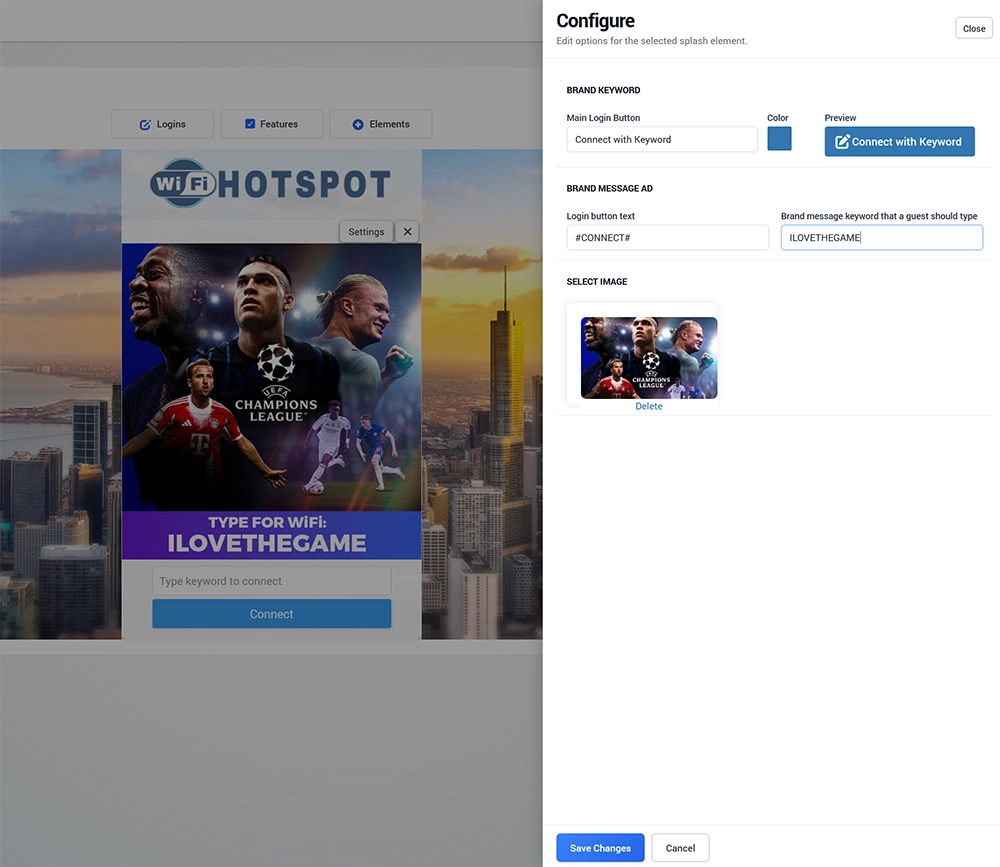
Add Brand Message Ad to a Splash Page
To add Brand Message Ad:
Open Splash Pages.
Select the Splash Page you want to edit.
Open the Login tab.
Click Logins.
Locate Brand Message Ad.
Click Add.
Open Settings.
Configure the button, keyword, and image.
Click Save Changes.
Save the Splash Page.
Main Login Button
Use Main Login Button to define the text displayed before the Brand Message Ad form opens.
For example:
Connect with Keyword
You can also select the button color and review the result in the Preview area.
Use clear wording so visitors understand that they will need to enter a keyword to continue.
Login Button Text
Use Login button text to define the button displayed after the visitor enters the keyword.
The default WiFi Hotspot language token can be:
#CONNECT#
Using the predefined token allows the corresponding translated text to be displayed when the visitor's language is supported.
You can replace the token with custom text when required.
Brand Message Keyword
Enter the keyword or phrase that the guest must type to continue.
For example:
ILOVETHEGAME
The selected promotional image should clearly communicate the same keyword so visitors know what they need to enter.
A simple workflow is:
The guest opens the Brand Message Ad.
The promotional image is displayed.
The guest reads the brand message.
The guest enters the displayed keyword.
The keyword is validated.
The guest continues to WiFi access.
Choose a keyword that is easy to read and type on a mobile device.
Select Image
Use Select Image to upload the promotional image displayed with the Brand Message Ad.
The image can contain:
Brand identity
Promotional message
Product or service promotion
Event information
Campaign creative
The keyword visitors need to enter
For best results, make the required keyword clearly visible in the image.
Avoid overly complex images or small text, because most guests will view the Splash Page on a mobile phone.
Creating an Effective Brand Message Ad
The purpose of this login method is to require a small interaction with the promotional message before WiFi access continues.
A simple campaign generally works best:
Visual → clear message → memorable keyword → Connect
For example, a hotel could promote a restaurant offer, an event venue could display a sponsor message, or a retail location could highlight a current promotion.
The keyword should relate directly to the displayed message so that entering it reinforces the content the visitor has just seen.
Brand Message Ad vs. Marketing Campaigns
Brand Message Ad is a simple interactive login method based on an image and keyword.
Use Marketing Campaigns instead when you need more advanced advertising functionality such as targeted campaigns, multiple ads, schedules, impressions, audience criteria, or campaign reporting.
Brand Message Ad is better suited to a straightforward branded interaction during WiFi login.
Test Brand Message Ad
After configuration:
Click Save Changes.
Save the Splash Page.
Connect a test device to the guest WiFi network.
Select Connect with Keyword.
Confirm that the correct promotional image appears.
Verify that the keyword is clearly visible.
Enter an incorrect keyword and confirm that access does not proceed.
Enter the configured keyword.
Complete the login process.
Confirm that Internet access is available.
Verify that the session appears correctly in the WiFi Hotspot dashboard.
Always test the page on a mobile device to make sure that the image, keyword, input field, and Connect button are easy to see and use.