
Add a Survey to a Splash Page
Surveys can be added to the guest WiFi login experience to collect feedback, ratings, opinions, or other information from visitors.
Before adding a survey to a Splash Page, create and configure the survey under Setup → Surveys.
Add a Survey
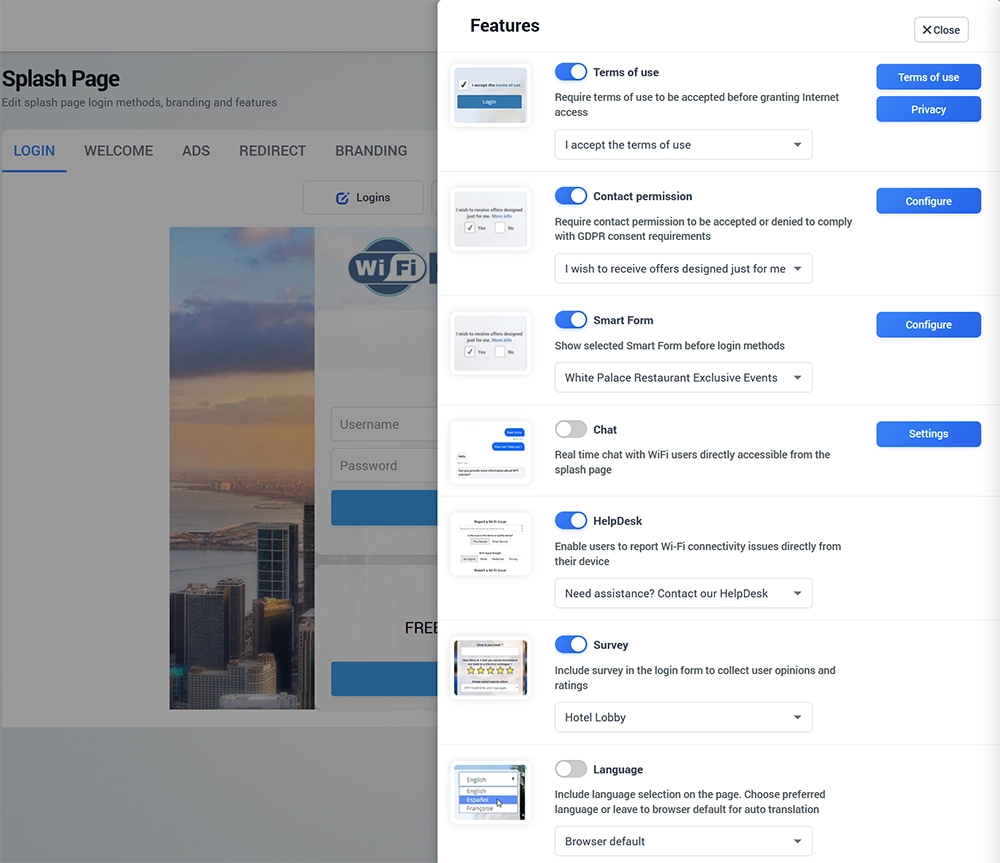
To add an existing survey to a Splash Page:
Open Splash Pages.
Select the Splash Page you want to edit.
Open the Login tab.
Click Features.
Locate Survey.
Enable the Survey feature.
Select the required survey from the available list.
Click Save.
The selected survey will become part of the guest WiFi login experience.
Select a Survey
The Survey dropdown displays surveys that have already been created in WiFi Hotspot.
Select the survey that should be used with the current Splash Page.
If the required survey is not available, first create it under Setup → Surveys, then return to the Splash Page editor and select it.
Where to Create and Manage Surveys
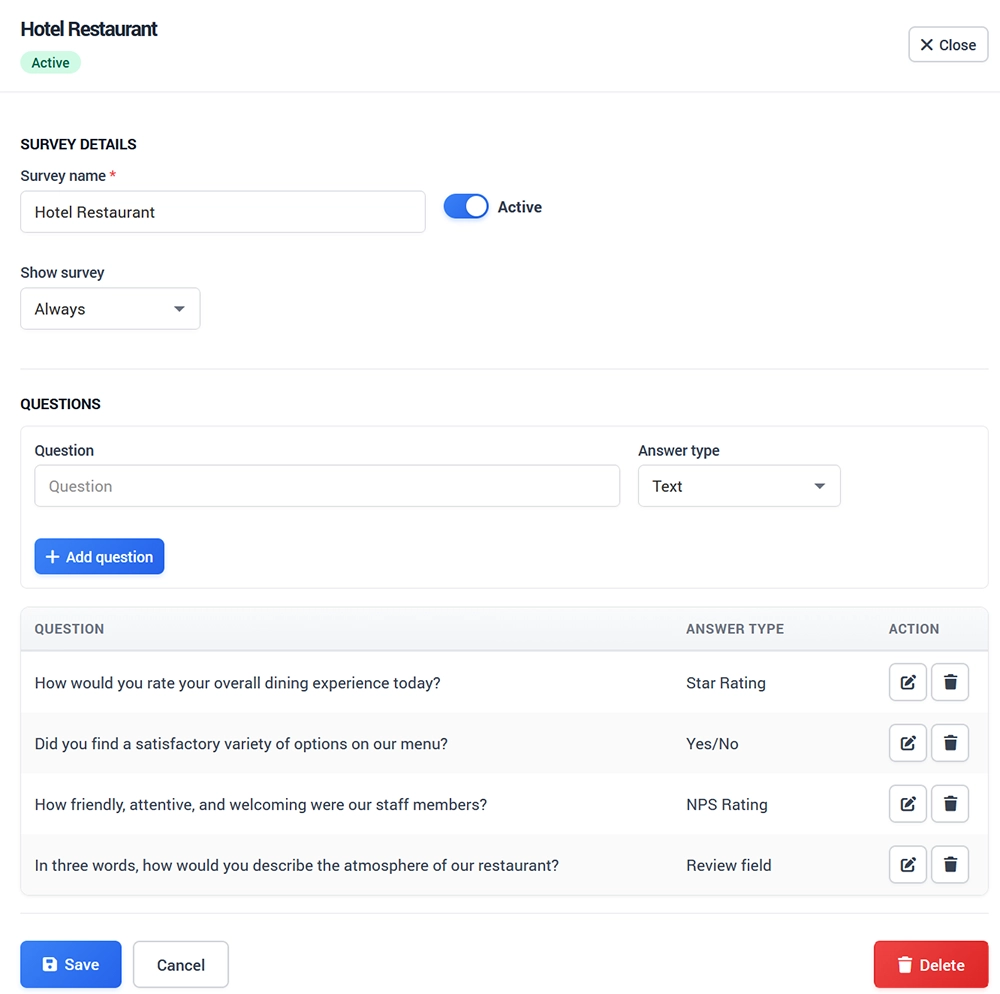
Survey configuration is managed separately from the Splash Page editor.
Open Setup → Surveys when you need to:
Create a new survey
Add or modify questions
Configure answer types
Define how often the survey is displayed
Review collected responses
View survey statistics
Export survey data
The Splash Page Survey feature determines where the survey is presented, while Setup → Surveys determines what the survey contains and how it behaves.
Test the Survey
After adding a survey to a Splash Page:
Save the Splash Page.
Connect a test device to the guest WiFi network.
Confirm that the correct Splash Page appears.
Complete the login process until the survey is displayed.
Answer the survey questions.
Complete WiFi authentication.
Open Setup → Surveys and verify that the response was recorded.
Always test a new or modified survey before making it available to guests.
Survey Best Practices
Keep surveys short and relevant to the guest experience.
Use questions that provide information you can actually use, and avoid making the WiFi login process unnecessarily long.
For longer surveys, consider how frequently they are displayed so returning visitors are not repeatedly asked to complete the same questionnaire.