
WiFi Tickets App
The following steps will guide you through the setup process of the WiFi Tickets App.
Before proceeding, ensure access to the main admin account credentials and any required reseller information.
Choose your printer model to download the WiFi Tickets App:
Accessing the Setup Page
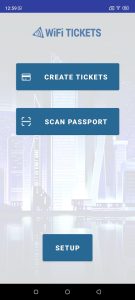
Launch the WiFi Tickets App.
On the main screen, locate and click the Setup button.
This will open the setup page where you can configure the app’s core settings, including API keys and server details.
Specifying the API Key
The API key is used to authenticate the WiFi Tickets App with your WiFi Hotspot account.
Here’s how to enter the API key:
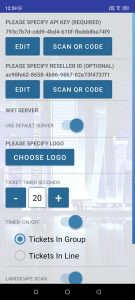
On the Setup page, specify the API key associated with your main administrator account.
You have two methods for entering the API key:
Manual Entry: Click the Edit button, which will open a text field where you can type in the API key.
QR Code Scan: Alternatively, if you have a QR code for the API key, click the Scan QR Code button. This will open the camera feature on your device, allowing you to scan the QR code directly.
Obtaining the API Key
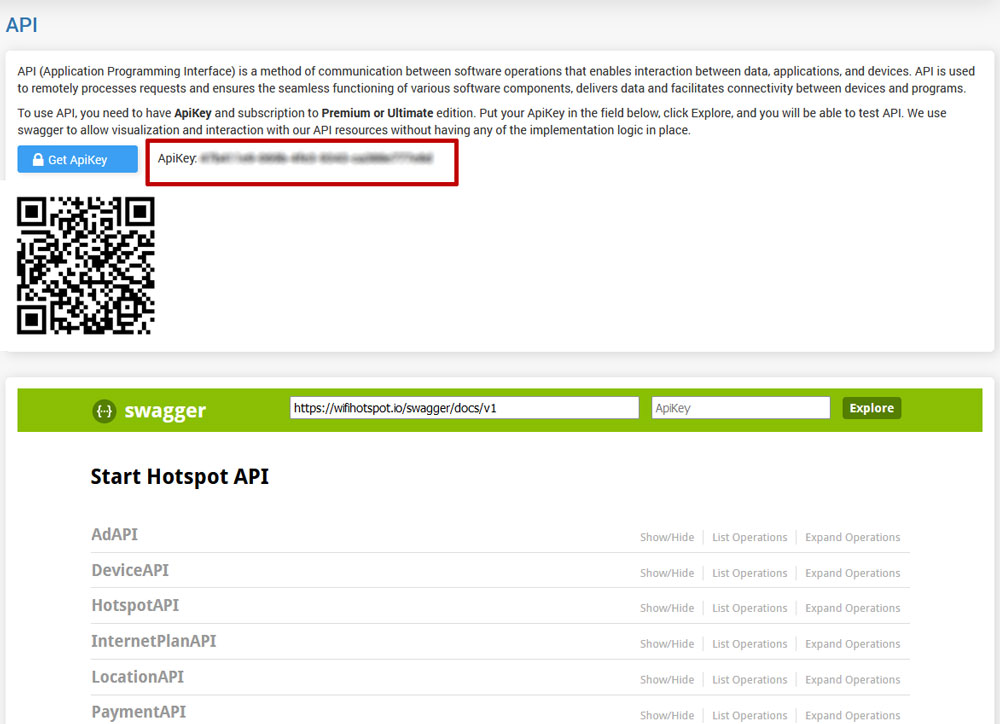
Log into your WiFi Hotspot system using your main admin account credentials.
Navigate to the Automation section, located in the main menu.
From there, go to the API tab. This tab allows you to manage your API keys.
Click the Get ApiKey button to generate a new API key for your administrator account.
Once generated, either copy it for manual entry or display the QR code for scanning.
Setting Up Reseller Access (Optional)
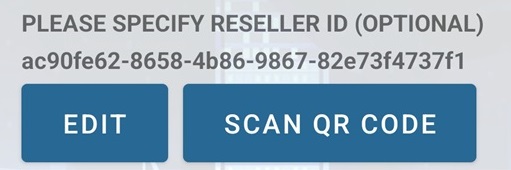
If you use the Voucher Reseller System, you can optionally configure the WiFi Tickets App for a specific reseller. The app will then operate using that reseller’s assigned access and credit.
To set up a reseller, you will need their Reseller ID.
To obtain the Reseller ID, log in to your WiFi Hotspot account using the main administrator account.
Navigate to the Admins section in the main menu and select the All Admins tab.
From the list of admin accounts, select the reseller account you wish to configure.
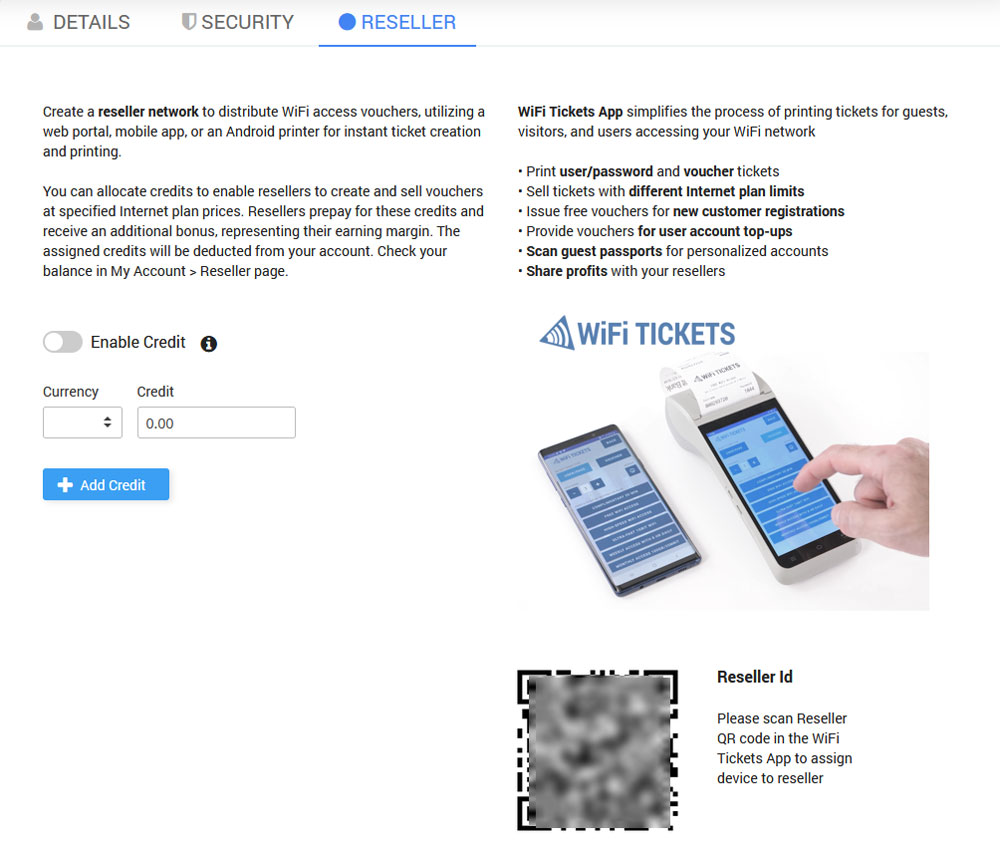
Open the Reseller tab for that account, and you will find the Reseller ID QR Code located at the bottom-right corner of the page.
You can either enter the Reseller ID manually or use the QR code to scan it into the app.
Configuring a Custom Server for Enterprise WiFi System
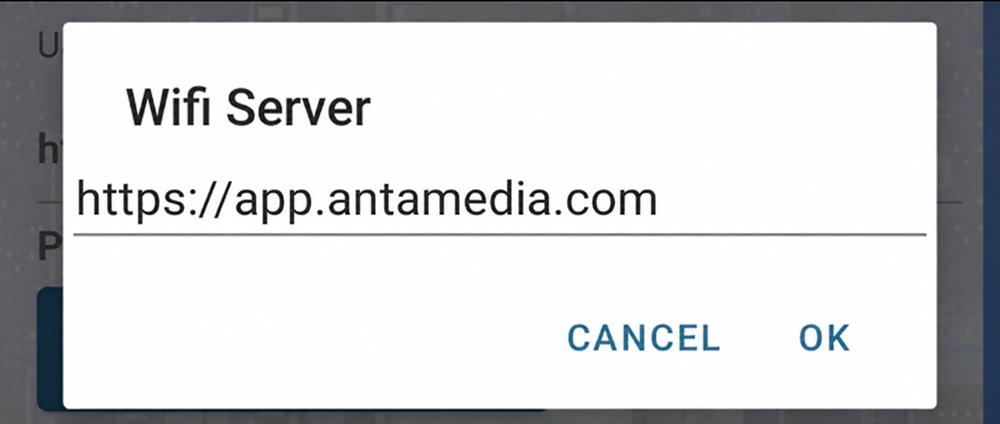
If you use Enterprise WiFi System – On-Premise, configure the WiFi Tickets App to connect to your own server instead of the default WiFi Hotspot server.
On the WiFi Ticket App Setup page, locate the Use default server checkbox.
If you are using a custom server, uncheck the Use default server option.
Once unchecked, a field will appear where you can enter your own server’s domain address. Make sure this is correctly entered to ensure smooth communication between the app and your WiFi infrastructure.

Double-check your settings to ensure the API key, Reseller ID (if applicable), and server details are correct.
After confirming, save the configuration by clicking the Save button.
The WiFi Tickets App should now be fully configured and ready for use.