
User profile
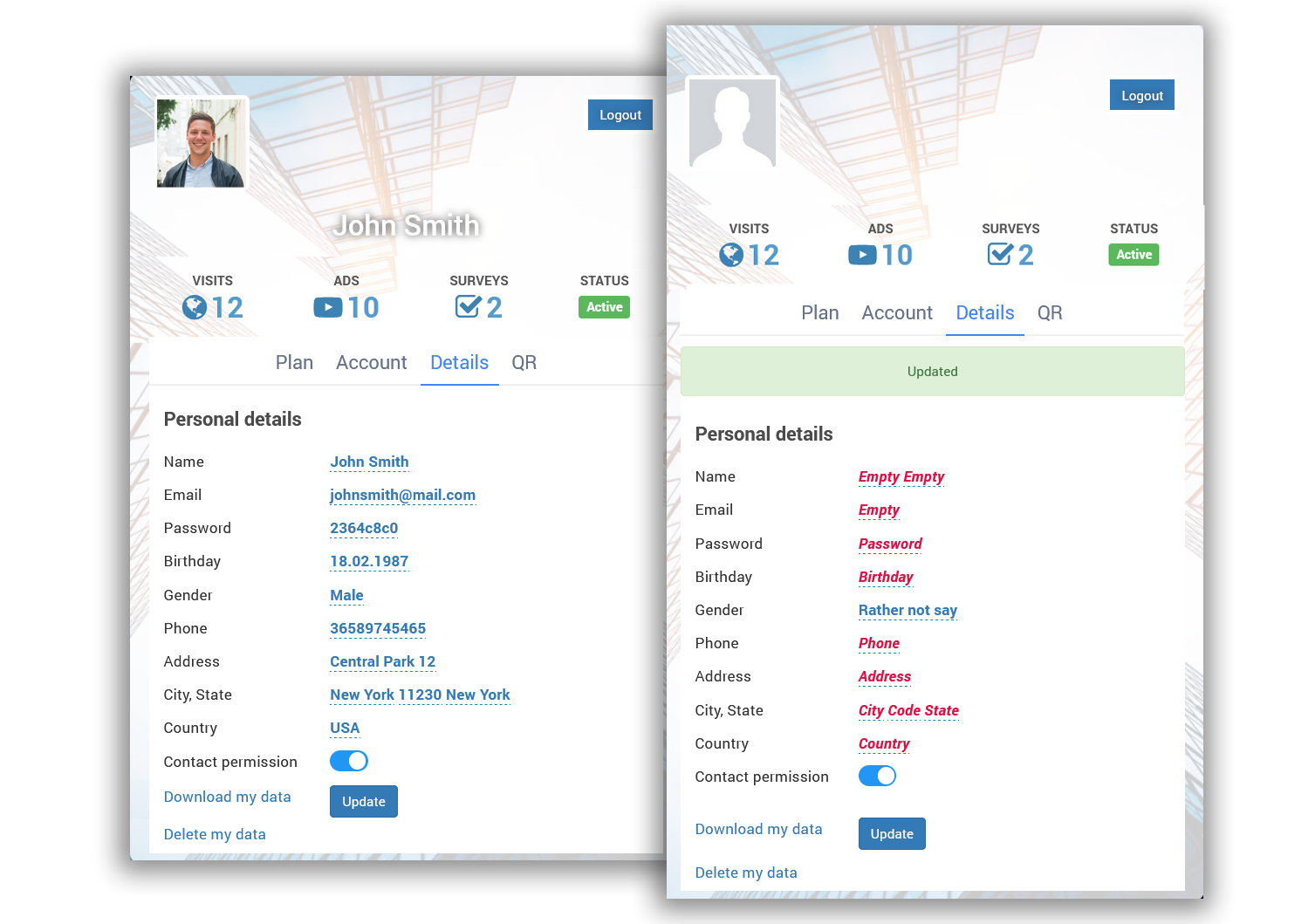
The User Profile gives WiFi users access to their account information and allows them to manage selected settings and personal data from a dedicated self-service page.
Depending on the configured WiFi service, users can review their Internet Plan, account details, connected device information, personal data, contact permission, Autologin settings, and secure login options.
What Users Can Access
The User Profile is organized into separate sections that make account information easy to review.
Available sections can include:
Plan – Internet Plan and current access limits.
Account – Login and device information.
Details – Personal data and communication preferences.
QR – Authenticator-based secure login setup.
The profile can also display general account information such as user status and activity.
Plan
The Plan section shows the Internet Plan currently assigned to the user.
Depending on the plan configuration, users can review information such as:
Internet Plan name
Available bandwidth quota
Time limit
Download speed
Upload speed
Last usage
Expiration
This allows users to see the access conditions associated with their WiFi account without contacting an administrator.
Account
The Account section provides information related to the user's WiFi login and connected device.
It can include:
Username
Autologin status
Connected devices
IP address
MAC address
Users can enable or disable Autologin when this option is available for their account.
Autologin allows an eligible device to be recognized automatically on future visits according to the WiFi Hotspot configuration.
Personal Details
The Details section gives users access to personal information stored with their WiFi account.
Depending on the information collected during signup, this can include:
First and last name
Email address
Password
Birthday
Gender
Phone number
Address
City and state
Postal code
Country
Contact permission
Users can review and update available information when corrections are required.
Contact Permission
The User Profile allows users to review and change their Contact Permission preference.
When marketing or other communication consent is collected, users should be able to withdraw that permission when they no longer want to receive those communications.
This functionality supports GDPR and similar data protection requirements by giving users direct control over their communication preference.
Download Personal Data
Users can access the Download my data option from their profile when they want a copy of the information associated with their account.
Providing direct access to stored information helps businesses support data access requests and gives users greater transparency over the data associated with their WiFi account.
Delete Personal Data
The Delete my data option allows users to request removal of personal information available through their User Profile.
After personal data is removed, information that is no longer available should no longer appear in the profile.
Use this functionality as part of your organization's data protection and privacy procedures.
Secure Login with Antamedia Authenticator
The QR section is used to link the WiFi user account with the Antamedia Authenticator app.
To link the account:
Open the QR tab in the User Profile.
Open the Antamedia Authenticator app on the user's Android device.
Scan the QR code displayed in the User Profile.
Complete the account linking process in the app.
The linked account can then be used with the Push Notification and QR Login Secure Login methods.
Enable User Profile on the Welcome Page
The User Profile can be made available directly from the Splash Page Welcome screen.
To enable it:
Open the required Splash Page.
Select the Welcome tab.
Enable User Profile.
Save the Splash Page.
Users will then be able to access their profile from the Welcome Page when this option is presented.
Redirect Users to Their Profile After Login
Users can also be automatically redirected to the User Profile after successful WiFi login.
To configure the redirect:
Open the required Splash Page.
Select the Redirect tab.
Locate Redirect after login to.
Select User profile from the dropdown menu.
Configure the redirect delay when required.
Save the Splash Page.
After authentication, the user will be taken to the User Profile instead of another configured redirect destination.
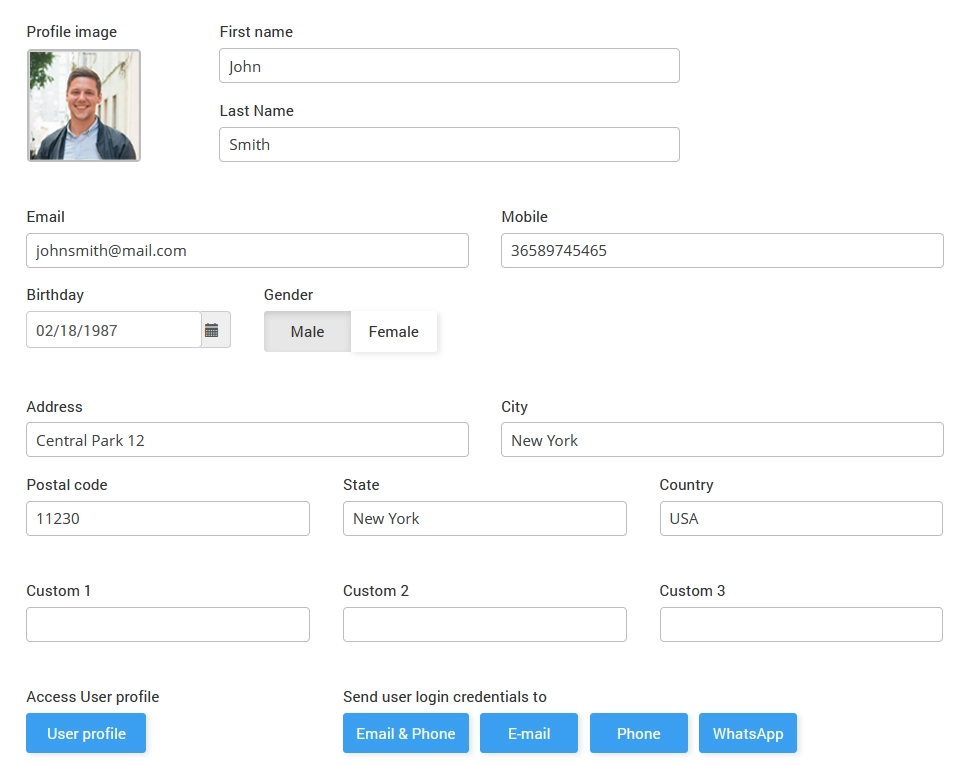
Access User Details as Administrator
Administrators can review individual user information from the WiFi Hotspot dashboard.
Open the required user and select Details to review or update the available profile information.
The administrator view can include:
Profile image
First and last name
Email
Mobile number
Birthday
Gender
Address
City
Postal code
State
Country
Custom fields
From the same area, the administrator can also access the user's User Profile.
Send Login Credentials
When required, administrators can send user login credentials using the available communication options.
Depending on the configured account information, credentials can be sent through:
Email
Phone
Email and phone
WhatsApp
This can be useful when a user needs their account credentials again without requiring the account to be recreated.
User Profile and Privacy
The User Profile provides users with direct access to information associated with their WiFi account and gives them control over available privacy and communication settings.
When consent options are enabled in the WiFi login process, the profile can be used to:
Review stored personal information.
Correct inaccurate information.
Change contact permission.
Download available personal data.
Delete available personal data.These controls can support an organization's GDPR and data protection procedures.
The exact privacy requirements for your organization depend on applicable regulations and how personal data is collected and processed.
Test the User Profile
After enabling or changing User Profile settings, test the complete user experience.
Connect a test device to the guest WiFi network.
Complete the configured login or signup process.
Open the User Profile from the Welcome Page or verify the post-login redirect.
Check the Plan information.
Review the Account section and device details.
Test the Autologin control when enabled.
Open Details and verify that personal information is displayed correctly.
Test an allowed profile update.
Verify Contact Permission behavior.
Open the QR section when secure authentication is enabled.
Confirm that Logout works correctly.