
Network
The Network section provides centralized monitoring and management of HotspotOS access points connected to your WiFi Hotspot account.
Use this section to review HotspotOS access point status and configuration, monitor connected devices, and configure network alerts.
Important: The Network section is designed for HotspotOS devices. Other supported routers, access points, and WiFi controllers are configured and monitored through their corresponding hardware or controller interfaces.
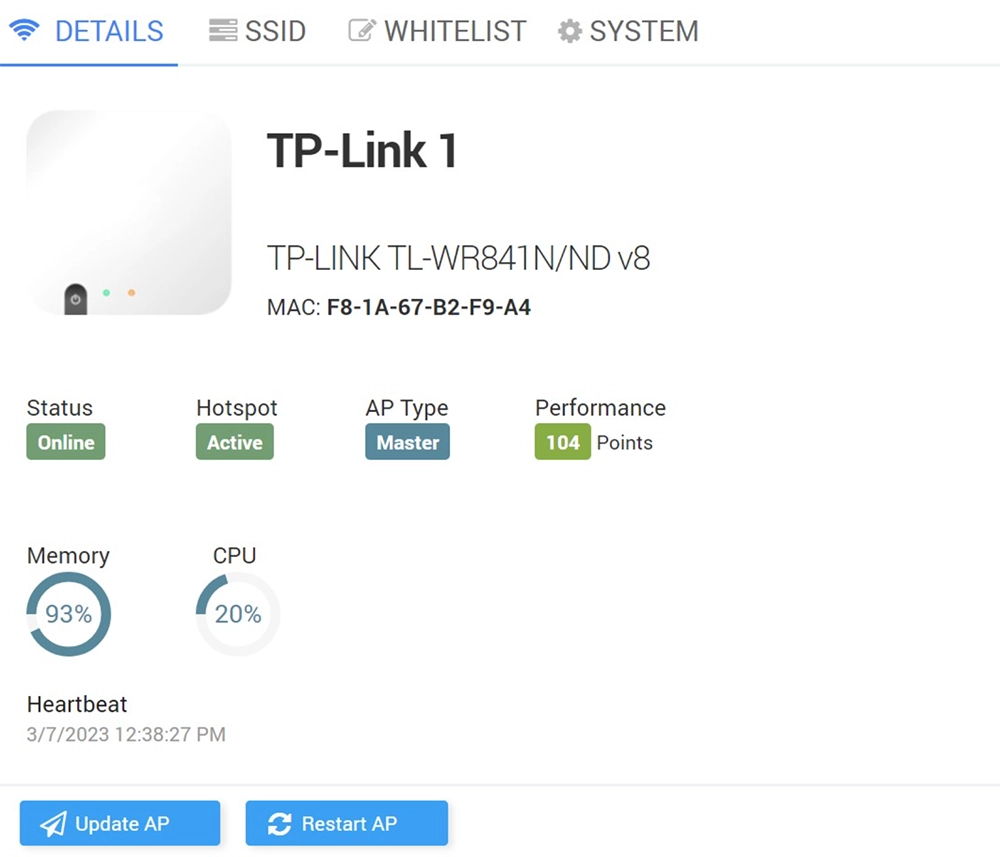
Access Points
Open Network → Access Points to view HotspotOS access points connected to your account.
The Access Points list provides a quick overview of each device, including information such as:
Access point name
Online or offline status
MAC address
Use this page to identify individual HotspotOS access points and open their detailed configuration.
Access Point Details
Select an access point to review its detailed information and settings.
Depending on the HotspotOS device and configuration, the Access Point page provides access to sections such as:
Device details
Current status
SSID settings
Whitelist
System information
This allows administrators to review the most important HotspotOS device information directly from the WiFi Hotspot dashboard.
Access Point Status
The access point status indicates whether the HotspotOS device is currently communicating with the WiFi Hotspot platform.
An offline access point may indicate:
Loss of Internet connectivity
Power failure
Local network problem
HotspotOS device restart
Connectivity issue between the access point and the WiFi Hotspot platform
If an access point unexpectedly appears offline, first verify power and Internet connectivity at the location.
SSID Settings
Use the available SSID settings to review or configure the wireless network information for the selected HotspotOS access point.
After changing wireless settings, test the guest WiFi network with a client device to confirm that the expected SSID is available and that the captive portal process works correctly.
Whitelist
The Whitelist allows selected destinations to be accessible before the WiFi user completes authentication.
This may be required for services that need to load before login, such as selected websites or external services used during the captive portal process.
Only whitelist destinations that are required for the intended guest WiFi workflow.
After changing the whitelist, test access from a device that has not yet authenticated.
System Information
The System Information section provides technical information about the selected HotspotOS access point.
Use this information when checking device configuration or troubleshooting an access point.
Network Alerts
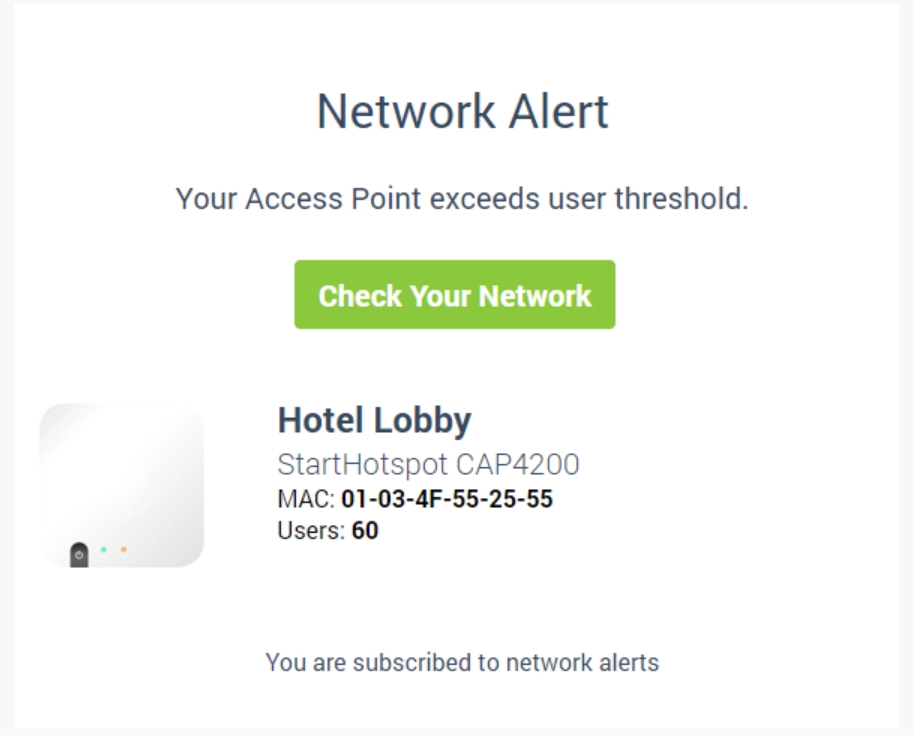
Open Network → Alerts to configure notifications for important HotspotOS network events.
Alerts can help administrators react when an access point goes offline or when network usage reaches a configured threshold.
Notification recipients can be configured using administrator email addresses and phone numbers.
Email and SMS delivery settings must be configured before the corresponding notification method can be used.
Access Point Alerts
Access Point Alerts notify administrators when a HotspotOS access point remains offline for a specified period.
To configure an Access Point Alert:
Open Network → Alerts.
Enable Alert admins if access point goes offline.
Select the required interval under Send alert after.
Enter the administrator email addresses and phone numbers that should receive the notification.
Save the settings.
Using a delay before sending the alert can prevent short device restarts or temporary connectivity interruptions from generating unnecessary notifications.
User Threshold Alerts
User Threshold Alerts can notify administrators when the number of online users exceeds a configured threshold.
To configure a User Threshold Alert:
Open Network → Alerts.
Enable Alert admins if access point exceeds user threshold.
Select the required value under User count.
Enter the administrator email addresses and phone numbers.
Save the settings.This can help administrators identify periods of unusually high WiFi activity.
Configure Alert Notifications
Before relying on email or SMS alerts, verify that the required notification services are configured in your WiFi Hotspot account.
After configuring an alert, test the notification process to confirm that messages reach the intended administrators.
Use only the recipients who need operational network notifications to avoid unnecessary alert traffic.
How to Monitor HotspotOS Access Points
Open Network → Access Points.
Review the status of the listed HotspotOS devices.
Select an access point to view its detailed information.
Review SSID, whitelist, and system settings when required.
Open Network → Alerts.
Configure offline access point notifications when required.
Configure user threshold notifications when required.
Verify that email or SMS recipients are configured correctly.
Test alert delivery before relying on notifications for production monitoring.
The Network section provides a centralized view of HotspotOS access points and helps administrators monitor device availability and important network events from the WiFi Hotspot dashboard.