
My Account
The My Account section contains company, communication, branding, and account-level settings used throughout WiFi Hotspot.
Use this section to configure your company information and logo, choose the dashboard appearance, configure email delivery, connect SMS and WhatsApp services, and manage other account-specific options.
The available sections include:
Company
E-mail
SMS
WhatsApp
Reseller – available for reseller-related account configuration
Company
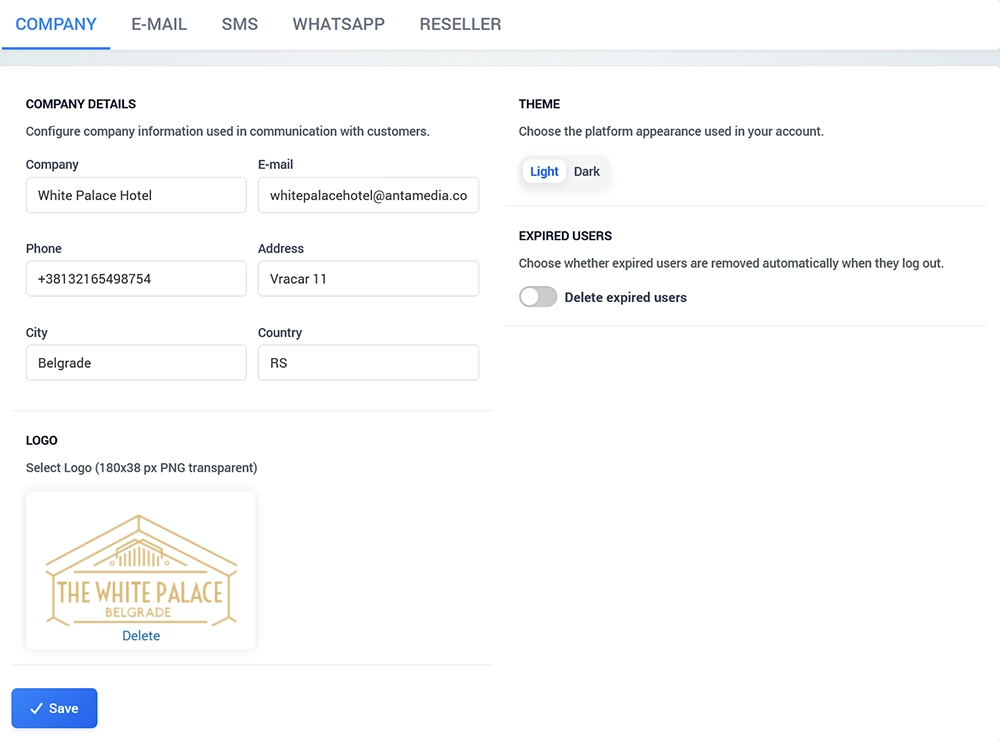
Open My Account → Company to configure the company information associated with your WiFi Hotspot account.
Company information can be used in customer communications and other areas of the platform.
You can configure:
Company name
E-mail
Phone
Address
City
Country
Company logo
After making changes, click Save.
Company Details
Enter the business information that should be associated with the account.
Company
Enter your company, property, organization, or brand name.
For multi-location deployments, use the main organization name unless the account is dedicated to a specific property.
Enter the primary company email address.
This address may be used as company information in communications generated through the platform.
Phone
Enter the company contact phone number, including the appropriate country code when required.
Address, City and Country
Enter the company address and location information.
Keep these details current, particularly when they are used in customer-facing communication.
Company Logo
Upload your company logo to personalize customer communication and supported areas of the platform.
The interface recommends a transparent PNG logo with dimensions of approximately 180 × 38 px.
A transparent logo generally provides the best result when it is displayed on different backgrounds.
To change the logo:
Open My Account → Company.
Select or upload the new logo.
Review the preview.
Click Save.
Use Delete if the existing logo should be removed.
Theme
The Theme setting controls the appearance of your WiFi Hotspot administration dashboard.
Available options are:
Light
Dark
Select the appearance you prefer and save the configuration.
Changing the dashboard theme affects the administration interface and does not change the design of your guest Splash Pages.
Delete Expired Users
The Delete expired users option controls whether expired users are automatically removed after they log out.
Enable this option when expired accounts should be automatically cleaned from the system after their active session ends.
Leave it disabled when expired user records should remain available in the account.
Consider your reporting, operational, and data-retention requirements before enabling automatic deletion.
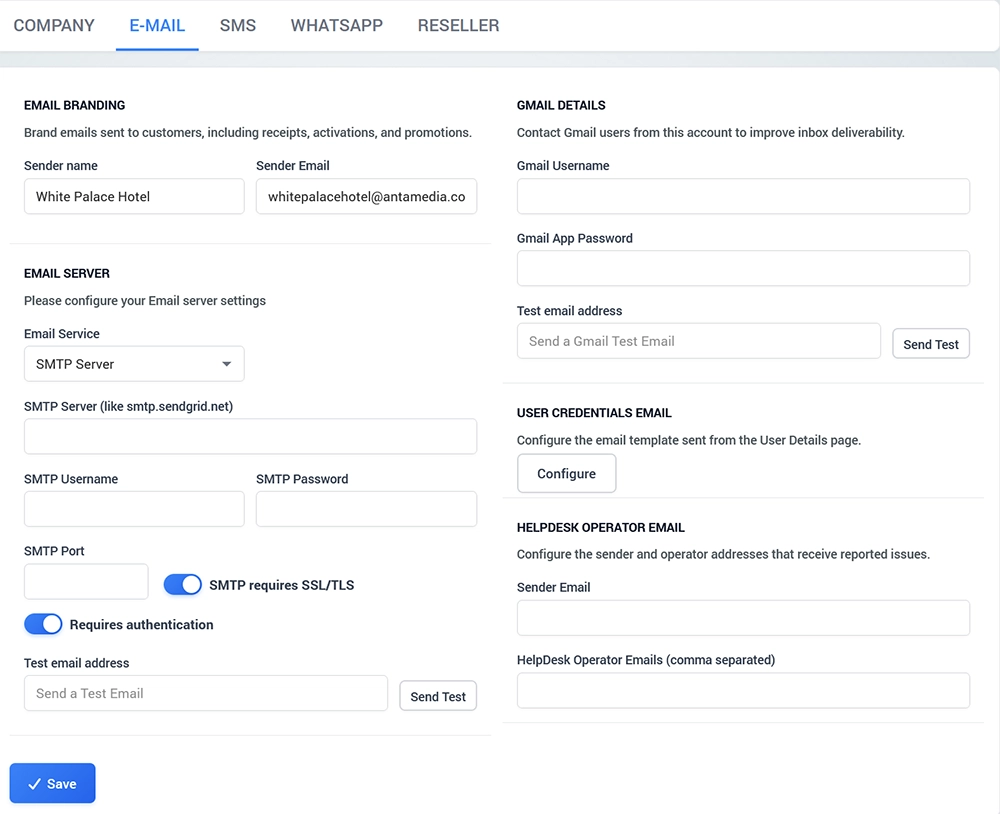
Open My Account → E-mail to configure email branding, email delivery, Gmail integration, user credentials messages, and HelpDesk notification addresses.
Email settings can be used for customer communication such as:
Receipts
Account activations
User credentials
Notifications
Promotional messages
HelpDesk communication
Email Branding
The Email Branding section defines how emails sent to customers are identified.
Configure:
Sender name
Sender Email
For example, the Sender Name may contain the company or property name while Sender Email contains the address used for customer communication.
Use an address that belongs to and is authorized by your organization.
Email Server
The Email Server section configures the service used to send email.
Select the required Email Service and enter the corresponding server settings.
When using an SMTP server, available fields include:
SMTP Server
SMTP Username
SMTP Password
SMTP Port
SMTP requires SSL/TLS
Requires authentication
After entering the server settings, enter a Test email address and click Send Test.
Always confirm that the test message is delivered before using the email configuration for customer communication.
SMTP Example
A typical SMTP configuration requires:
SMTP hostname
Username
Password or API credential
SMTP port
SSL/TLS configuration
Authentication
The exact values depend on your email provider.
For services such as SendGrid, use the SMTP settings and credentials provided by your SendGrid account.
Gmail Details
The Gmail Details section can be used when Gmail should be connected directly to WiFi Hotspot.
Enter:
Gmail Username
Gmail App Password
Google App Passwords are used instead of the normal Gmail account password when required by Google security settings.
After configuration:
Enter a destination address under Test email address.
Click Send Test.
Confirm that the Gmail test message was delivered successfully.
User Credentials Email
The User Credentials Email section controls the email template sent from the User Details page.
Click Configure to customize the message used when login credentials are sent to a WiFi user.
Before using the template with guests, send credentials to a test account and verify that the username, password, branding, and message formatting are correct.
HelpDesk Operator Email
The HelpDesk Operator Email section defines email addresses used for reported customer issues.
Configure:
Sender Email
HelpDesk Operator Emails
Multiple HelpDesk operator addresses can be entered as a comma-separated list.
When a supported issue is reported, the configured operators can receive the corresponding notification.
Use addresses monitored by staff responsible for guest WiFi support.
SMS
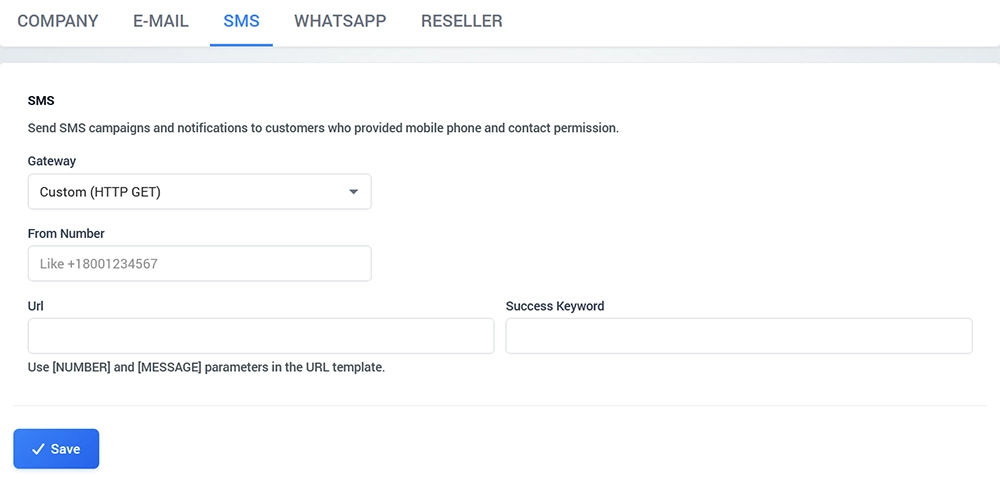
Open My Account → SMS to configure SMS delivery for campaigns and customer notifications.
SMS can be sent to users who have provided a valid mobile phone number and the required contact permission.
Select an SMS Gateway
Choose the SMS provider from the Gateway dropdown.
WiFi Hotspot can use supported SMS gateways as well as a custom HTTP-based integration.
The configuration fields depend on the selected gateway.
Custom HTTP GET Gateway
When Custom (HTTP GET) is selected, configure:
From Number
URL
Success Keyword
The URL template uses the following parameters:
[NUMBER]– recipient mobile number[MESSAGE]– SMS message content
WiFi Hotspot replaces these values when the message is sent.
The Success Keyword should match the response returned by the SMS provider when message submission succeeds.
Configure a Custom SMS Gateway
A typical custom gateway process is:
Select Custom (HTTP GET).
Enter the sender number when required.
Enter the provider URL template.
Insert
[NUMBER]where the destination number is required.Insert
[MESSAGE]where the SMS text should be inserted.Enter the expected Success Keyword.
Click Save.
Send a test SMS before using the gateway for production communication.
The exact URL and response format must be obtained from your SMS provider.
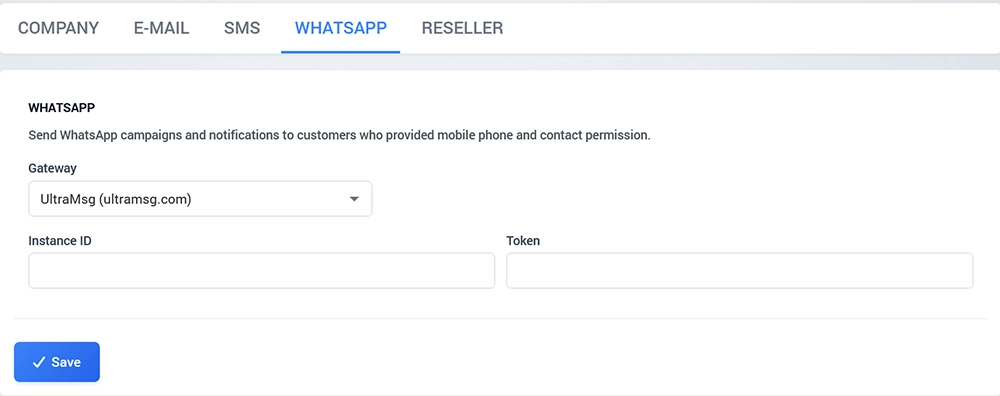
Open My Account → WhatsApp to configure WhatsApp campaigns and notifications.
WhatsApp communication can be sent to customers who provided a mobile phone number and the appropriate contact permission.
UltraMsg Gateway
WiFi Hotspot supports UltraMsg as a WhatsApp gateway.
To configure the integration, enter:
Instance ID
Token
These credentials are provided by your UltraMsg account.
To configure WhatsApp:
Open My Account → WhatsApp.
Select UltraMsg (ultramsg.com).
Enter the Instance ID.
Enter the Token.
Click Save.
Send a test WhatsApp message before using the integration for customer communication.
Keep the Token private and provide access only to authorized administrators.
Reseller
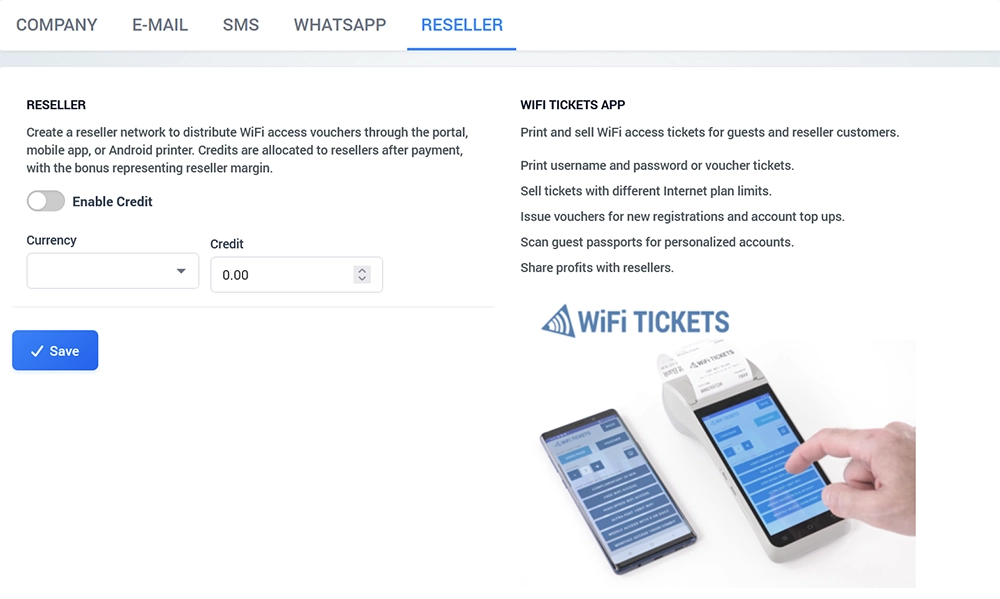
The Reseller tab allows you to create a reseller network for distributing and selling WiFi access.
Resellers can distribute WiFi access vouchers through the portal, WiFi Tickets App, or supported Android ticket printers.
Reseller Credit
Enable Credit when resellers should operate with an allocated account balance.
Configure:
Currency
Credit
Credits can be allocated to resellers after payment, while the configured reseller bonus can represent the reseller's margin.
This allows an operator to control how much WiFi access a reseller can distribute.
WiFi Tickets App
The WiFi Tickets App provides a convenient way to create and sell WiFi access tickets.
It can be used to:
Print username and password tickets
Print voucher tickets
Sell tickets with different Internet Plan limits
Issue vouchers for new registrations
Issue vouchers for account top-ups
Scan guest passports for personalized accounts
Share profits with resellers
This is useful in hotels, resorts, reception desks, public WiFi locations, Internet cafés, and other environments where staff or resellers sell guest Internet access directly.
Using Reseller Credit
A typical reseller workflow is:
Enable Credit.
Select the reseller currency.
Allocate the required credit.
Configure the reseller account and margin.
Provide access to the appropriate reseller tools.
Use the WiFi Tickets App or portal to create and sell access tickets.
Monitor reseller sales and remaining credit.
This allows WiFi access distribution to be delegated while the main WiFi Hotspot account maintains centralized control.
Test Your My Account Configuration
After changing My Account settings, verify the functions that depend on them.
Check:
Company information and logo.
Dashboard Light or Dark theme.
Expired user deletion behavior when enabled.
Email delivery using Send Test.
Gmail delivery when Gmail integration is configured.
User Credentials Email formatting.
HelpDesk operator recipients.
SMS gateway delivery.
WhatsApp delivery.
Reseller credit and WiFi Tickets workflow when reseller functionality is used.
Testing each configured communication channel before production use helps prevent incorrect credentials, gateway settings, or sender information from affecting customers.