
Surveys
Surveys allow you to collect feedback and additional information from WiFi visitors directly through the guest WiFi experience.
A survey can be used during the login process or displayed to returning visitors, allowing businesses to collect answers, satisfaction ratings, and other customer feedback while users interact with the WiFi service.
How Surveys Can Be Used
Surveys can support different guest WiFi scenarios, including:
Free WiFi access with a questionnaire
Login combined with customer satisfaction questions
Feedback about services, facilities, or departments
Customer ratings
Questions displayed to new or returning visitors
Surveys can be integrated into a Splash Page so that questions become part of the guest WiFi experience.
Surveys Panel
Open Setup → Surveys to view and manage your existing surveys.
The Surveys panel displays information such as:
Survey Name – Name used to identify the survey.
Description – Short description of its purpose.
Status – Shows whether the survey is active.
Use the search option when you need to locate a specific survey.
Existing surveys can also be edited or deleted using the available configuration controls.
Create a New Survey
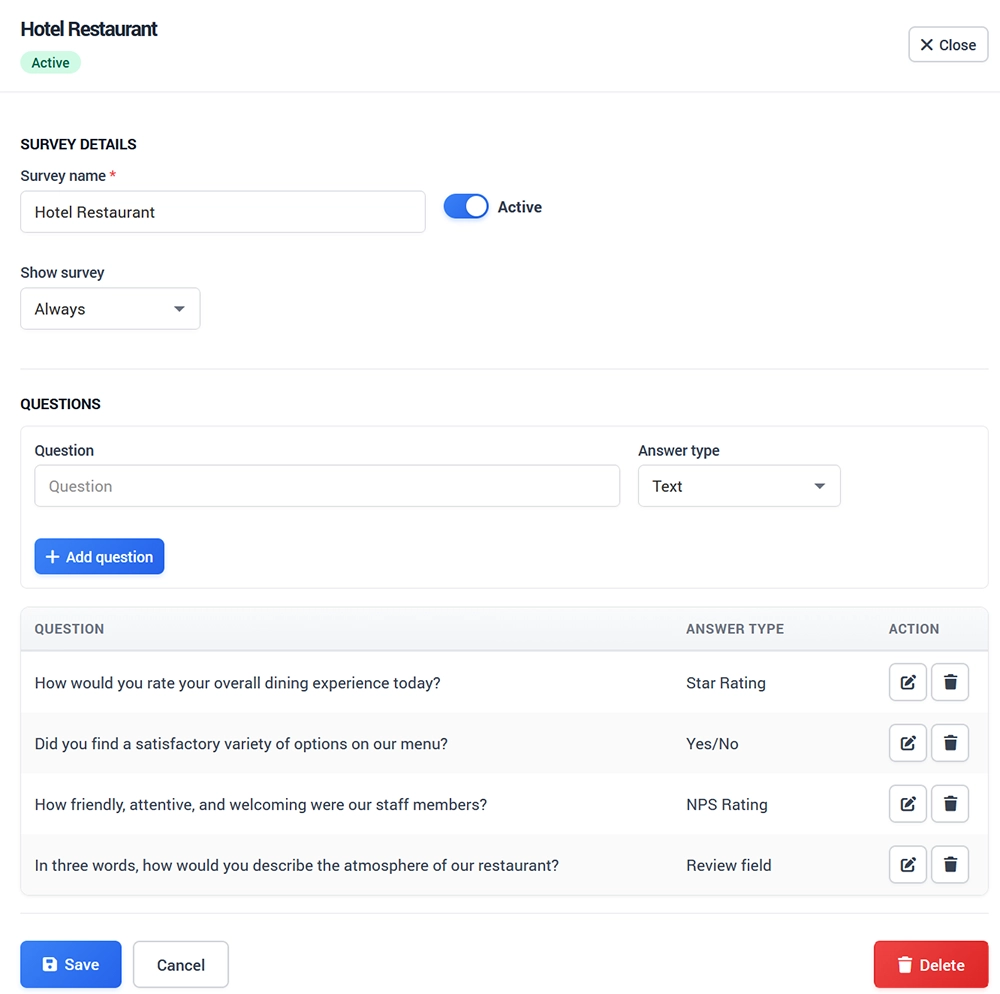
To create a survey:
Open Setup → Surveys.
Click + New Survey.
Enter a unique Survey Name.
Add a description when required.
Enter your first question.
Select the appropriate Answer Type.
Click Add Question.
Continue adding questions as required.
Configure when the survey should be displayed.
Make sure the survey is active.
Save the survey.
Each survey must have a unique name.
Add Survey Questions
Enter the question you want visitors to answer and select the appropriate Answer Type.
Click Add Question to include the question in the survey.
Repeat the process when the survey contains multiple questions.
Keep questions short and easy to understand, especially when the survey appears during the WiFi login process. Long or unnecessary questionnaires can make the guest access process more difficult.
Configure When the Survey Appears
The Show Survey option determines how frequently the survey is presented to visitors.
Available display timing can include:
Always
On each visit
Once per day
At configured repeat intervals
Choose the timing according to the purpose of the survey.
For example, a short satisfaction question may be suitable for repeat display, while a longer questionnaire may be better presented less frequently.
Activate the Survey
A survey must be active before it can be used.
Before publishing it to visitors, verify:
Survey name
Questions
Answer types
Display timing
Active status
Save the configuration after making changes.
Add the Survey to a Splash Page
Creating a survey does not by itself define where visitors will see it.
Integrate the survey into the appropriate Splash Page and make sure that the page is assigned to the required WiFi service or location.
After integration, test the Splash Page from a guest device to confirm that the survey appears at the expected point in the WiFi access process. The current documentation provides a separate guide for integrating a survey into a Splash Page.
Survey Log
The Survey Log provides detailed information about collected survey responses.
Select the survey you want to review to display its recorded results.
The log can include information about when responses were collected and the WiFi location associated with the survey.
Survey log data can also be exported for additional review or processing.
Survey Statistics
Survey Stats provide a visual overview of collected responses.
Select the survey and then choose the question you want to analyze.
Statistics allow you to review:
Number of collected surveys over time
Results for individual questions
Most common answers
Number of responses for each answer
This provides a quick way to identify response patterns without manually reviewing every individual survey entry.
Export Survey Data
Survey results can be exported when you need to analyze or archive the collected data outside WiFi Hotspot.
To export survey data:
Open Surveys → Export Survey.
Select the required survey.
Select the reporting period.
Click Export.
Survey data can be exported as a Microsoft Excel file.
Test Your Survey
Always test a new or modified survey before making it available to visitors.
Save and activate the survey.
Add it to the required Splash Page.
Connect a test device to the guest WiFi network.
Open the Splash Page.
Confirm that the survey appears at the expected time.
Complete all survey questions.
Finish the WiFi login process.
Open the Survey Log and confirm that the response was recorded.
Review Survey Stats and verify that the collected answer appears correctly.
Testing the complete process helps ensure that visitors see the correct questions and that their responses are successfully recorded.
Survey Best Practices
Keep surveys focused on information that is actually useful to your business.
Short surveys generally fit the guest WiFi experience better than long questionnaires. Ask clear questions, avoid collecting unnecessary information, and choose a display frequency that does not repeatedly interrupt returning visitors.
For customer satisfaction surveys, focus on a small number of questions that can produce actionable feedback about the guest experience.