Ubiquiti: UniFi Network V10+
This guide explains how to connect your UniFi OS Server (v5.1.42+) with Antamedia WiFi Hotspot portal using the native UniFi API Key method. By utilizing the modern UniFi API Key method, Antamedia communicates directly with your UOS Server to securely authenticate guests, sync session data, and handle remote disconnections.
This setup bypasses the need for any internal or external RADIUS servers.
Compatibility & Verification
This integration has been fully tested and verified to work with the following system components:
UniFi OS: v5.1.42
UniFi Network Application: v10.6.106
Access Point Hardware & Firmware: U6+ (v6.7.54)
It is expected to work with any future version.
Generate the API Key on the UOS Controller
The API key inherits permissions directly from the administrator account that creates it.
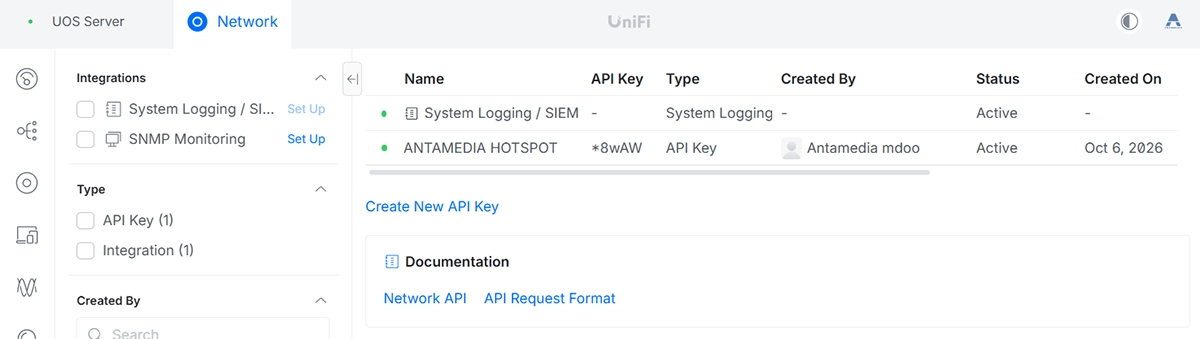
Follow these steps to generate it:
• Open your local UOS Server management panel via your browser (e.g., https://10.6.106.x or your local server IP). Log in using your root administrator credentials.
• On the bottom-left sidebar of the main UniFi OS menu, click on Control Panel and then select the Integrations tab.
• Look for the API Keys section and click the Create API Key button.
• Give the key a recognizable name, such as Antamedia Hotspot, and ensure the expiration parameter is set to Never Expires.
• Click Confirm/Create. The UOS system will display a long alphanumeric string.
• Copy the API Key immediately and store it safely.
Warning: The key will only be shown once. If you close the window, you cannot retrieve it and will have to generate a new one.
Configure the Guest WiFi and Hotspot Profile in UOS
Open your UniFi Network Application (v10.6.106) through the UOS panel and apply the wireless and captive portal rules.
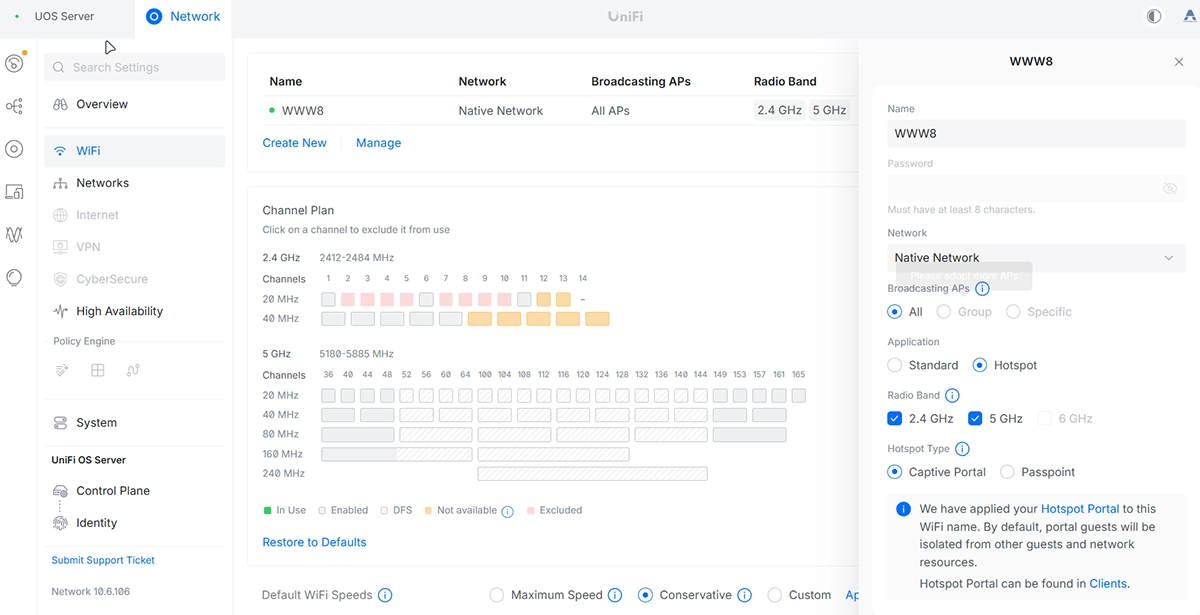
WiFi Settings & Hotspot Application
• Navigate to Settings/WiFi and click Create New (or edit your existing guest network, e.g., WWW8).
• Set the Name/SSID to your desired wireless identifier.
• Under the Application section on the right panel, select Hotspot.
• In the Hotspot Type options that appear below, select Captive Portal. This automatically configures device isolation to secure guest traffic. Click Apply Changes.
Authentication Methods
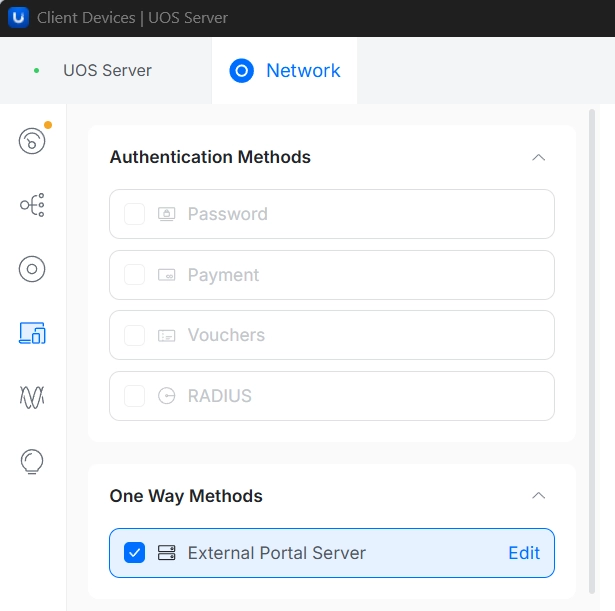
• Click the Hotspot Portal link at the bottom of the notification, or navigate to Settings/Guest Hotspot (or click the Clients/Hotspot profile icon in the sidebar).
• Scroll down to the Authentication Methods window. Ensure all native options like Password, Payment, Vouchers, and RADIUS are left unchecked.
• Look under the One Way Methods section and click External Portal Server to check the box. Click Edit to verify that your external Antamedia splash page IP or target hosting URL is correctly saved.
Landing Page Settings & Authorization Access
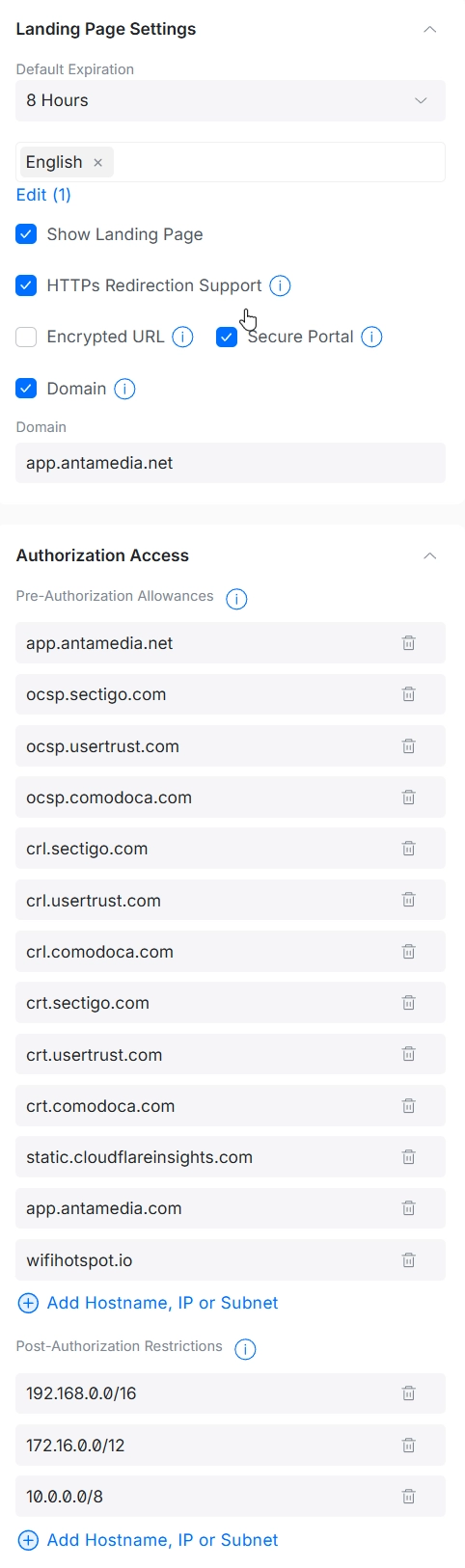
• Inside the Landing Page Settings section, verify that Show Landing Page and HTTPs Redirection Support are checked.
• Make sure Secure Portal and Domain are enabled, and depending on Antamedia server region you selected, input app.antamedia.net or app.antamedia.com in the domain field.
• Scroll to Authorization Access/Pre-Authorization Allowances (Walled Garden). Click Add Hostname, IP or Subnet to explicitly white-list the following essential records so guests can reach the login interface before authenticating:
app.antamedia.net
• Click Apply Changes.
Configure the Antamedia Portal
Log into your Antamedia Portal account. Go to WiFi locations page, select location and in the Hotspot tab, Enable Controller and insert the connection details to establish a link with your UOS Server.
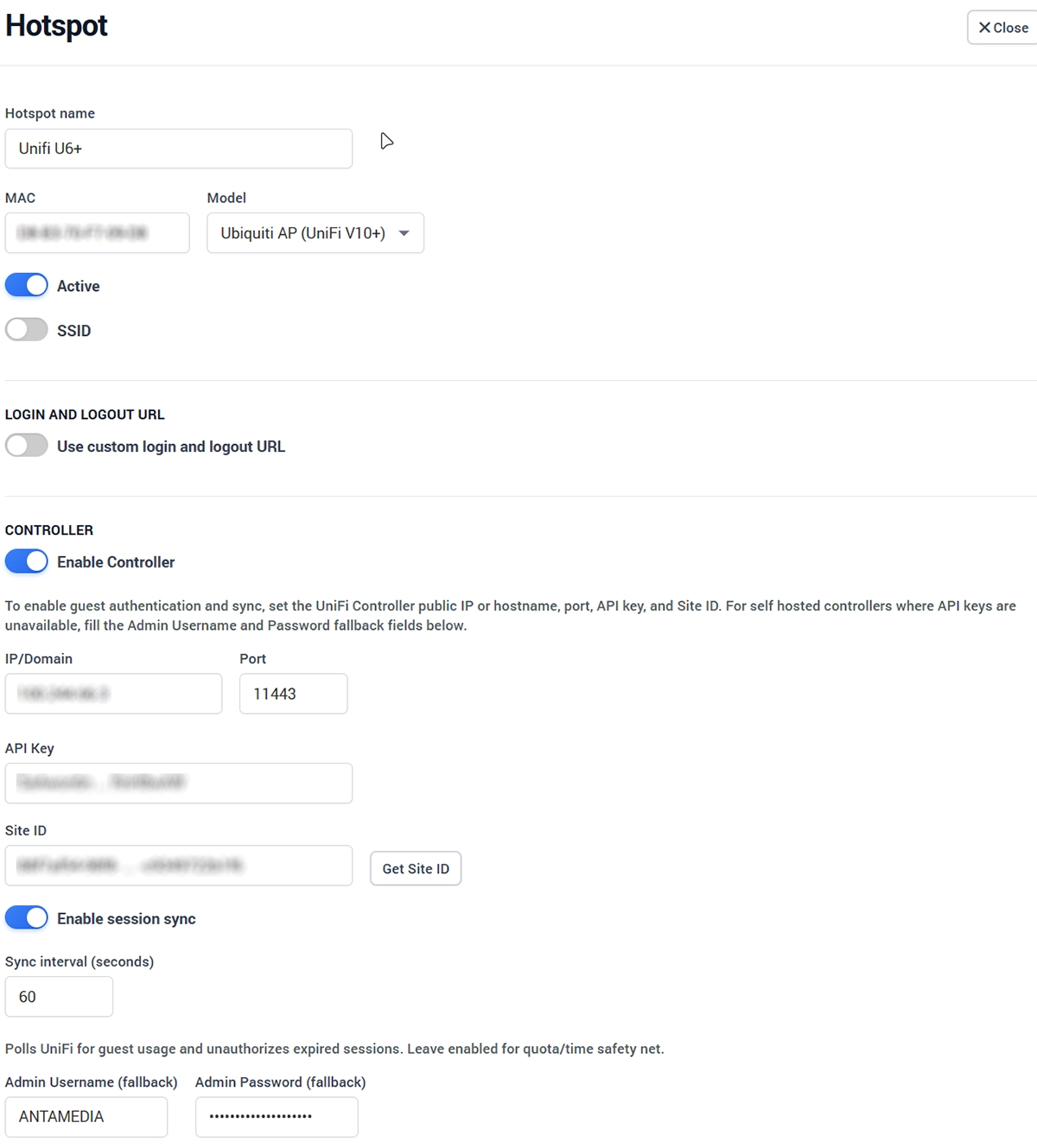
• Hotspot Model: Select UniFi AP (UniFi v10+)
• Enable Controller
• UOS Server IP/Domain & Port: Enter the local network address of your UOS instance (e.g., 10.6.106.x) and your management port (typically 443 or 8443)
• API Key: Paste the secure token string you copied from the UOS Server
• Site ID: Click the Get Site ID button. The system will make an automated API call to your UOS server and fill the first available site string (typically default) automatically.
• Admin Username/Password: Input your primary UOS Administrator login credentials
• Session Sync: Ensure this setting is Enabled and set the interval value to 60 seconds (or more) to allow proper tracking of data usage metrics
Admin and User Session Management
With the API connection active, user lifecycle commands pass directly between Antamedia and your U6+ Access Points.
Administrator Disconnect: If an administrator needs to forcefully evict a user from the network, they can open the Antamedia panel and click the Disconnect button. The API key authorizes an instantaneous session termination packet straight to the UniFi infrastructure.
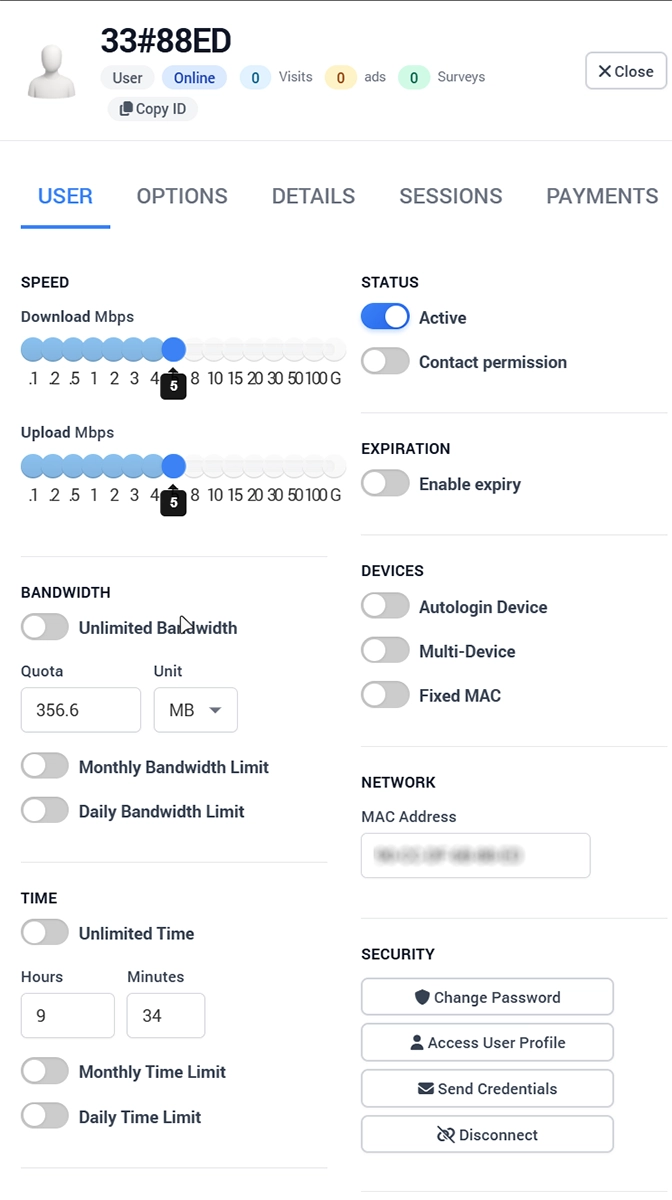
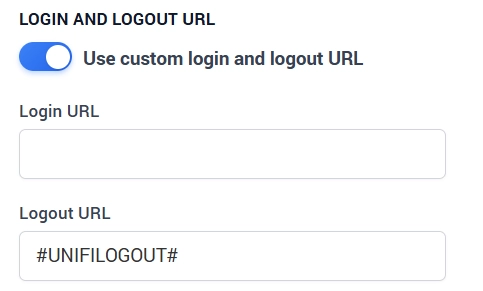
User Logout: Users are allowed to manually drop their connection via their web profile page using the Logout button. When the API key configuration is active, Antamedia automatically populates the logout URL with a system variable.
Do not change this prefilled variable, as doing so will prevent the API from processing user-initiated logouts.