
Cloud WiFi CAP 4G
Download Cloud WiFi CAP 4G HotspotOS
Flashing instructions
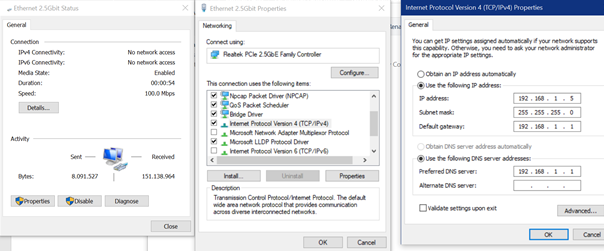
Set the IP address of your PC NIC to 192.168.1.5, the net mask: 255.255.255.0, and the default gateway to 192.168.1.1.
Download and install the Chrome extension “Translator for the Breed Bootloader” from the following link:
https://chrome.google.com/webstore/detail/translator-for-the-breed/hmkkdkhgadgmaplnhahncddmmcdegjhi
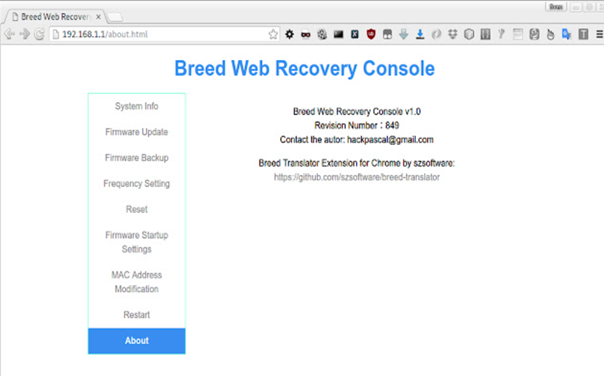
Connect your PC to the CAP 4G LAN port, ensuring that the AP WAN port is connected to the Internet.
In the Chrome address bar, type http://192.168.1.1/upgrade.html
Refresh the page multiple times until the router starts and opens as shown in the example.
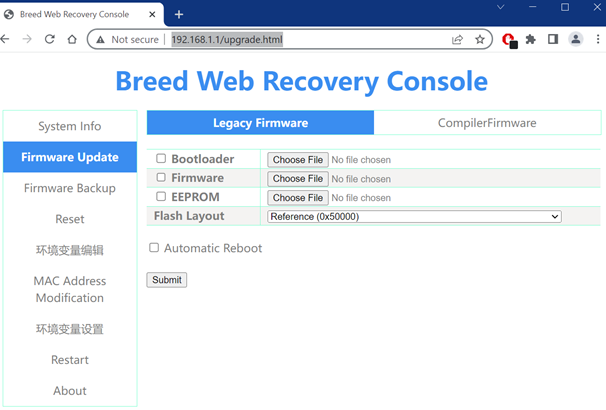
Once you access the Breed Web Recovery Console, go to the Firmware Update page. Select the Firmware and click “Choose File”. Navigate to the downloaded HotspotOS file, select it, and click “Open”.
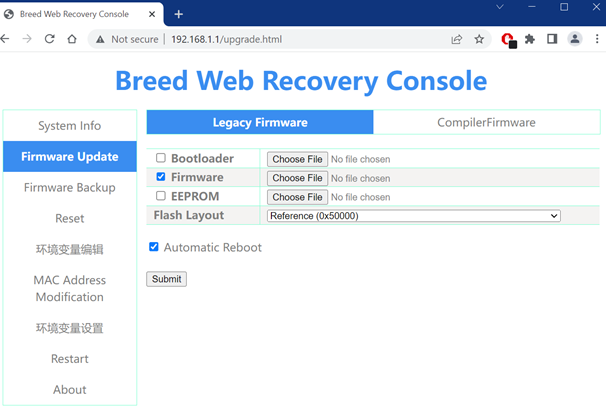
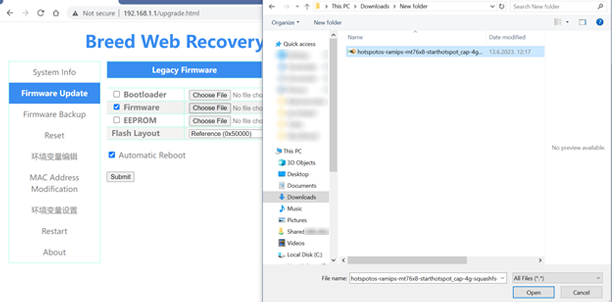
Turn off the CAP 4G, and then turn it on while continuously refreshing the page until the specified page appears.
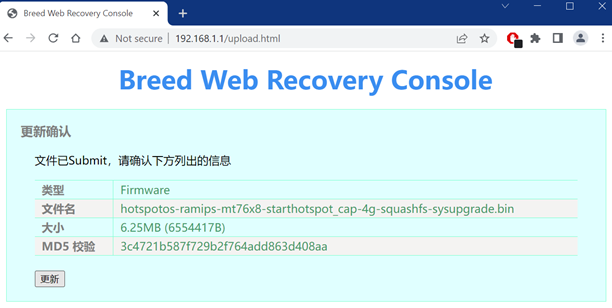
On the page, press the small gray button, and the flashing process will begin.
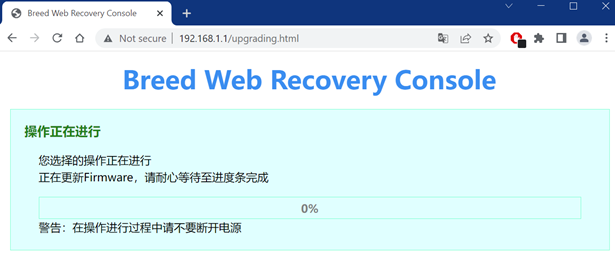
Monitor the blinking LED light. When the flashing process finishes, all LED lights will turn off and then turn on again.
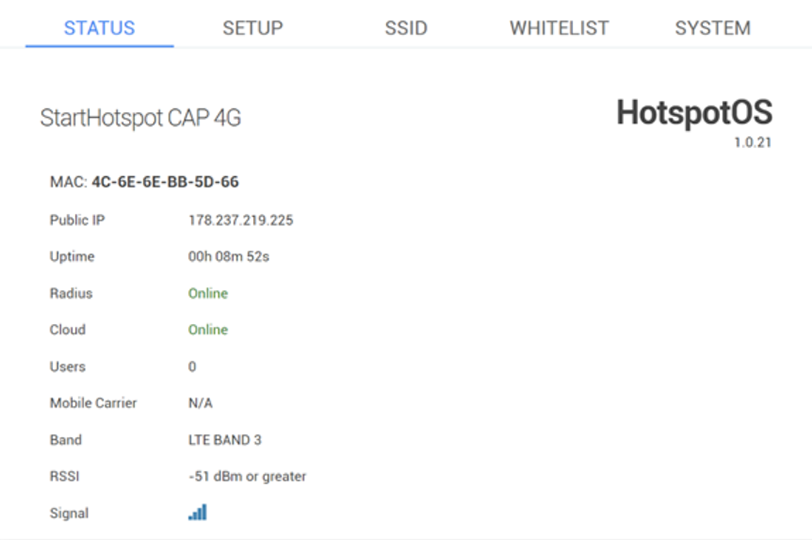
The HotspotOS boot will start.
Set your PC’s NIC to obtain an IP address automatically and wait for the NIC to receive an address in the 10.200.x.x IP range.
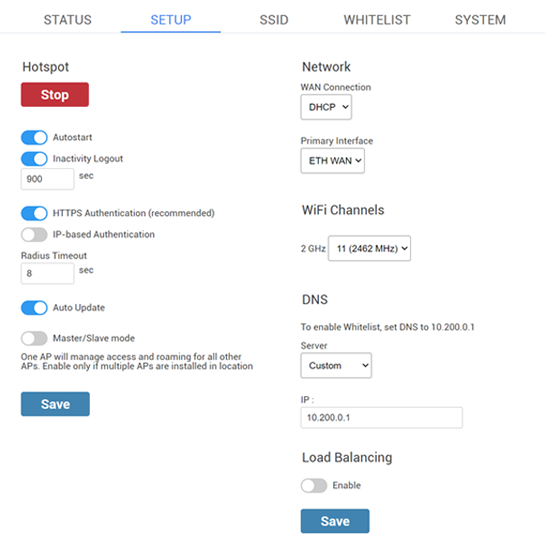
After some time, you can access the HotspotOS web interface at http://10.200.0.1:8089
Troubleshooting
If the Breed Web Recovery Console does not appear within 10 seconds after refreshing the page, please power off your CAP 4G device and then power it on again.