
 Extreme Networks Cloud IQ
This article outlines the installation and configuration steps for the Extreme Networks Cloud IQ solution.
Enable Captive Web Portal (CWP) and select the external redirect option.
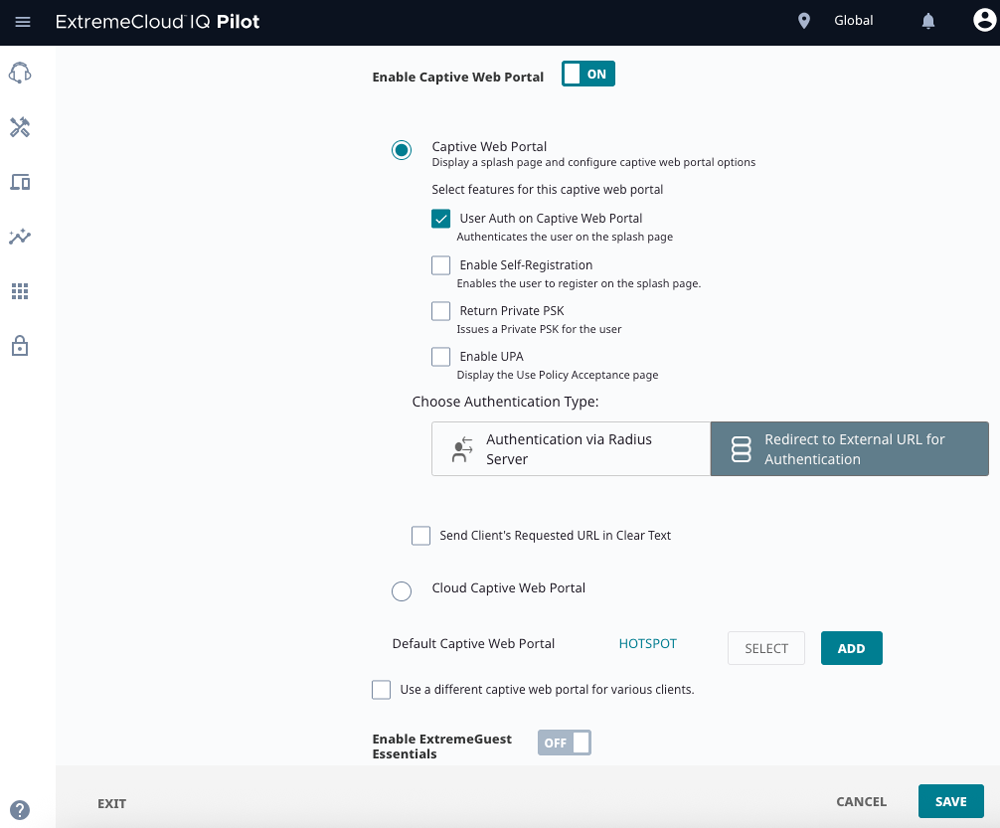
Open the target SSID in your Network Policy.
Turn Enable Captive Web Portal – ON.
In Choose Authentication Type, select Redirect to External URL for Authentication (not “Authentication via RADIUS Server” here).
Under Default Captive Web Portal, click ADD (you’ll create a new CWP instead of using the example “HOTSPOT”).
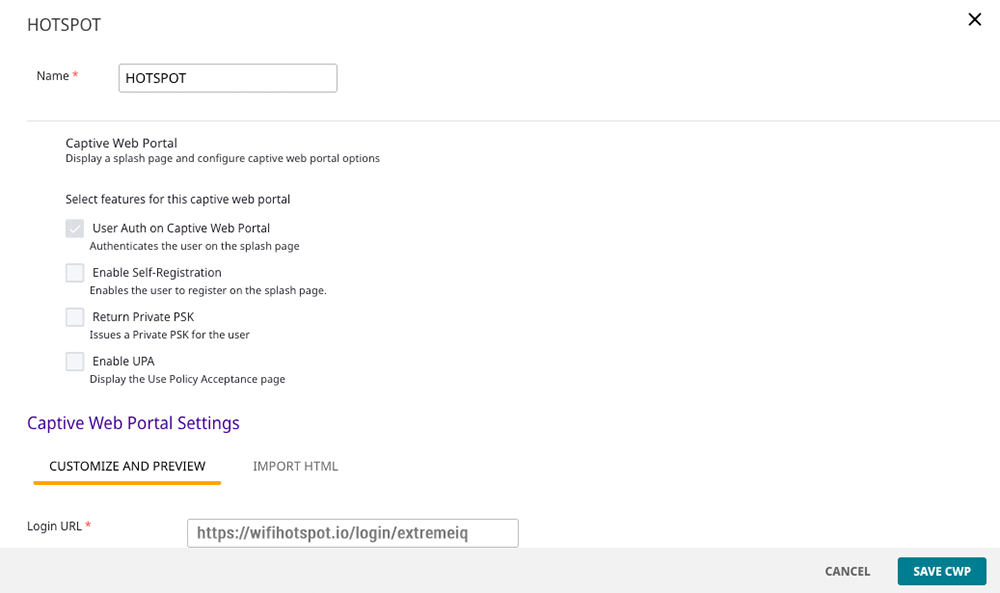 In the CWP editor:
Name: e.g., HOTSPOT (or any site-specific label).
Login URL: https://wifihotspot.io/login/extremeiq
Password Encryption: No Encryption (Plaintext Password)
Authentication Method: PAP
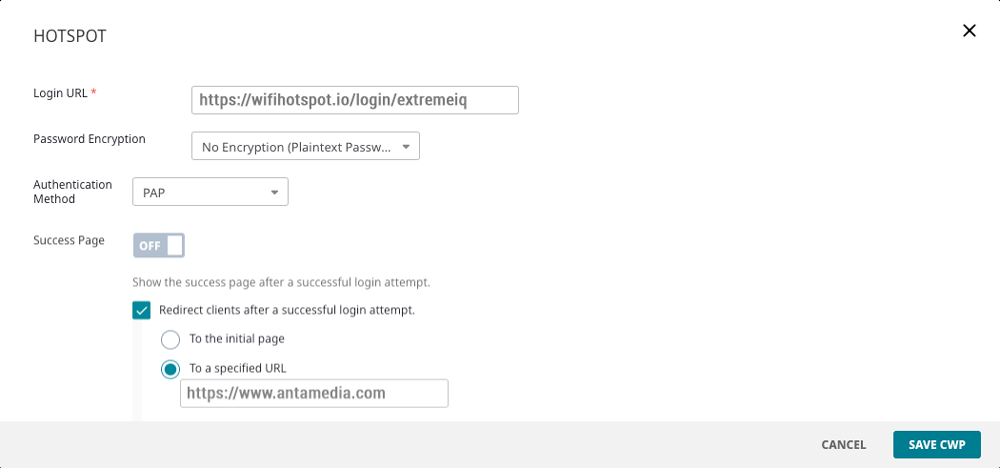
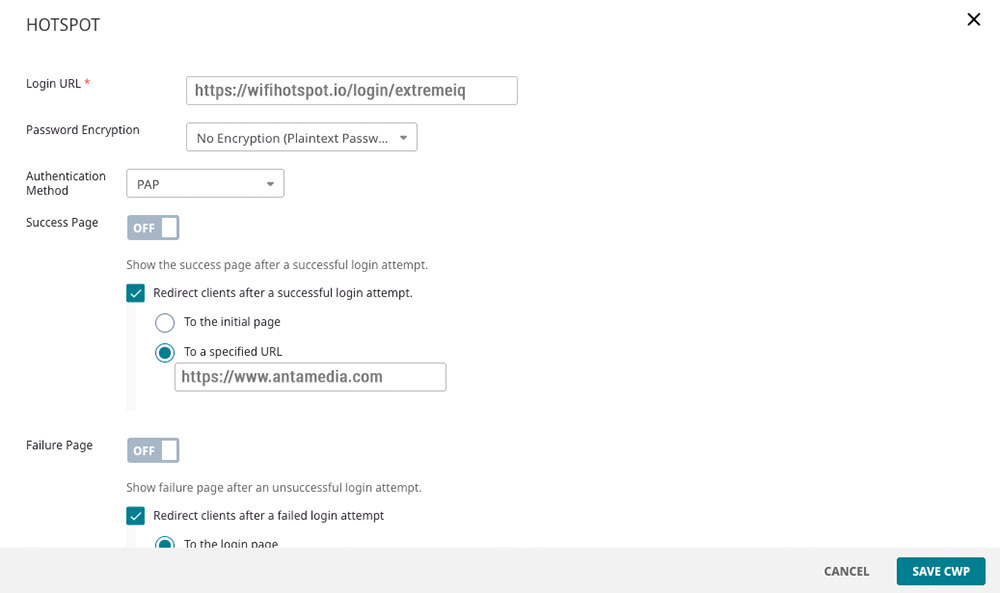
Success Page: OFF (recommended).
This avoids Extreme’s 5-second “login successful” interstitial.
Redirect clients after a successful login attempt: ON → To a specified URL
Enter the desired post-login URL (e.g., your site or a start page).
Note: The redirect happens in Extreme (controller/CWP), not on our platform.
Failure Page: OFF (unless you want a custom error page).
Click SAVE CWP.
Open Walled Garden.
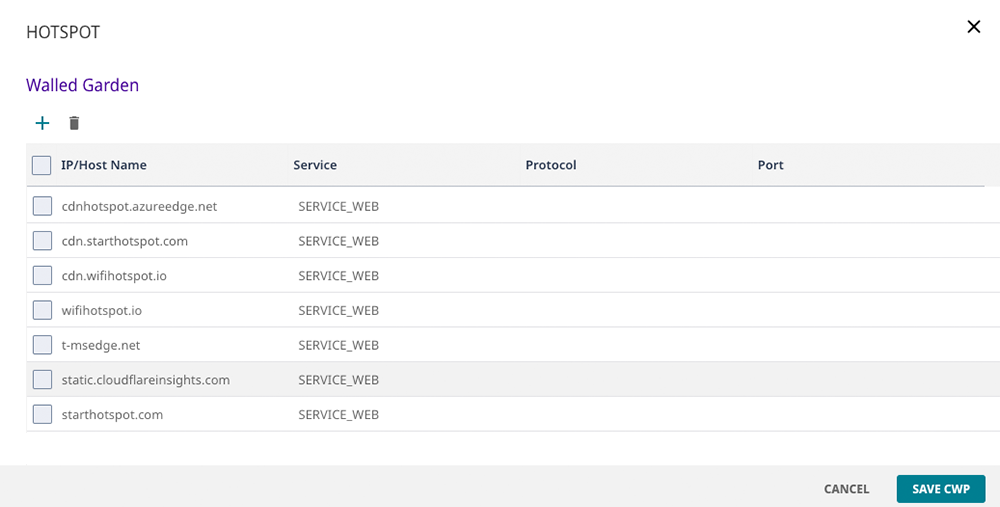
Add the entries below (Service: SERVICE_WEB; leave Protocol/Port blank or default unless your UI requires HTTPS/443 explicitly):
Save the CWP.
You’ll now bind the SSID to our RADIUS AAA server.
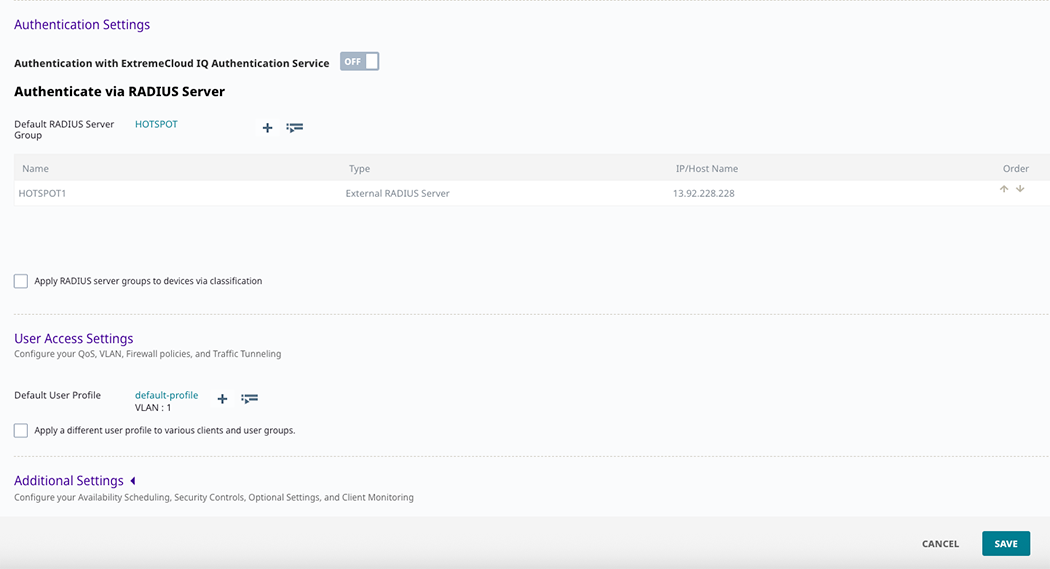
In the SSID’s Authentication Settings, choose Authenticate via RADIUS Server and click the RADIUS Server Group name (or ADD a new group).
In EXTERNAL RADIUS SERVER, click + to add a server:
Name: HOTSPOT1
IP/Host Name: 13.92.228.228
Auth Port: 1812 (UDP)
Acct Port: 1813 (UDP)
Shared Secret: (contact us for RADIUS shared secret)
(Optional) Timeout 5s, Retries 3 are typical.
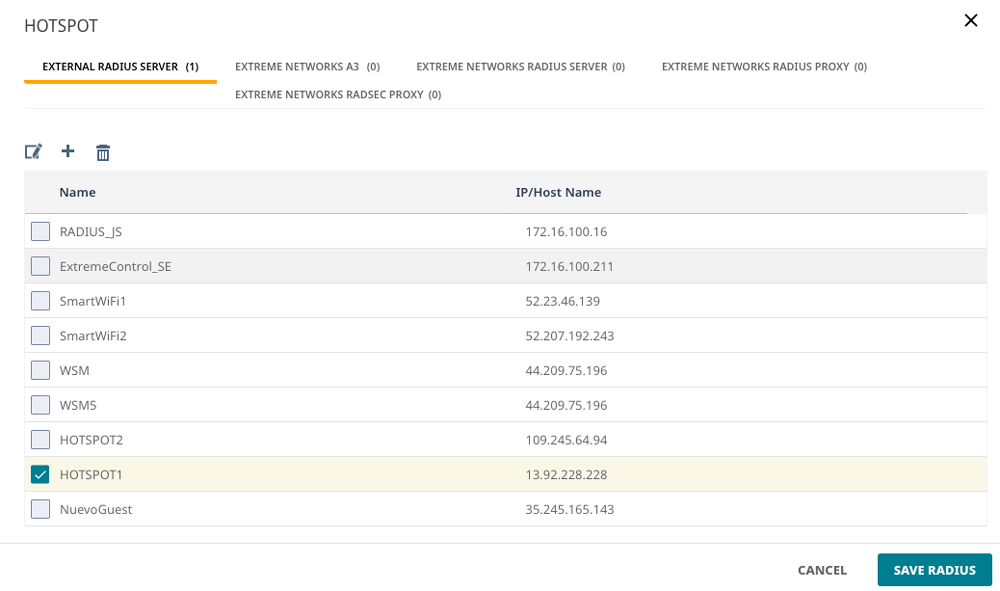 SAVE RADIUS, ensure HOTSPOT1 is checked and at the top of the group order.
Back on the SSID, confirm the Default RADIUS Server Group is your group (e.g., HOTSPOT).
Under User Access Settings, choose the correct Default User Profile
(e.g., default-profile, VLAN: 1, or your site’s production VLAN).
Allow the AP/Controller to reach the portal/CDN hosts above on TCP 443.
Allow UDP 1812/1813 (outbound/from AP or controller to 13.92.228.228) for RADIUS Auth/Acct.
Leave Send Client’s Requested URL in Clear Text unchecked (not required by our portal).
Keep Cloud Captive Web Portal disabled (you’re using External URL).
Connect a client to the SSID.
You should be redirected to https://wifihotspot.io/login/extremeiq.
Authenticate (voucher/user).
If there’s no 5-second success page, Extreme performs the redirect to your specified URL.
Login to your portal account and go to the WiFi locations section. Select a WiFi location or create a new one.
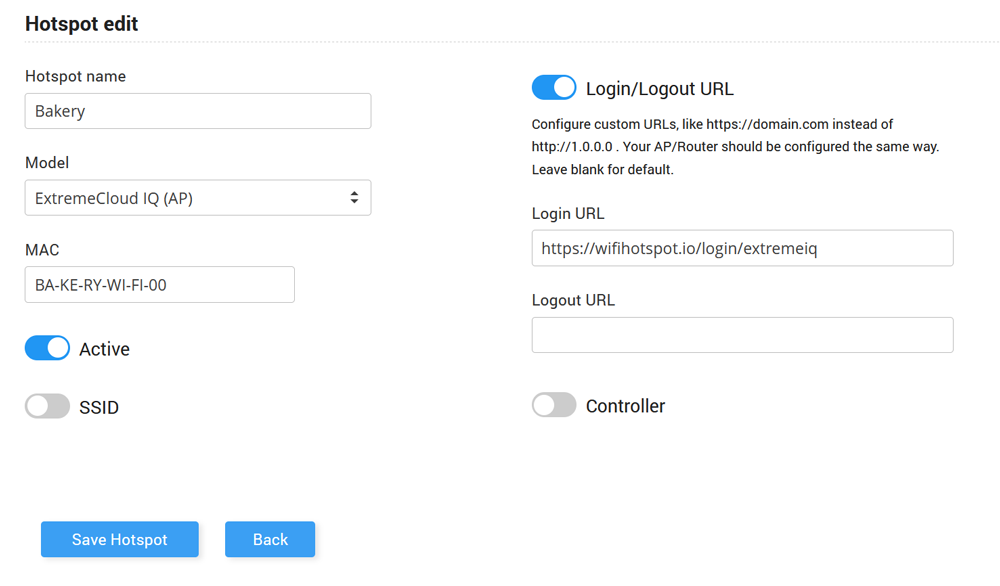
Set Hotspot Name, select Model, and type AP MAC address.
As Login URL set https://wifihotspot.io/login/extremeIQ
Save Hotspot.
Besides Extreme Cloud IQ we support for Extreme Networks (Controller) and Extreme Cloud IQ (MGT).
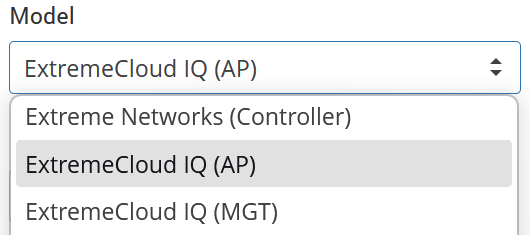
When using Extreme Networks Cloud IQ MGT, you can select it in the Antamedia Cloud portal by adding /extrememgt as Login URL and choosing MGT as the model under the app selection.
In this configuration, the MGT (Management) MAC address functions as the central controller MAC for all access points managed under Cloud IQ.
To ensure proper communication between the Cloud platform and Extreme Networks, the NAS ID must be set to match this MGT MAC address.
This effectively creates a single “master” MAC (mMAC) representing all connected APs, allowing unified accounting, authentication, and RADIUS communication.
The key configuration step is to manually override the NAS ID in your RADIUS setup with the MGT MAC address. Without this override, each AP might try to identify itself individually, leading to connection or authentication inconsistencies.
One challenge administrators may encounter is that individual AP MAC addresses are not easily visible or accessible within the Cloud IQ interface, since the system abstracts hardware details under a single management identity (the MGT). This design simplifies large-scale management but makes per-AP configuration or troubleshooting more difficult if you need direct hardware MAC information.