
Sign Up for Antamedia Platform
Create your Antamedia Platform account and complete the initial setup in a few simple steps.
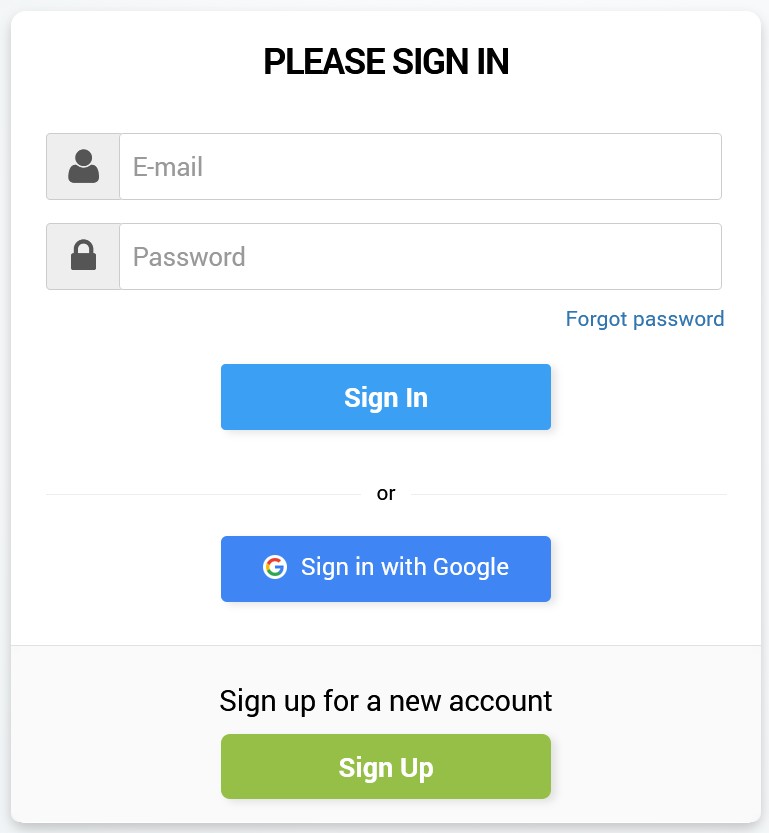
Visit app.antamedia.com and select Sign Up to create your Antamedia Platform account.
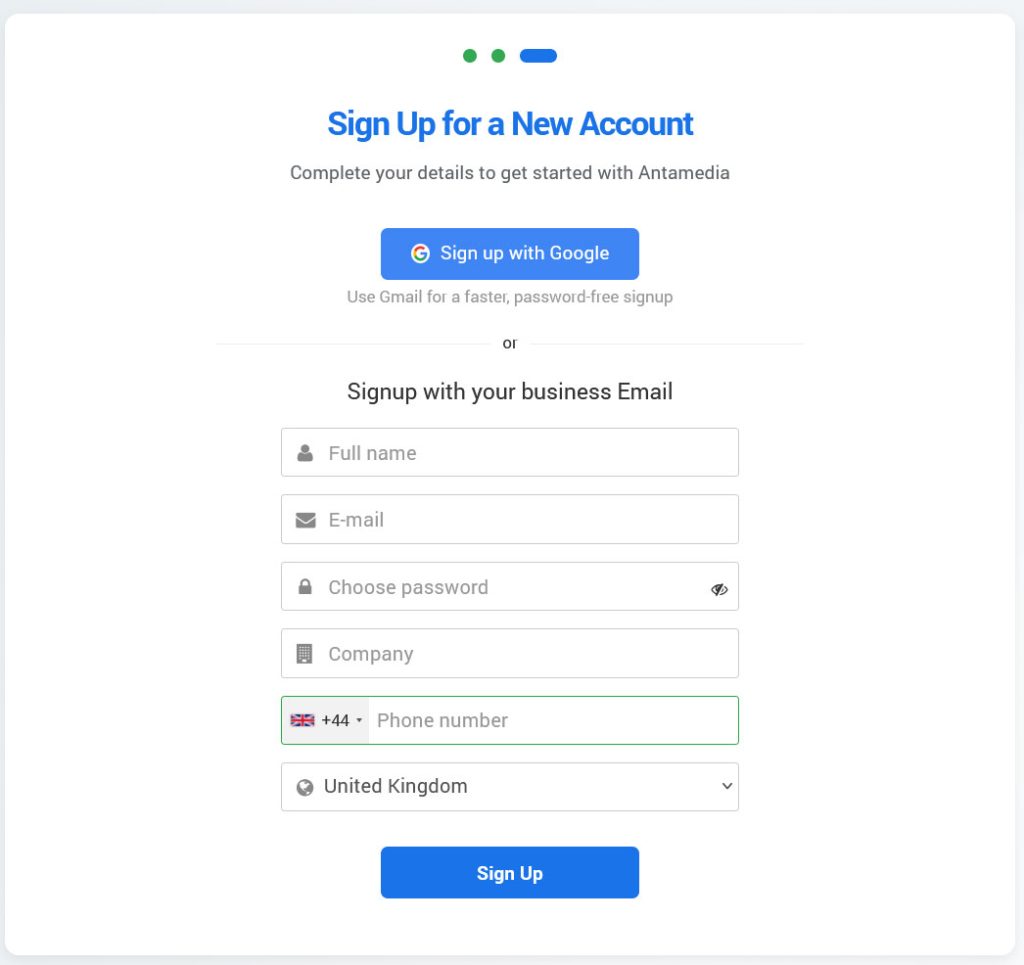
You can sign up using a Google account or your business email address. Email verification is required when signing up with an email address.
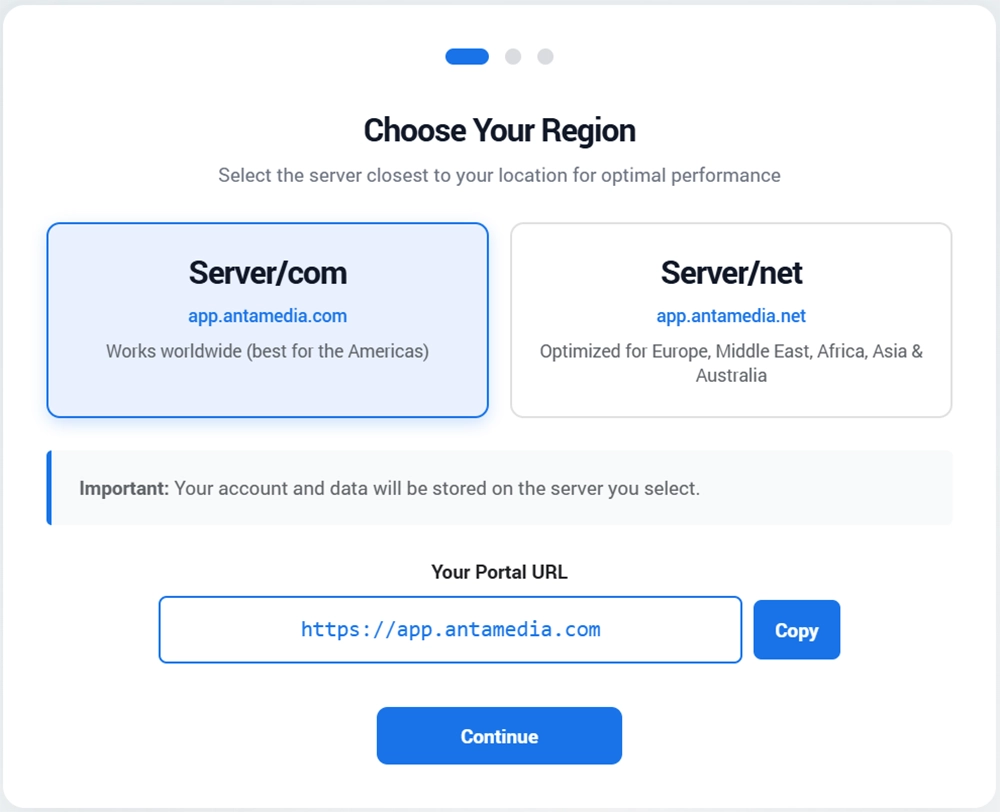
Choose where your account will be hosted by selecting the region closest to your location: Server/com ( Works Worldwide, best for Americas) and Server/net ( Optimized for Europe, Middle East, Africa, Asia & Australia) .
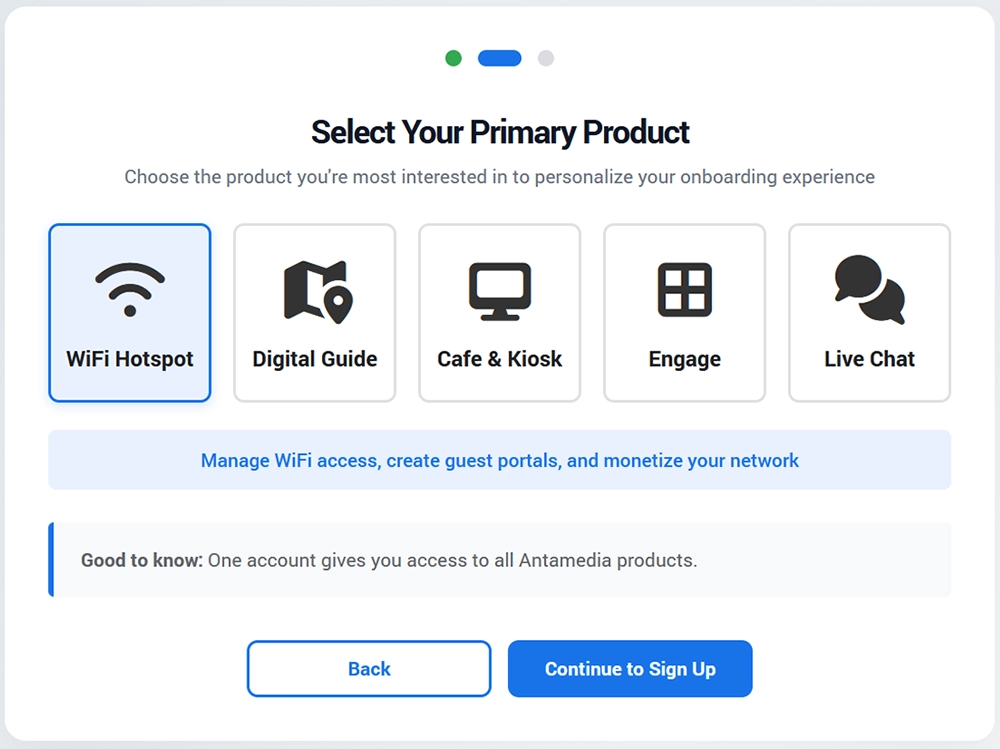
Select the primary solution you want to start with: WiFi Hotspot, Digital Guide, Cafe & Kiosk, Engage, or Chat.
In the New account form, sign up with Google or use your business email, fill in the required details, and select Sign Up to create your account.
Your account has been created. Check your email and click the activation link to complete the signup process.
If you do not receive the email shortly, check your spam folder. Some spam filters may modify links, so move the message to your inbox before opening the activation link.
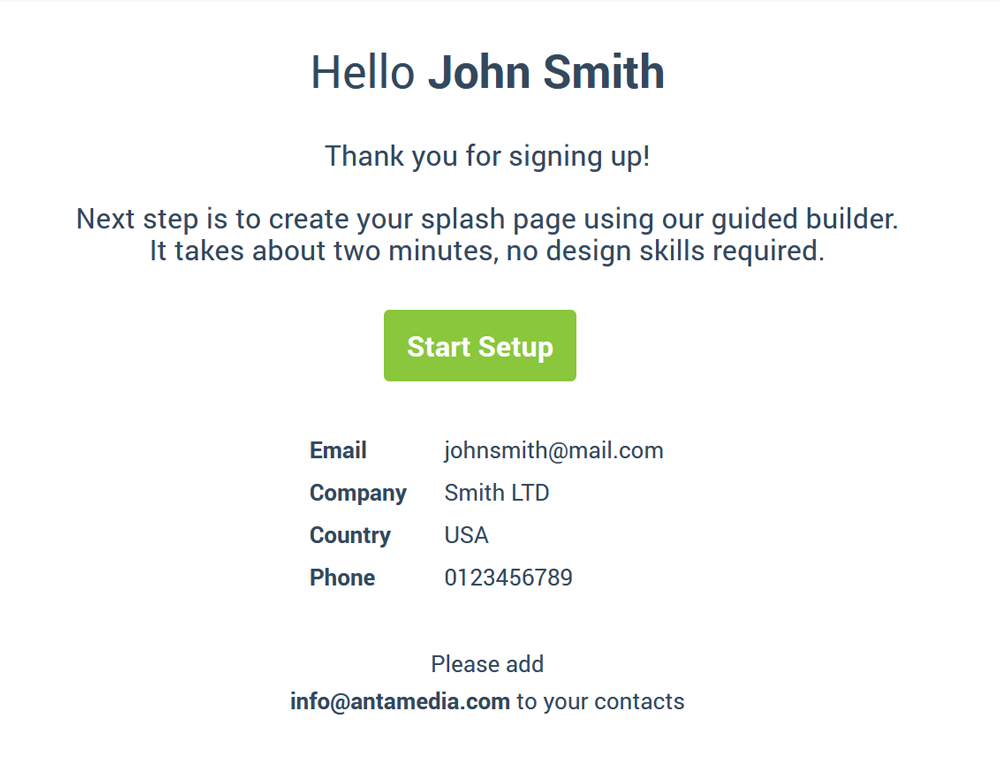
Once your Antamedia account is activated, the onboarding process will guide you through the initial WiFi Hotspot setup.
Onboarding
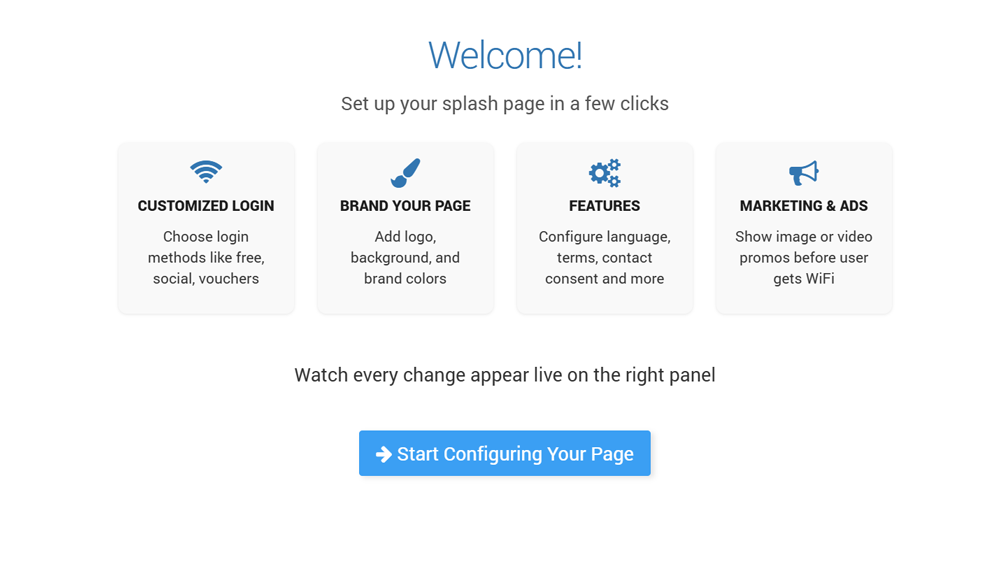
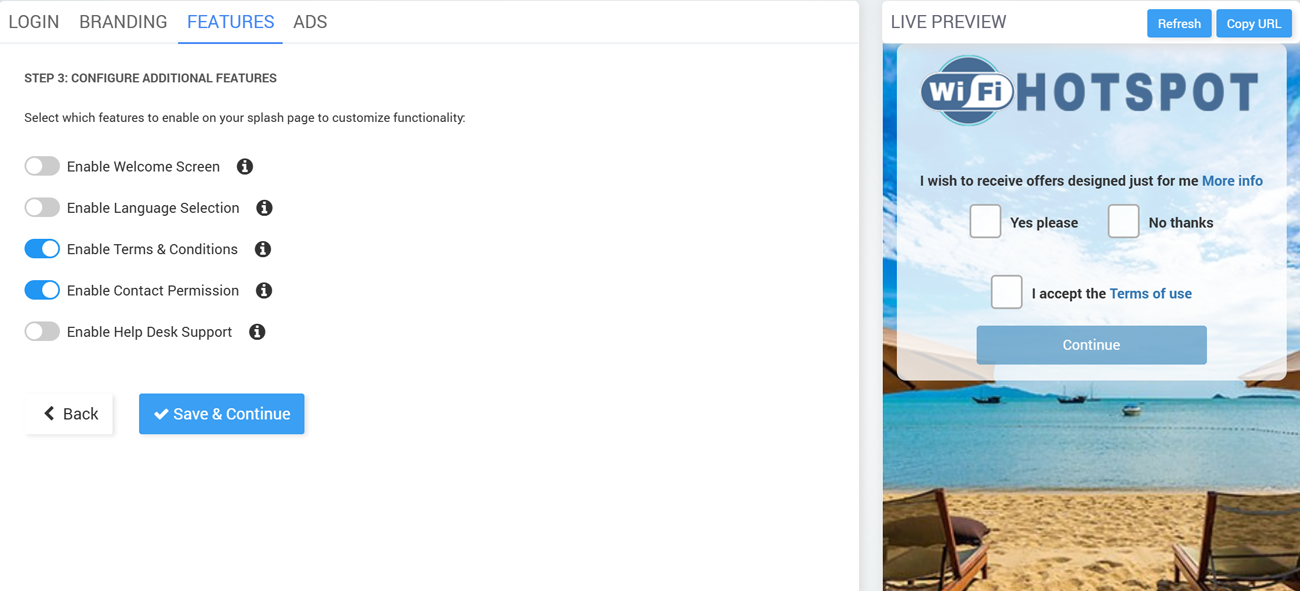
The WiFi Hotspot onboarding process guides you through four initial Splash Page steps: Login, Branding, Features, and Ads. A live preview shows your changes as you configure the page.
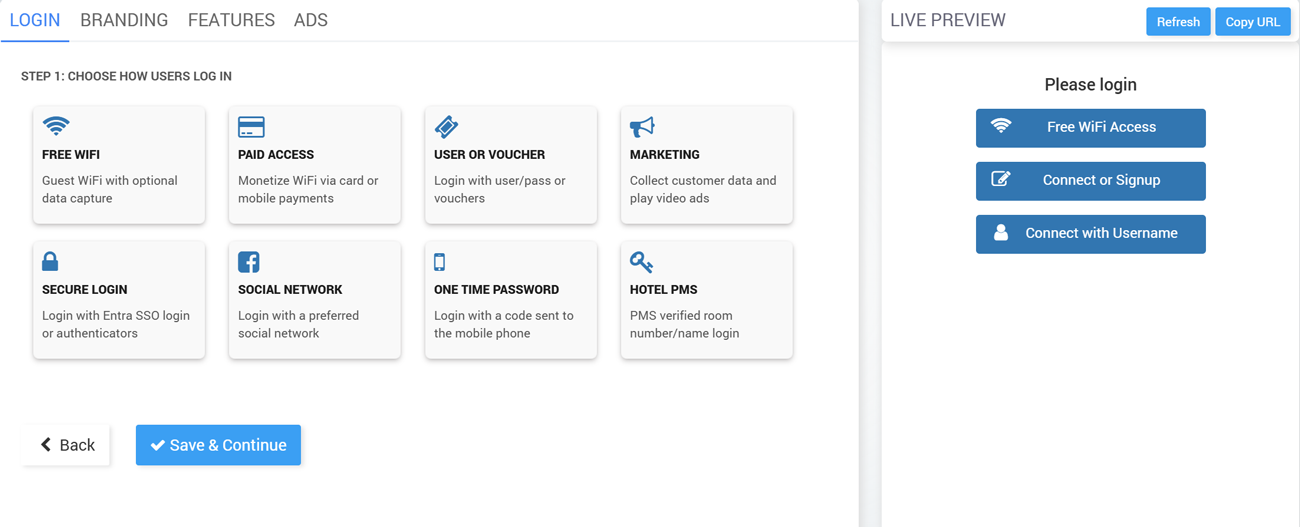
Step 1 Login: Choose how users Login
Select one or more desired Login methods that you want to display on the Splash page.
Step 2 Branding: Configure Images
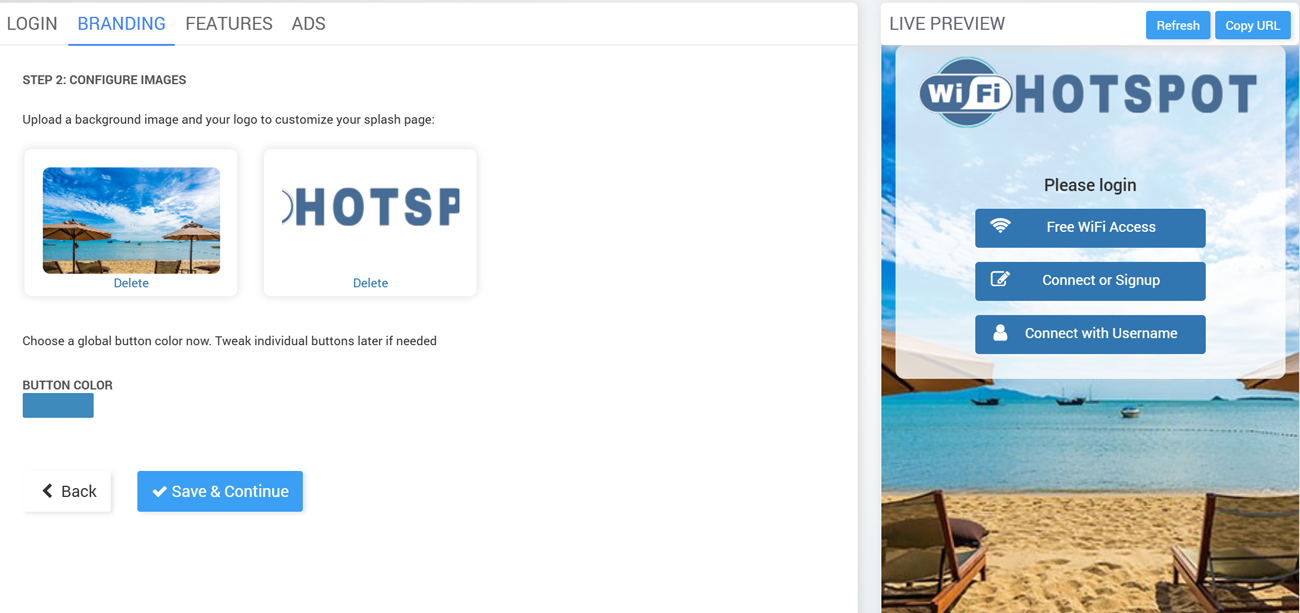
Upload a background image and a logo to customize the splash page.
Choose a global button color for the page (individual buttons can be adjusted later).
Step 3 Features: Configure additional Features
Enable Welcome Screen, Language Selection, Terms & Conditions, Contact Permission, and Help Desk Support
Step 4 Ads: Show Video or Image Ads
Enable/disable ads on the splash page.
Add, edit, or delete video/image ads that play before WiFi access is granted.
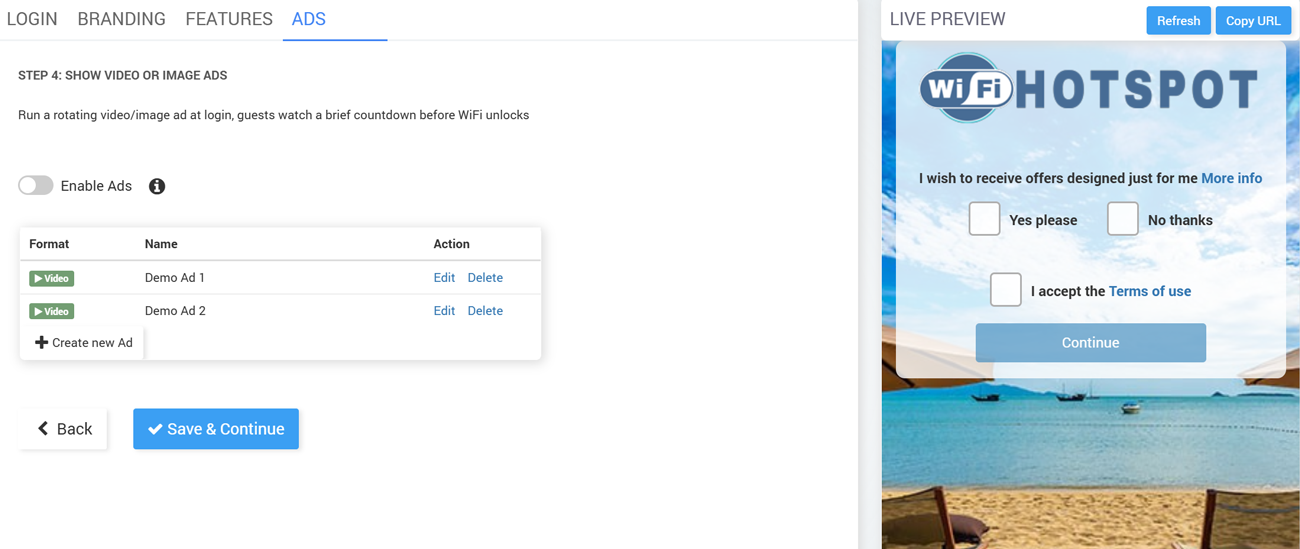
Click Save & Continue to complete the initial setup and open the WiFi Hotspot portal.
Your initial WiFi Hotspot setup is now complete. The next step is to configure your router, access point, or controller and connect it to the WiFi Hotspot portal.