
Connecting your Access Point
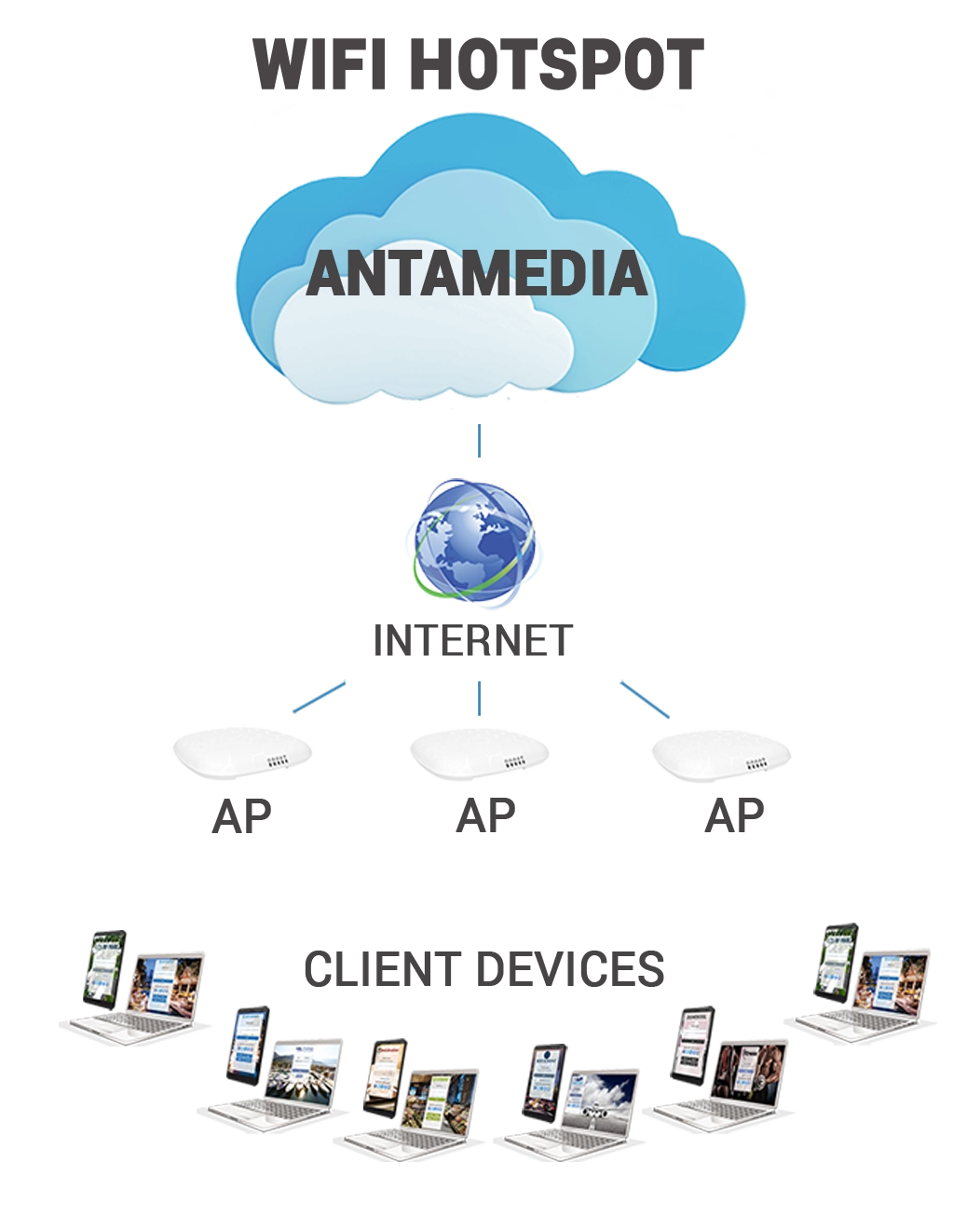
To use WiFi Hotspot, your router, access point, gateway, or WiFi controller needs to be configured to redirect guest users to the WiFi Hotspot captive portal and communicate with the authentication service.
The exact configuration depends on the network hardware you use.Connecting
Choose Your Network Device
WiFi Hotspot supports a wide range of routers, access points, gateways, and WiFi controllers.
Configuration varies by manufacturer and network architecture. Some devices are configured directly, while controller-based WiFi systems are configured through their management platform.
Before starting, identify:
Router, access point, gateway, or controller manufacturer
Device model
Management interface or controller
Guest WiFi SSID
Internet connection used by the guest network
Device MAC address, when required by the integration
Use the appropriate device configuration guide for detailed setup instructions.
Can I Use My Existing Internet Connection?
Yes. Your existing Internet connection can remain the Internet source for the WiFi network.
This may be provided by:
Fiber or Ethernet Internet
Cable or DSL modem
4G/5G router
Existing firewall or gateway
Other Internet uplink
The WiFi Hotspot compatible router, access point, gateway, or controller is then configured to provide and control guest WiFi access.
If your existing modem or router also provides a private WiFi network for staff, keep that network separate from the guest WiFi network whenever possible.
Add Your Hotspot
Before configuring the network device, create or select the location where the hotspot will be used.
Open your WiFi Hotspot dashboard and go to the location and hotspot configuration.
Configure the required hotspot information, which may include:
Hotspot name
Router or device model
Device MAC address
Guest WiFi settings
Splash Page
Login settings
The exact information required depends on the type of network hardware and integration.
Configure Your Router or Access Point
Open the configuration guide for your router, access point, gateway, or controller and follow the device-specific instructions.
Depending on the hardware, configuration may include:
Guest SSID
Captive portal or external portal URL
RADIUS authentication
RADIUS accounting
Walled garden or whitelist
Redirect settings
Authentication parameters
Network and VLAN settings
Not every integration requires all of these settings.
Use the values specified in the corresponding device configuration guide.
Connect the Guest Network
The guest WiFi network should have Internet connectivity before captive portal authentication is enabled.
A typical network flow is:
Internet → Router/Gateway → Access Point or WiFi Controller → Guest Device
In larger installations, VLANs, managed switches, multiple access points, and centralized WiFi controllers may also be part of the network.
WiFi Hotspot does not require the entire existing network to be replaced. Only the guest WiFi network needs to be configured to work with the supported captive portal and authentication method.
Test the Connection
After completing the hardware configuration:
Connect a phone or laptop to the guest WiFi SSID.
Confirm that the device receives network connectivity.
Open a browser if the Splash Page does not appear automatically.
Confirm that the WiFi Hotspot Splash Page is displayed.
Complete the configured login or signup process.
Confirm that Internet access is available after successful authentication.
Check the WiFi Hotspot dashboard and verify that the user session appears.
If the Splash Page appears and the user receives Internet access after successful authentication, the hotspot is connected correctly.
If the Splash Page Does Not Appear
If a connected guest does not reach the Splash Page, check:
The guest device received a valid IP address.
Internet access is available from the network device.
The correct captive portal settings are configured.
The correct hotspot or device information was entered in WiFi Hotspot.
The device MAC address is correct when the integration requires it.
Required RADIUS settings are correct.
Required portal domains are allowed in the walled garden or whitelist.
The correct guest SSID or VLAN is being tested.
Also verify that you followed the configuration guide for the exact router, access point, gateway, or controller being used.
Routers with Mobile Internet
WiFi Hotspot can also be used with supported routers that provide Internet access through a SIM card or mobile connection.
Configure the mobile Internet connection according to the router manufacturer's instructions, including the required APN and SIM settings.
Once Internet connectivity is working, configure the guest WiFi and captive portal using the corresponding WiFi Hotspot device guide.
Connecting AP with one ethernet port
In case your device has only one Ethernet port, you will see the Operation mode configuration.
Once you complete all configuration, including networking, SSID, and other options, please switch the Operation mode to the Access point and click the Save button on the bottom of the page.
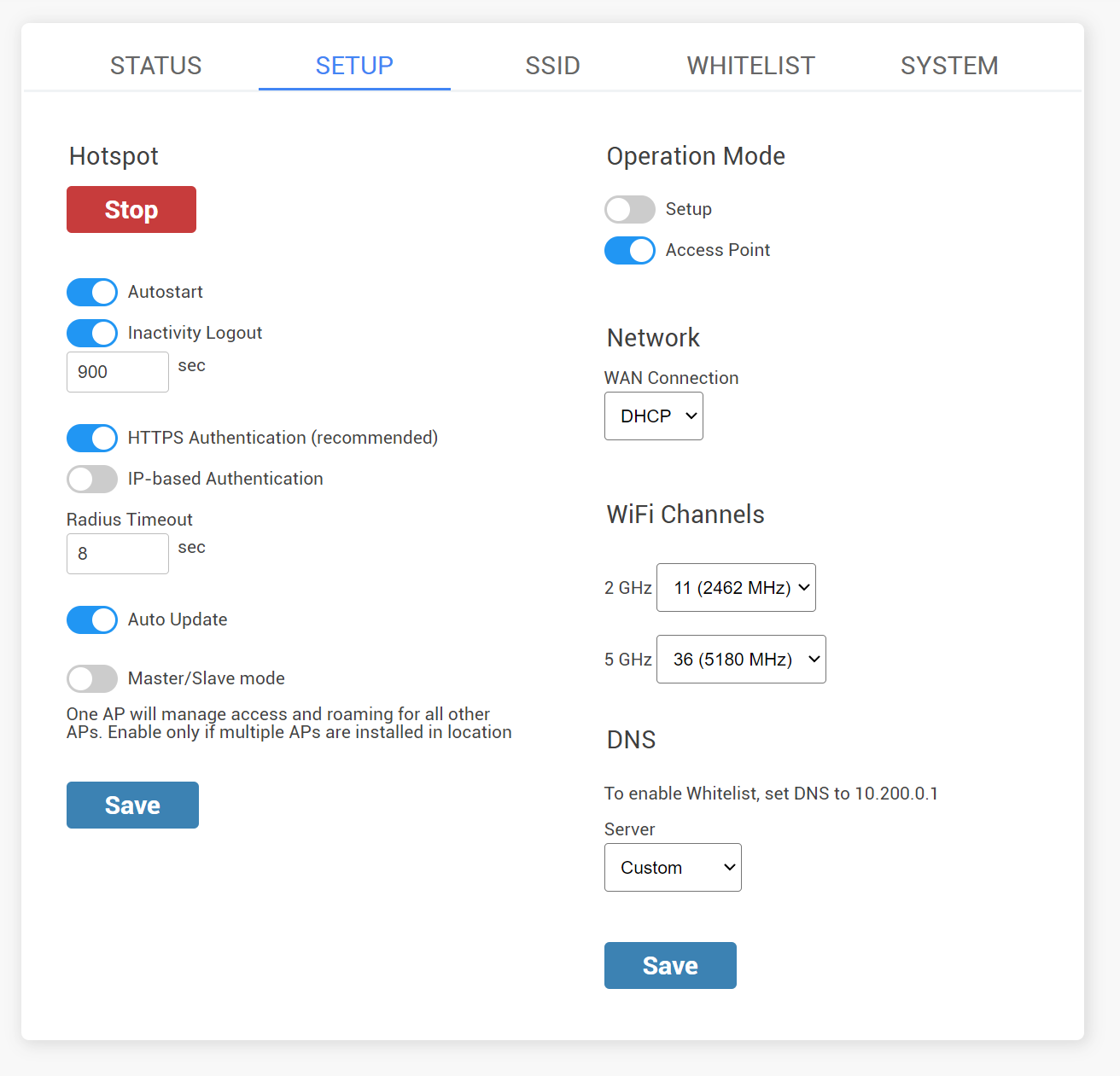
Reboot your AP, disconnect ethernet cable from your PC, connect it to your Internet source (modem, switch etc) and it will be ready for WiFi service.
Connecting AP with SIM card slot
If you’re using a 3G/4G LTE device with SIM card slot, on the Setup page you can configure Wan Connection, Modems, Modem port, Modem Protocol and APN.
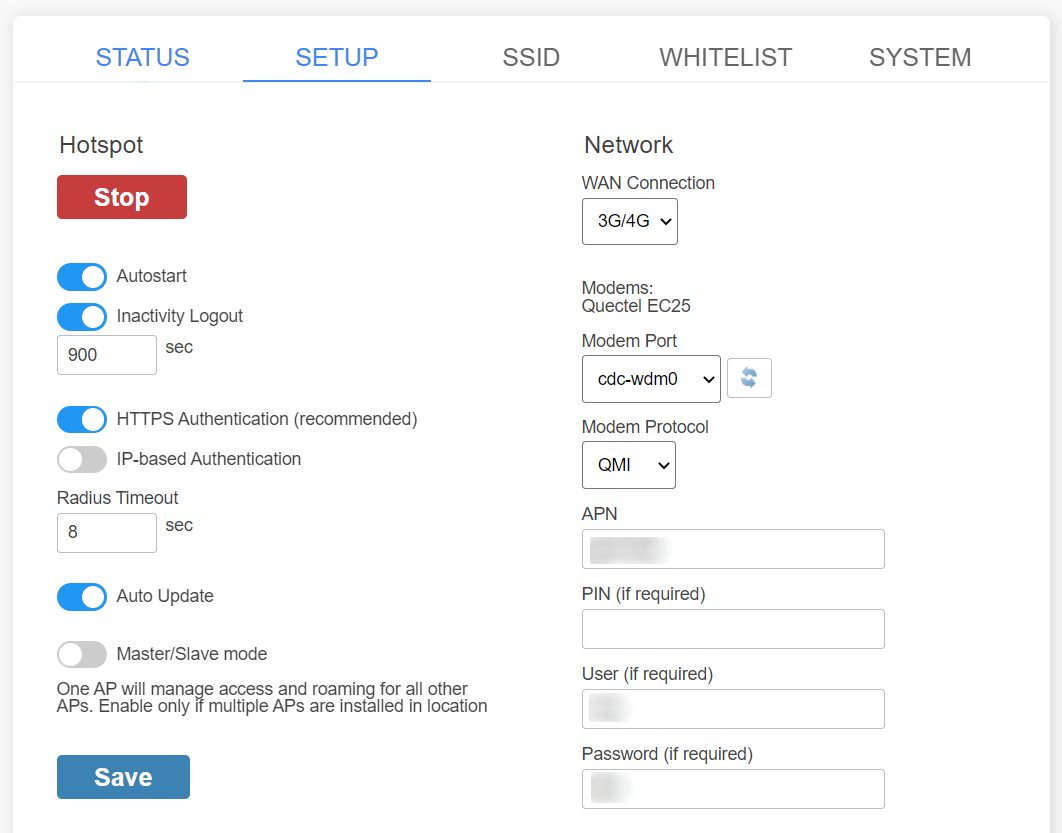
Please obtain APN, User, and Password from your SIM Telecom provider.