
Visitors Analytics
The Visitors analytics page provides an overview of guest activity across your WiFi network. It helps you understand how many visitors are recorded, how often they return, how long they stay connected, and how much network traffic they generate.
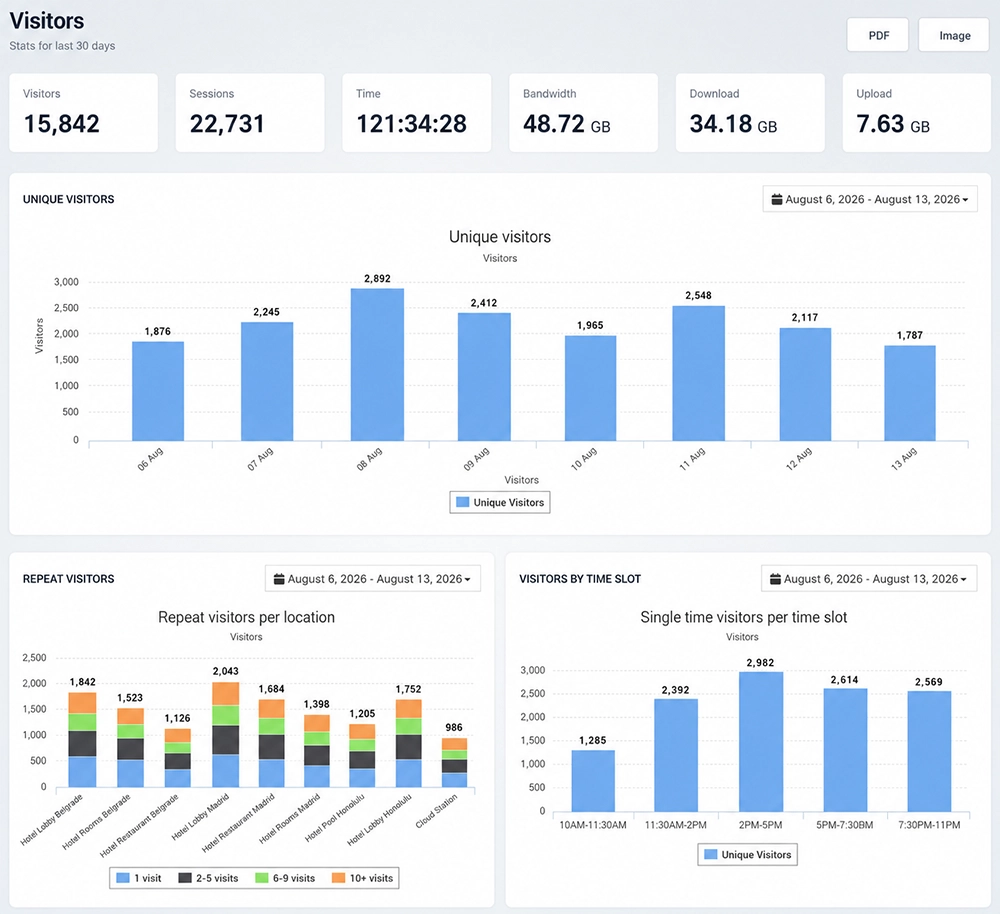
Visitor Overview
The summary at the top of the page shows the main visitor statistics for the reporting period:
Visitors – Total number of recorded visitors.
Sessions – Total number of WiFi sessions generated by those visitors.
Time – Total accumulated connection time.
Bandwidth – Total network traffic generated by visitors.
Download – Total downloaded data.
Upload – Total uploaded data.
These statistics provide a quick overview of guest WiFi usage and make it easier to compare activity between different periods.
Unique Visitors
The Unique Visitors chart shows how many individual visitors used the WiFi network during the selected period.
This helps distinguish the actual number of visitors from the total number of sessions, since one visitor may connect multiple times.
Use this chart to identify days or periods with higher or lower visitor activity.
Repeat Visitors
Repeat visitor analytics help you identify users who return and connect to the WiFi network again.
When multiple locations are managed from the same WiFi Hotspot account, repeat visitor activity can also be analyzed by location.
This information is useful for understanding visitor retention and identifying locations with a higher number of returning guests.
Single-Time Visitors
Single-time visitor analytics show users who connected only once during the analyzed period.
Reviewing these visitors alongside repeat visitors provides a clearer picture of how frequently guests return and use your WiFi service.
Select a Reporting Period
Use the date selector above the analytics chart to change the reporting period.
Available options include:
Today
Yesterday
Last 7 Days
Last 30 Days
This Month
Last Month
Custom date range
For a custom report, select the required From and To dates and apply the filter.
How to Use Visitors Analytics
Open Analytics → Visitors.
Review the visitor summary at the top of the page.
Select the period you want to analyze.
Check Unique Visitors to see how many individual guests used the WiFi network.
Review repeat visitor activity to identify returning guests.
Compare single-time and repeat visitors to better understand visitor behavior.
Review total session time and bandwidth usage when evaluating overall WiFi activity.
Visitors analytics provide a simple way to measure guest activity, identify returning users, compare usage between periods, and better understand how visitors interact with your WiFi network.