
Session Log
The Session Log provides a detailed record of WiFi user sessions across all locations and hotspots. Administrators can review individual connections, search for a specific user or device, check session duration and bandwidth usage, and see whether a session is currently active or already completed.
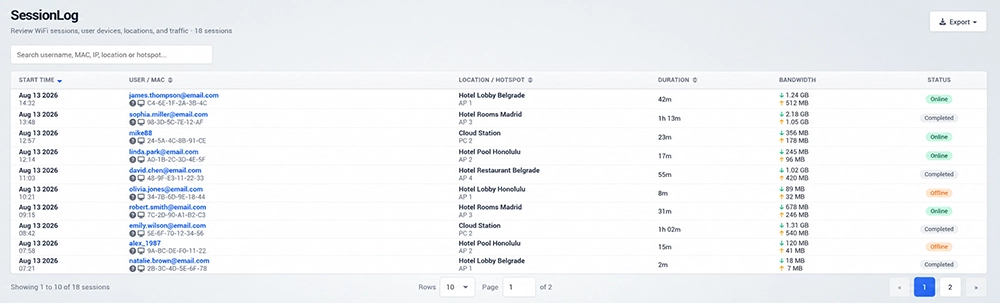
Session Records
Each row represents an individual WiFi session and includes the most important connection details:
Start Time – Date and time when the user session started.
User / MAC – Username associated with the session and the device MAC address.
Location / Hotspot – Location and hotspot where the session was recorded.
Duration – Total duration of the user session.
Bandwidth – Download and upload traffic generated during the session.
Status – Current state of the session, such as Online, Completed, or Offline.
This view provides a convenient way to inspect user activity across multiple locations from a single screen.
Search Sessions
Use the search field at the top of the page to quickly find a specific session.
You can search by:
Username
MAC address
IP address
Location
Hotspot
Enter the relevant information in the search field and the Session Log will display matching records.
This is especially useful when you need to investigate the activity of a particular user or device.
Session Status
The Status column shows the current state of each recorded session.
Online – The user currently has an active session.
Completed – The recorded session has ended normally.
Offline – The user is no longer connected.
Session status makes it easier to distinguish active connections from historical session records.
Bandwidth Usage
The Bandwidth column displays the amount of network traffic generated during each session.
Download and upload traffic are shown separately, allowing administrators to quickly identify sessions with higher or lower data consumption.
Combined with session duration, this information provides a clearer picture of how individual users are using the WiFi network.
Export Session Logs
Use the Export option in the upper-right corner to export session information for additional analysis, reporting, or record keeping.
Before exporting, you can use the search option to narrow the displayed sessions when you only need records related to a specific user, device, location, or hotspot.
How to Use the Session Log
Open Analytics → Session Log.
Review the latest WiFi sessions in the table.
Use the search field when you need to find a particular user, MAC address, IP address, location, or hotspot.
Check Duration to see how long the user was connected.
Review Bandwidth to see download and upload traffic for the session.
Check Status to determine whether the session is currently Online, Completed, or Offline.
Use Export when session records need to be saved or processed outside the dashboard.
Use the page and row controls at the bottom of the table to browse additional session records.
The Session Log is useful for reviewing individual WiFi connections, troubleshooting user activity, analyzing bandwidth consumption, and maintaining a detailed history of network sessions.