
Devices
The Devices analytics page provides detailed information about the devices used to connect to your WiFi network. Administrators can analyze device activity, device types, browsers, languages, and recent device sessions across all managed locations.
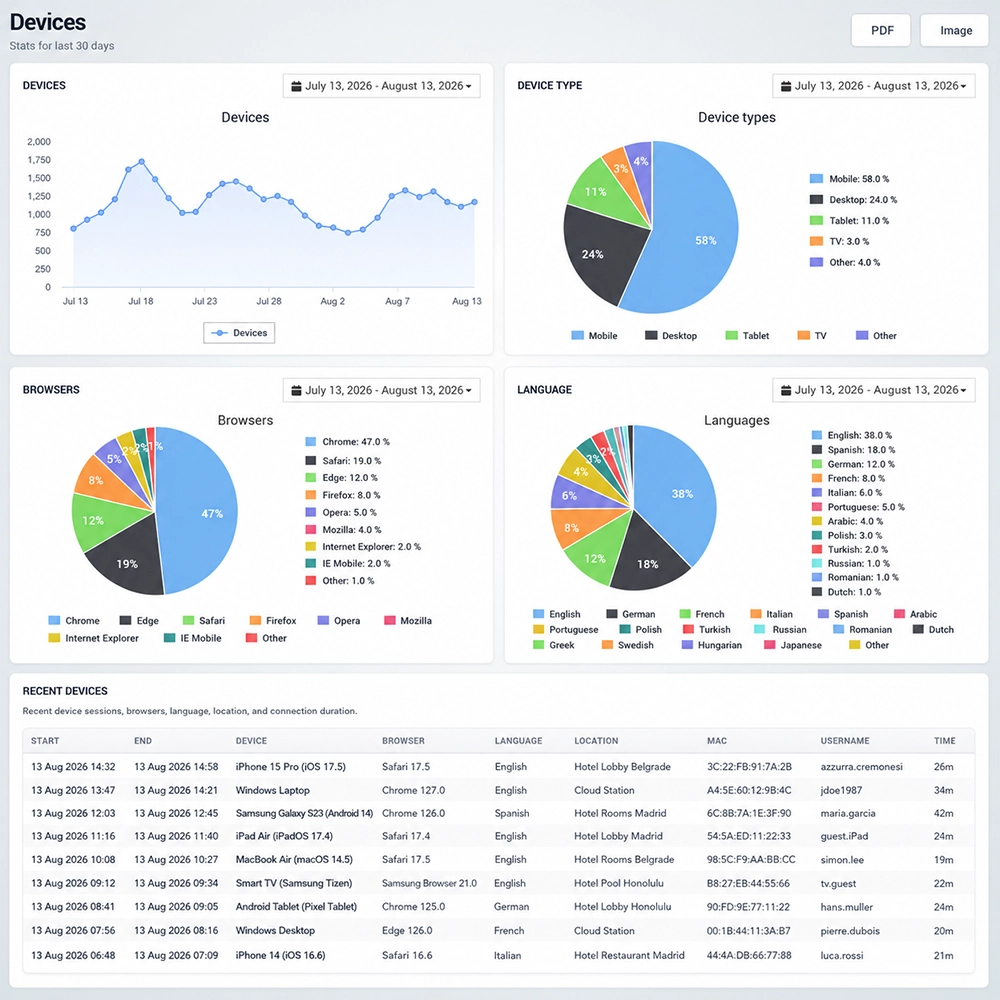
Device Activity
The Devices chart shows the number of devices recorded during the selected reporting period.
Use this chart to monitor changes in device activity over time and identify periods with higher or lower WiFi usage.
The date selector above the chart allows you to change the reporting period.
Device Types
The Device Types chart shows how connected devices are distributed by category.
Devices may be grouped as:
Mobile
Desktop
Tablet
TV
Other
This provides a quick overview of the types of devices most frequently used to access the WiFi network.
For example, a high percentage of mobile devices may indicate that most guests access the network from smartphones, while desktop or tablet usage may be more common in business or longer-stay environments.
Browsers
The Browsers chart shows which web browsers are used by WiFi users.
Depending on the connected devices, the report may include browsers such as:
Chrome
Safari
Edge
Firefox
Opera
Mozilla
Internet Explorer
Other browsers
Browser statistics can help administrators understand the client environment used to access the WiFi service and captive portal.
Languages
The Languages chart displays the language distribution detected for connected devices.
This information provides insight into the language preferences of the WiFi audience and can be particularly useful for hotels, public WiFi networks, tourism locations, and other environments serving international visitors.
The report may include multiple languages depending on the connected users and devices.
Recent Devices
The Recent Devices table provides detailed information about the latest recorded device sessions.
For each session, the table can include:
Start – Date and time when the session started.
End – Date and time when the session ended.
Device – Detected device or operating system information.
Browser – Browser used by the device.
Language – Detected device language.
Location – WiFi location where the device connected.
MAC – Device MAC address.
Username – User account associated with the session.
Time – Total session duration.
This detailed view makes it easier to review individual device connections and understand the technical environment used by WiFi visitors.
Select a Reporting Period
Each analytics chart includes a date selector that allows you to define the period you want to analyze.
Changing the reporting period makes it possible to compare device activity, browser usage, device types, and language distribution over time.
Export Device Analytics
Use PDF or Image in the upper-right corner to save or share the Devices analytics report.
These options are useful when device statistics need to be included in internal reports, presentations, or network usage analysis.
How to Use Devices Analytics
Open Analytics → Devices.
Select the reporting period you want to analyze.
Review the Devices chart to monitor device activity over time.
Check Device Types to understand which categories of devices are most commonly used.
Review Browsers to see which browsers are used to access the WiFi service.
Check Languages to understand the language distribution of connected devices.
Review Recent Devices for detailed information about individual device sessions.
Use PDF or Image when you need to save or share the analytics report.
Devices analytics help administrators understand how guests access the WiFi network, identify the most common device and browser combinations, and gain additional insight into the technical profile of connected users.