
Demographics
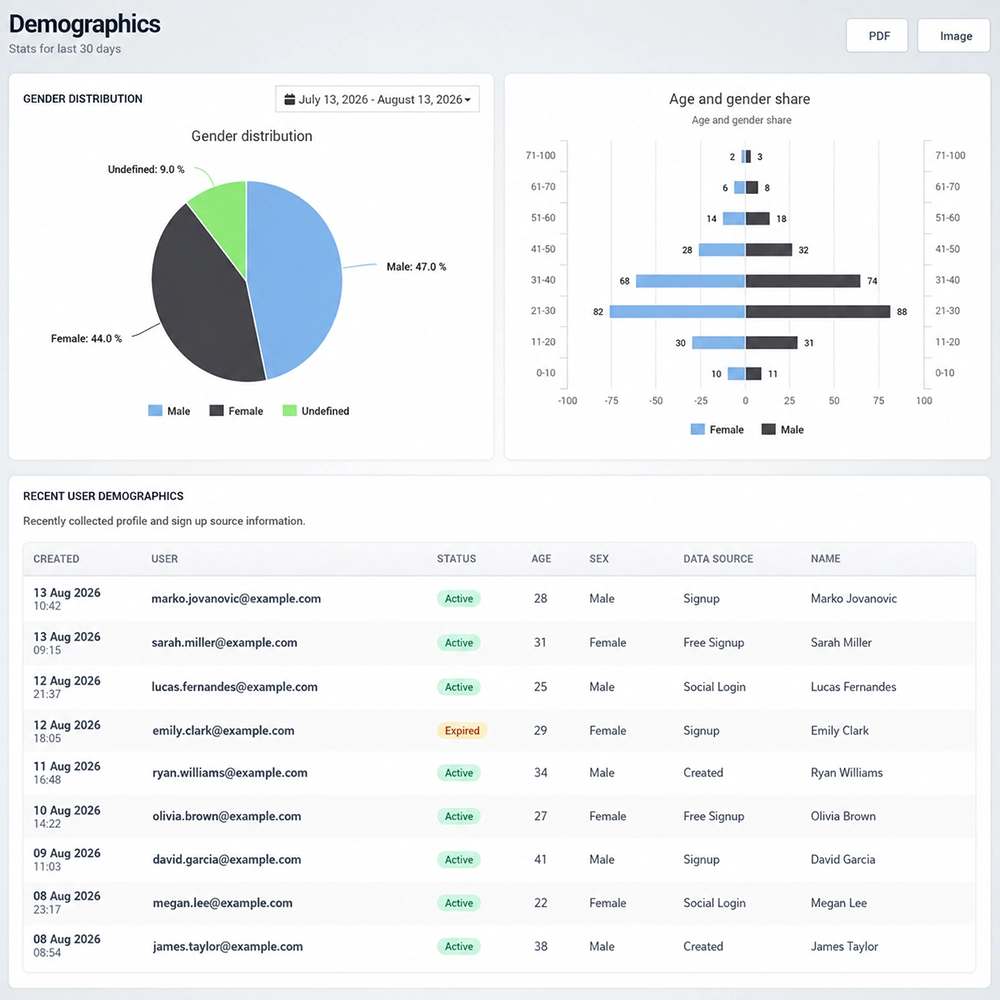
The Demographics analytics page provides insight into the profile of WiFi users based on demographic information collected during signup or login. Administrators can review gender and age distribution, analyze demographic groups, and inspect recently collected user profile data.
Gender Distribution
The Gender Distribution chart shows the percentage of users by gender for the selected reporting period.
Users are grouped as:
Male
Female
Undefined
Undefined represents users for whom gender information is not available or was not collected.
Use the date selector above the chart to analyze demographic distribution for a specific period.
Age and Gender Share
The Age and Gender Share chart combines age groups with gender information to provide a more detailed view of the WiFi audience.
Users are grouped into age ranges such as:
0–10
11–20
21–30
31–40
41–50
51–60
61–70
71–100
Female and male users are displayed separately within each age group, making it easy to compare demographic distribution across different generations.
This information can help businesses better understand the composition of their WiFi audience.
Recent User Demographics
The Recent User Demographics table displays recently collected profile information for individual users.
For each user, the report can include:
Created – Date and time when the user record was created.
User – User account or email address.
Status – Current account status.
Age – Recorded user age.
Sex – Recorded gender information.
Data Source – Method through which the user information was collected.
Name – User name, when available.
The Data Source field helps administrators understand where the demographic information originated.
Depending on the configured login and account creation methods, the source may include options such as Signup, Free Signup, Social Login, or manually created accounts.
Select a Reporting Period
Use the date selector above the demographic chart to define the period you want to analyze.
Changing the reporting period allows you to compare demographic distribution over time and identify changes in the composition of your WiFi audience.
Export Demographic Reports
Use PDF or Image in the upper-right corner to save or share the demographic analytics report.
These options are useful when demographic information needs to be included in internal reports, presentations, or marketing analysis.
How to Use Demographics Analytics
Open Analytics → Demographics.
Select the reporting period you want to analyze.
Review Gender Distribution to understand the overall gender composition of WiFi users.
Use Age and Gender Share to compare demographic groups by age and gender.
Review Recent User Demographics for individual profile information.
Check Data Source to see how the user information was collected.
Use PDF or Image when the report needs to be saved or shared.
Demographics analytics help businesses better understand their WiFi audience and provide useful data for customer analysis, segmentation, and more relevant marketing activities.